The Access panel in the block editor's sidebar lets you lock a post to one or more access groups while you write it. Tick a group, save the post, and only that group's members can open it.
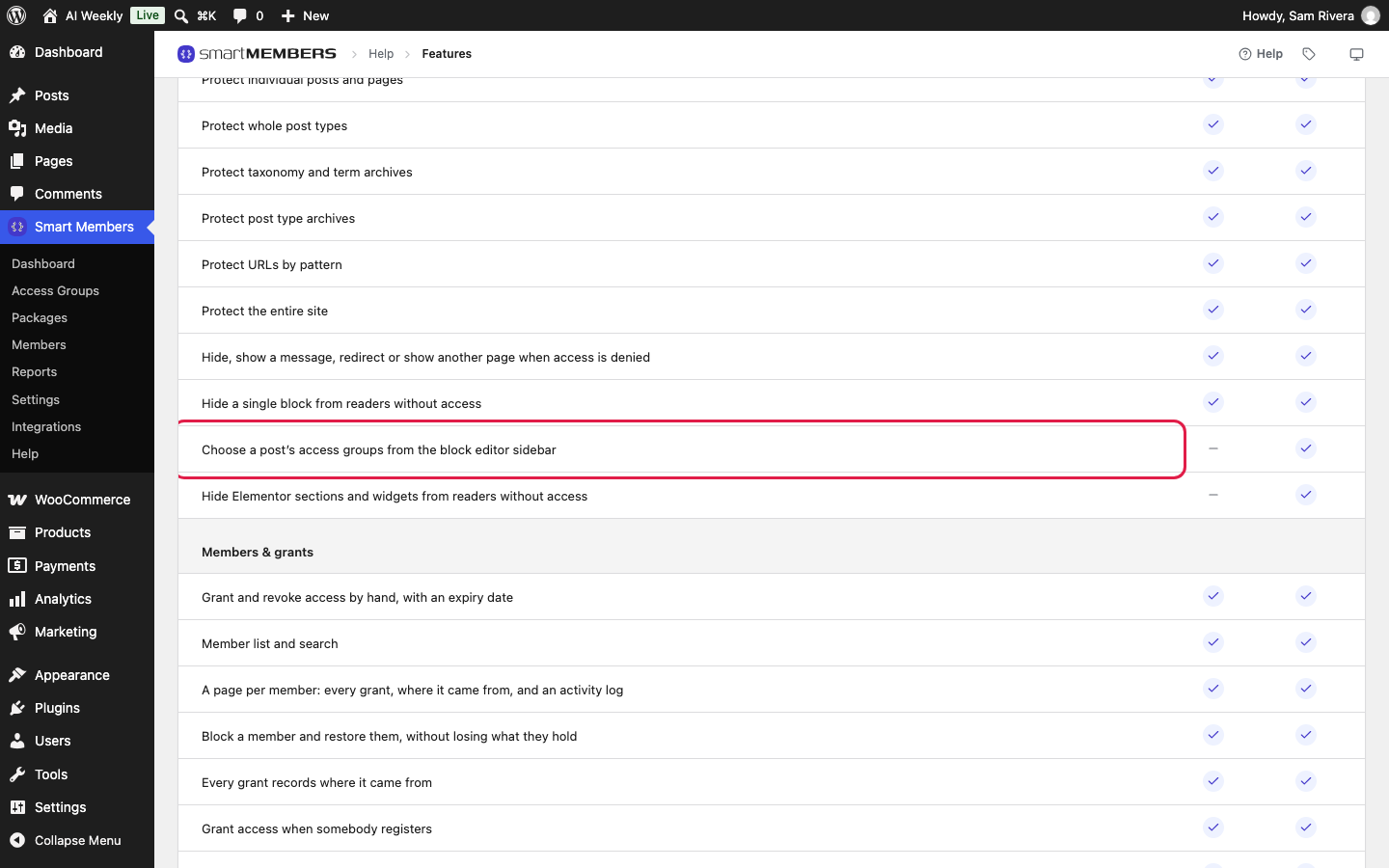
Pro: The panel needs Smart Members Pro. On the free plugin, add the post to the group under Specific pages, posts and taxonomies instead.
The panel locks the whole post. To hide part of one, use a block's Visible to setting (Restrict a block).
Where to find the panel
In the block editor, open the Post tab of the sidebar (Page on a page) and find the panel with a padlock. It appears on posts, pages and other public kinds of content, such as lessons. Only administrators see it.
The Access panel
| Option | What it does | Example (AI Weekly) |
|---|---|---|
| Panel title Access — public / Access — restricted | Says whether any group names this post. | A new AI News post shows Access — public. |
| One tick box per access group | Tick a group to add this post to what it protects; untick to take it out. Members of any ticked group can open the post. Leave all unticked to keep it public. | Tick AI Weekly — Reader on a new Deep Dive. |
Inactive groups are listed too; ticking one protects nothing until the group is switched on.
Lock a post from the editor
Tick the group
In the Access — public panel, tick AI Weekly — Reader. The title changes to Access — restricted.
Save the post
Click Update or Publish.
Check it as a visitor
Open the post in a private browser window. You see what the Reader group shows refused visitors (Unauthorized access: what visitors see).
How the panel and the group stay in step
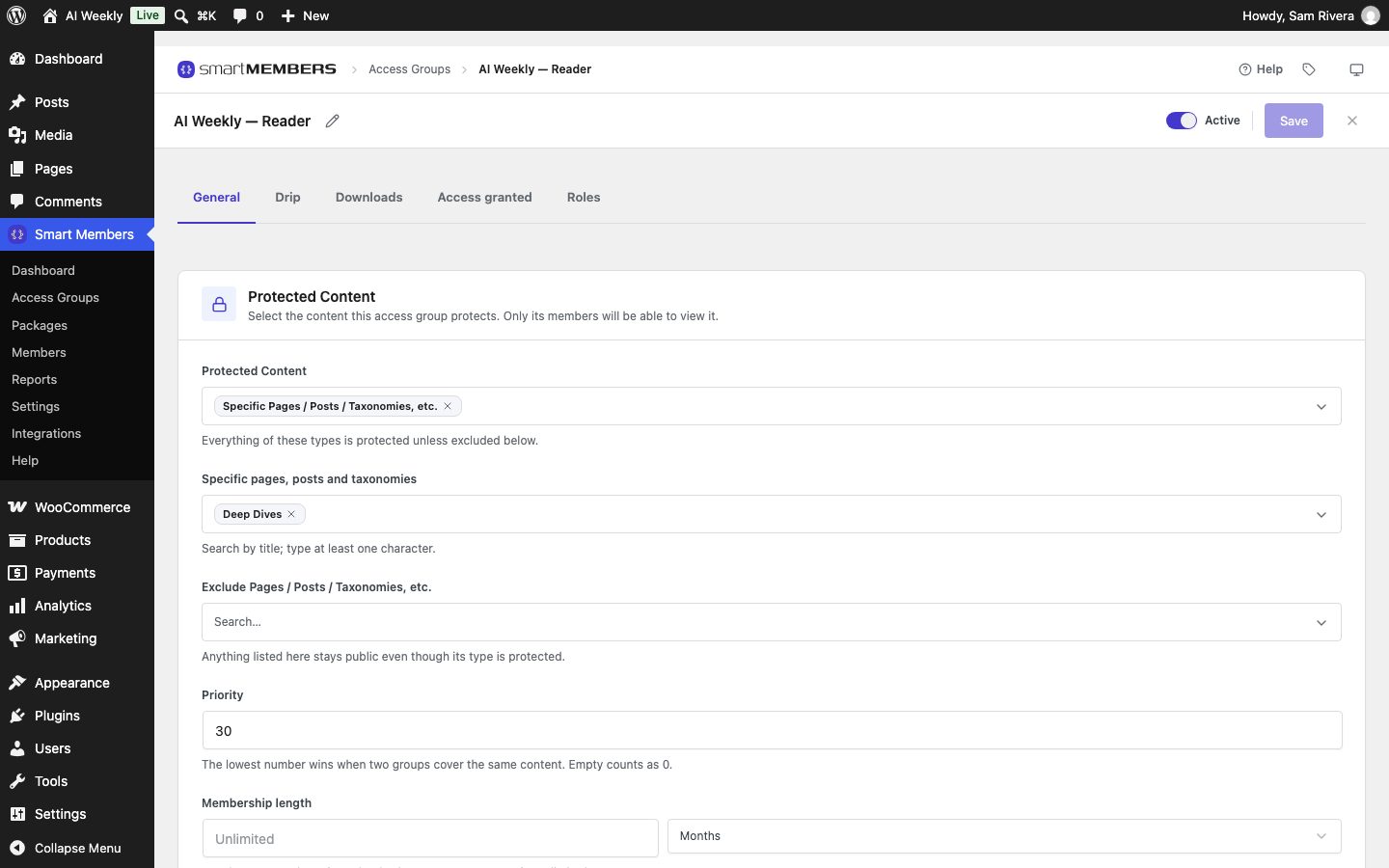
The panel edits the access group. A post you tick joins the Specific pages, posts and taxonomies list on the group's General tab; untick it and it leaves. Change the list on the group screen, and the panel follows.
Good to know
- "Public" only means no group names this post directly. A Deep Dive protected through its category shows Access — public and is still locked. Unticking never unlocks a protected category.
- Classic edit screens get a box instead. WooCommerce products, for example, show a Smart Members — Access box with the same tick boxes.
- If you deactivate Pro, the panel disappears, but the posts stay in the groups' lists and stay protected.