The Help screen is where you check your setup, see what Free and Pro include, and read what Smart Members did behind the scenes. Open it at Smart Members → Help; only administrators see it.
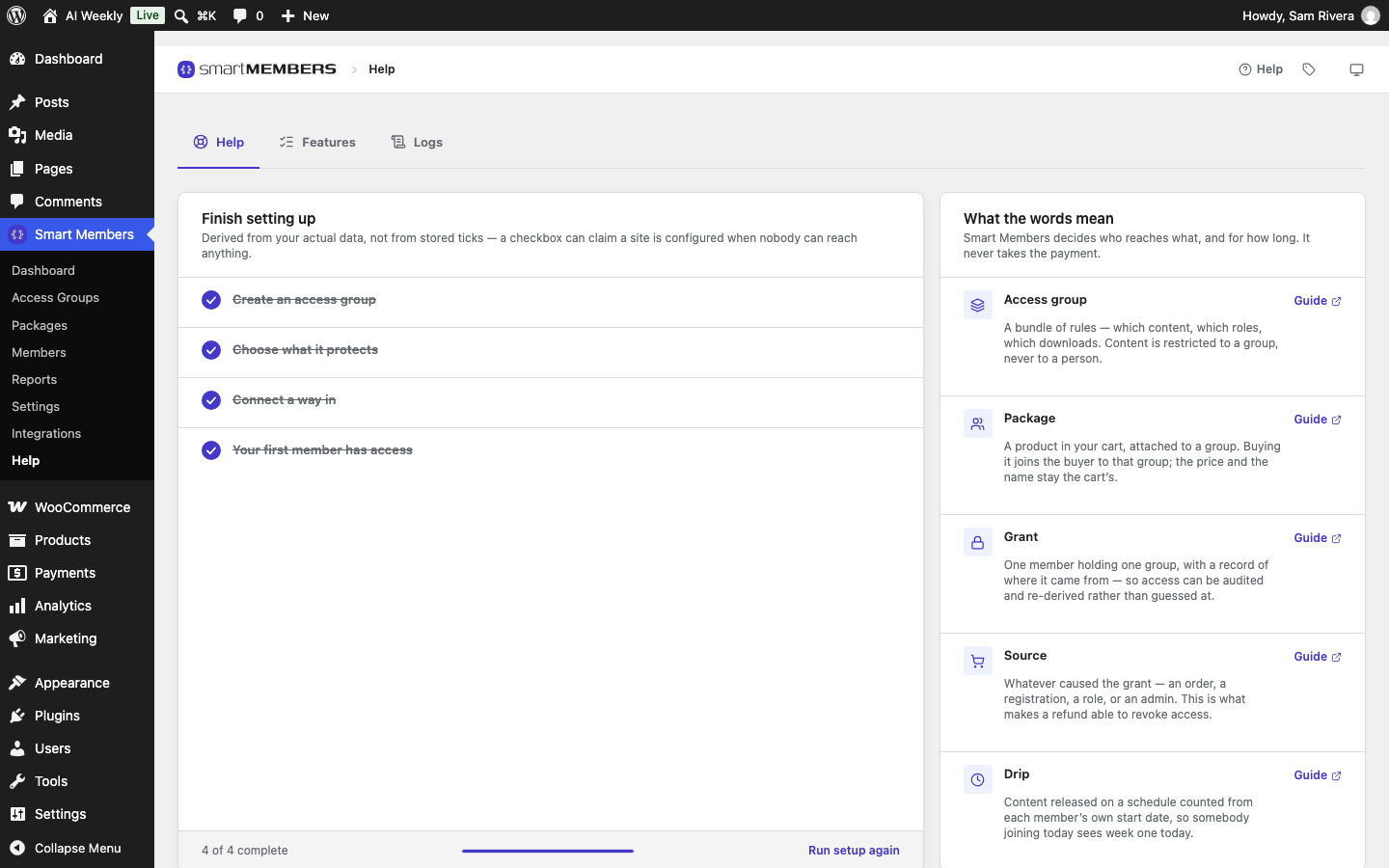
The Help tab
Finish setting up is a four-step checklist that ticks itself from your real data. Each unfinished step links to the screen that does it.
| Step | Ticks when |
|---|---|
| Create an access group | You have at least one access group. |
| Choose what it protects | A group locks some content. |
| Connect a way in | A WooCommerce product gives access, or someone joined a group automatically. |
| Your first member has access | Someone holds a group. |
Below it, What the words mean explains Access group, Package, Grant, Source and Drip. Sample data builds the demo site AI Weekly, which every screenshot here shows; see Sample data. Run setup again reopens the setup screen.
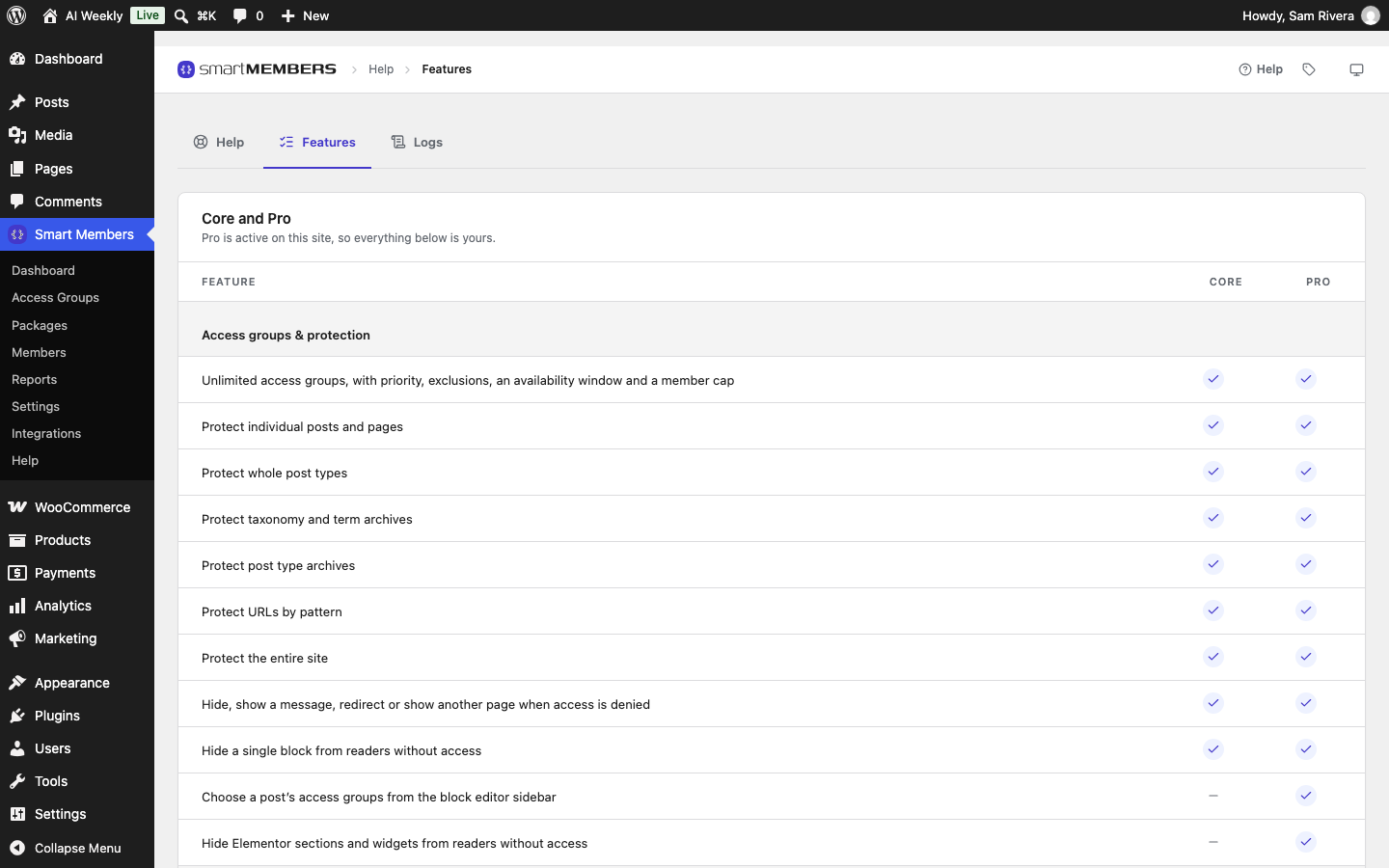
The Features tab
A table of everything Smart Members does, with a tick or a dash under Core (the free plugin) and Pro. Prices are on the pricing page.
The Logs tab
The Debug log: short, dated lines Smart Members writes as it works, for example when it cannot give someone access. Plugin log explains it.
When something goes wrong
- Look at the member. On Smart Members → Members, click their name to see every group they hold, its status and where it came from.
- Check Common problems and fixes.
- Read the log. If a purchase did not give access, the Logs tab usually says why.
- Ask support. Send what you saw, the member's name and the last lines of the log.
Note: Administrators can open every protected post. To see what a visitor sees, use a private browser window.