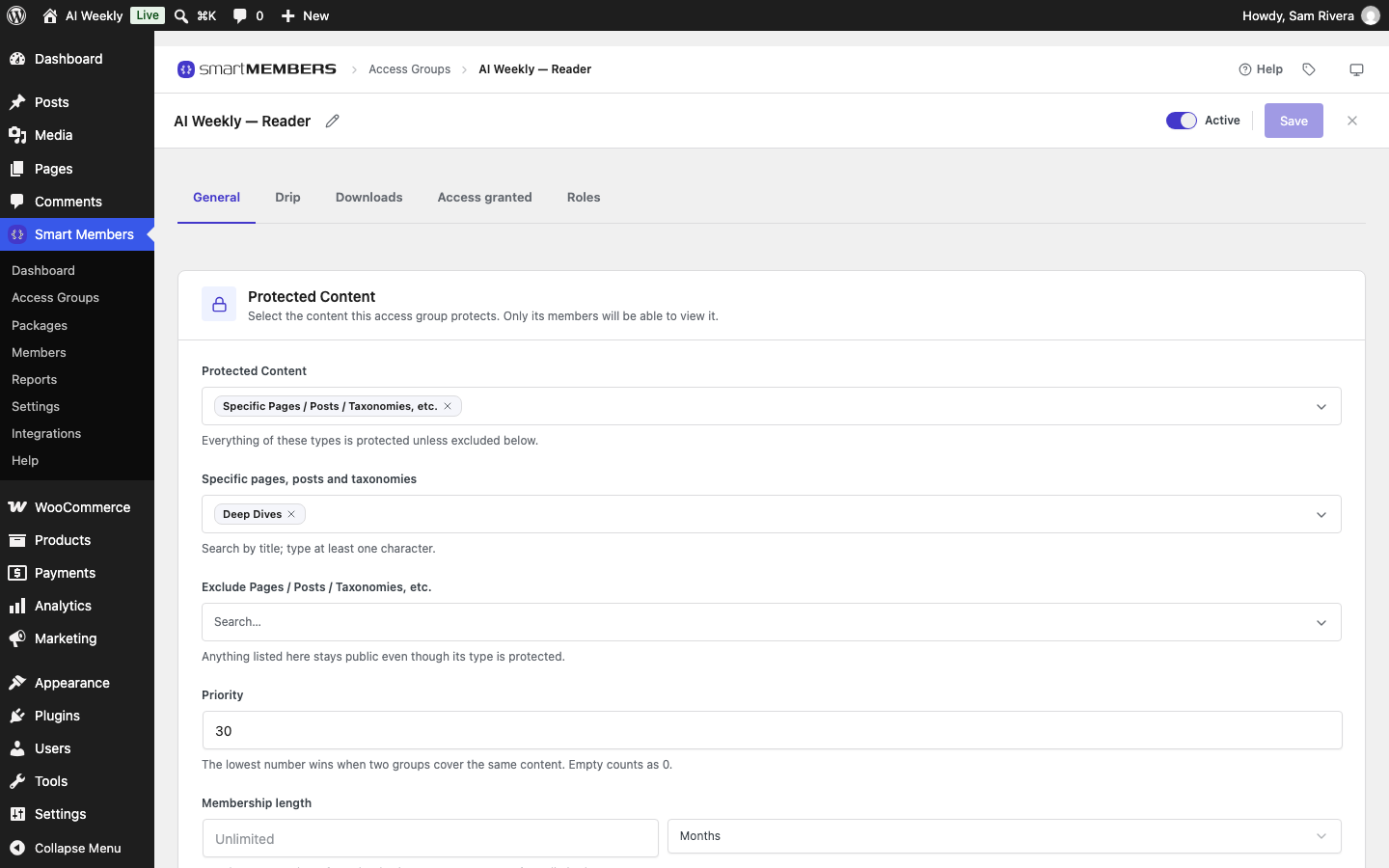
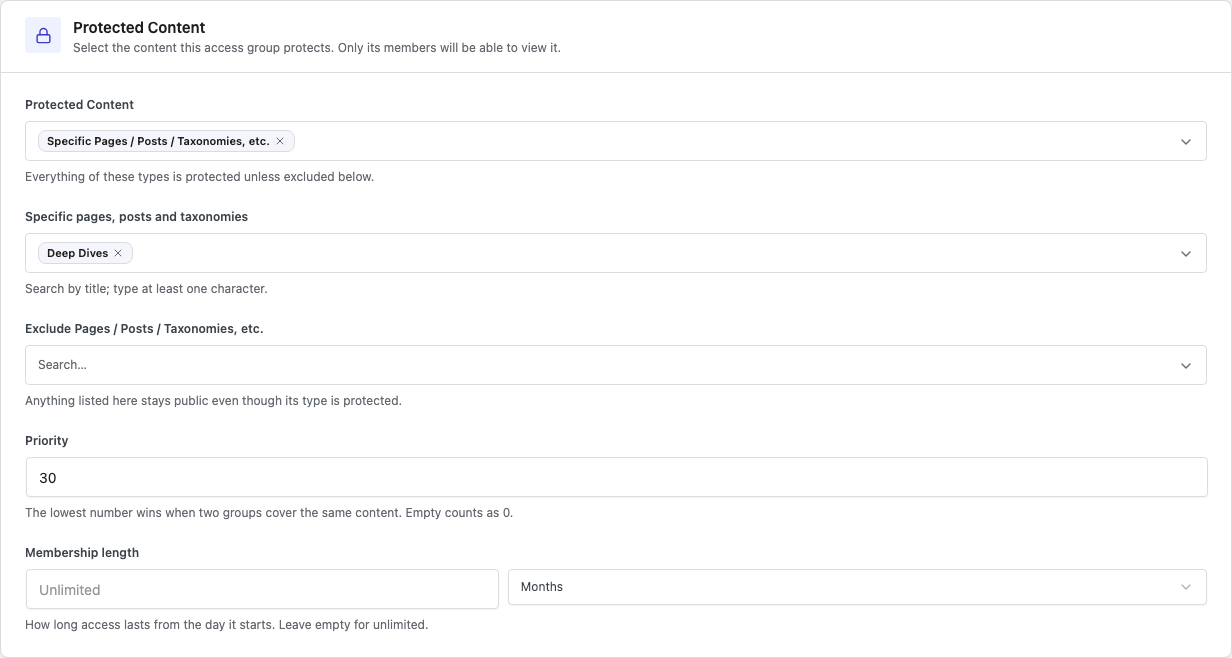
The General tab is where an access group gets its name and decides what it locks. AI Weekly — Reader, for example, locks every post in the Deep Dives category.
The Access Groups list
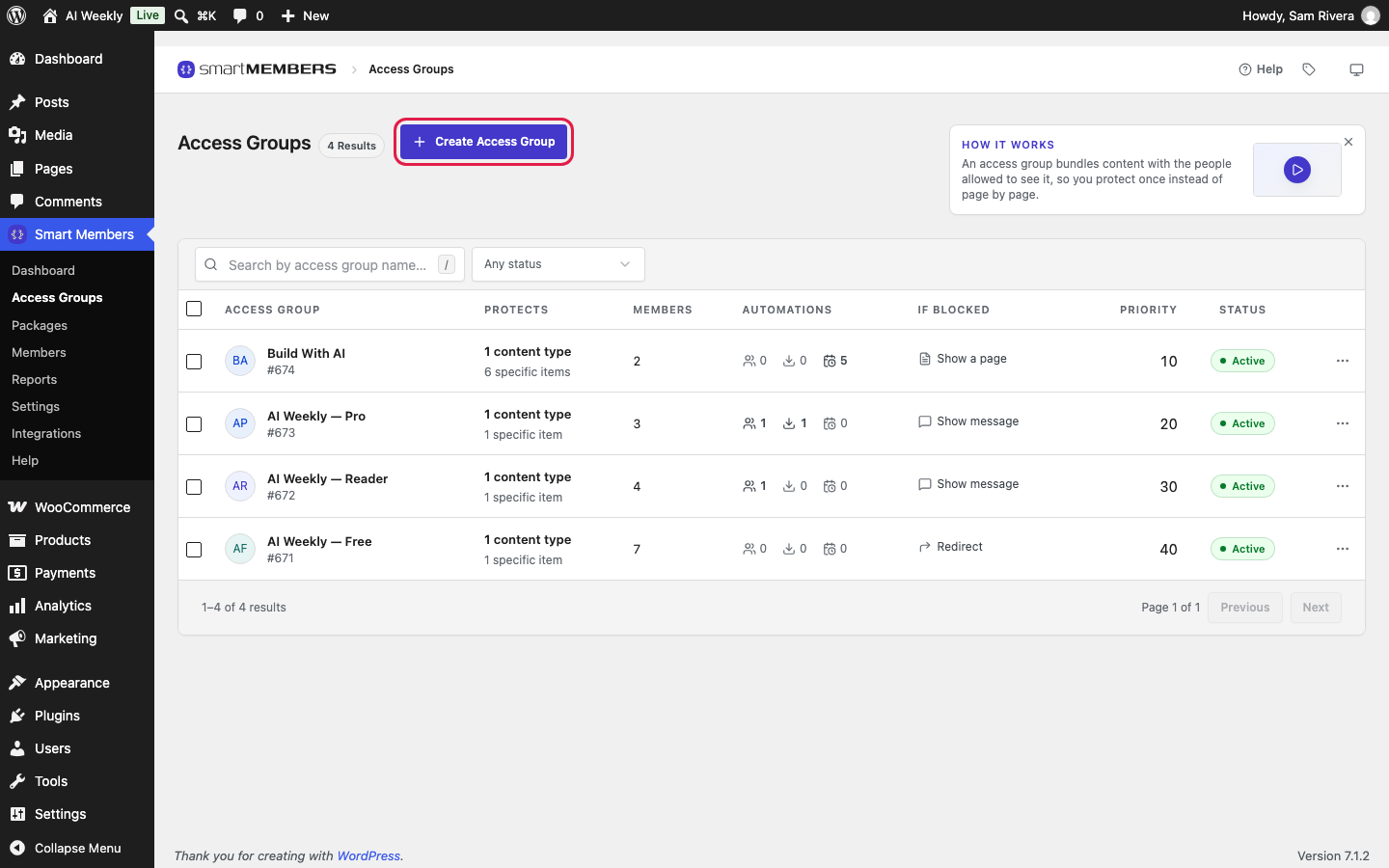
Go to Smart Members → Access Groups. Each row shows what a group protects, its members, what a refused visitor sees (If blocked), its Priority and Status. Click a name to open it.
Create a group
- Click Create Access Group.
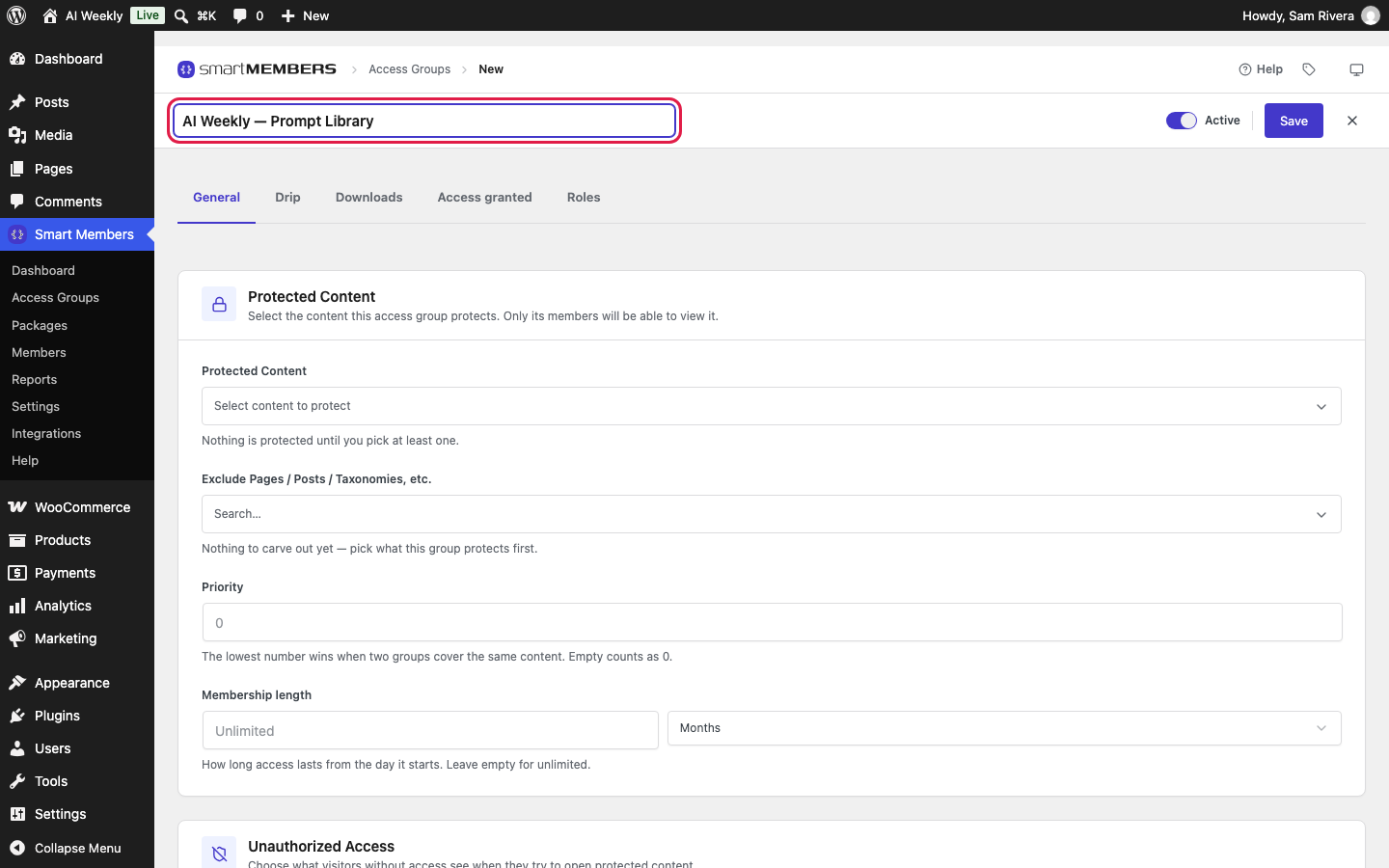
- Type the name in the box at the top. Members will see it.
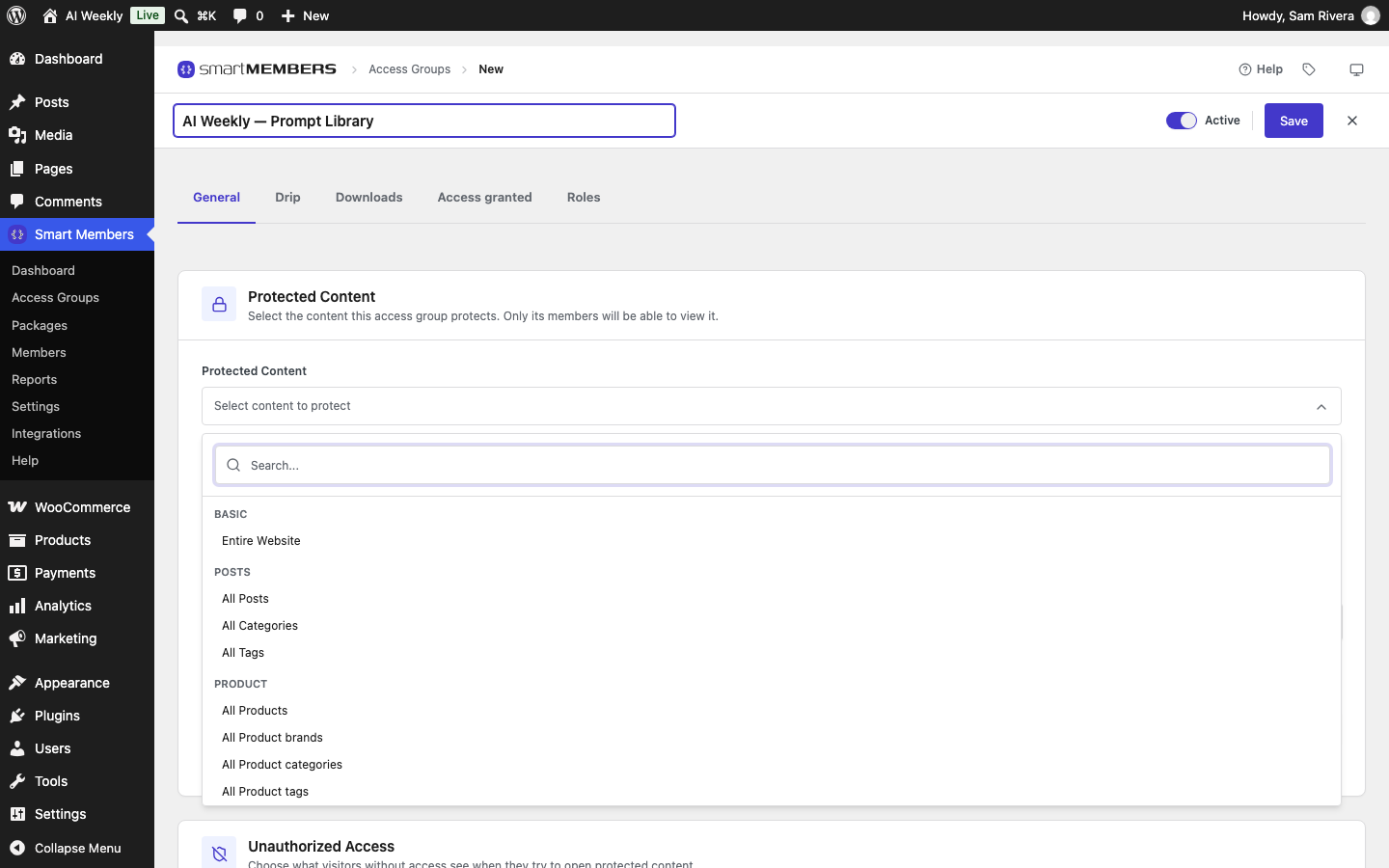
- Under Protected Content, click Select content to protect and pick what it locks.
- Set Unauthorized Access and Access granted, then click Save.
Protected Content: what the group locks
| Choice | What it locks |
|---|---|
| Entire Website | Every post and page, except Login and Register. |
| All Posts, All Pages, All Products… | Every item of that kind, including ones added later. |
| All Categories, All Tags… | Every item with any category (or tag). |
| Specific Pages / Posts / Taxonomies, etc. | Items you search for. A category locks every post in it, now and later. |
| Specific URL | Web addresses you type. |
Web addresses
In Specific URLs, type each address without your domain, separated by commas or new lines.
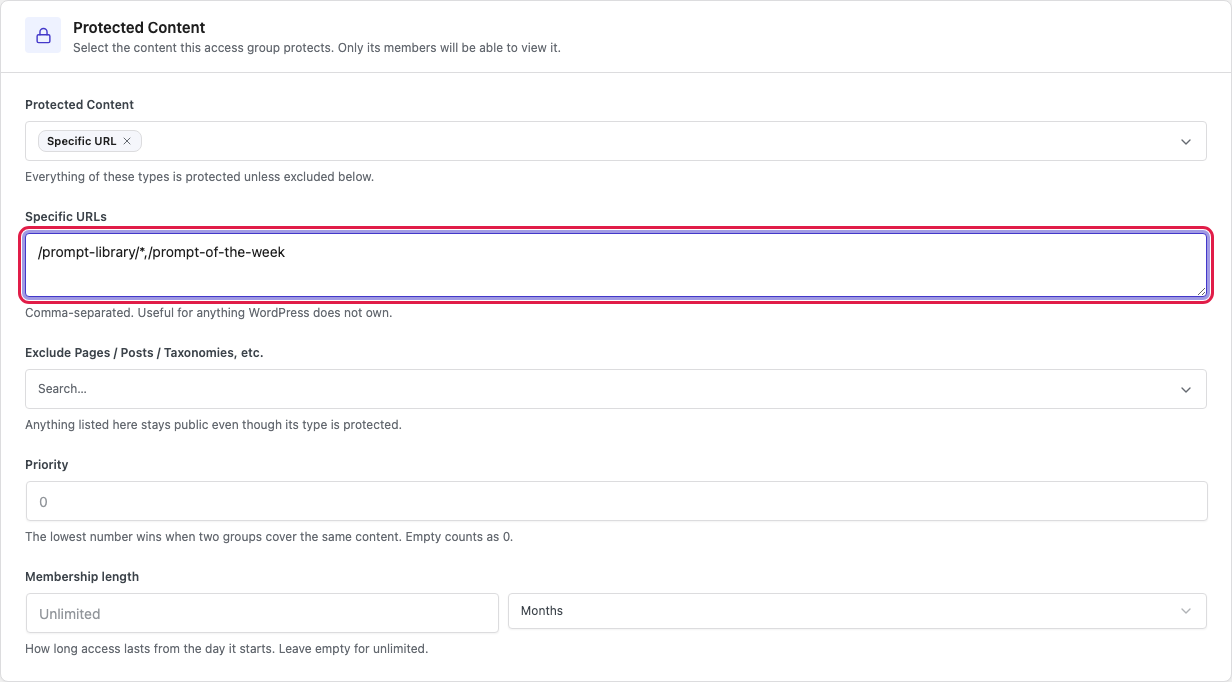
/prompt-of-the-weeklocks that one page./prompt-library/*locks every address starting with /prompt-library/.- Without
*the match is exact:/lessondoes not lock/lesson-3/.
For files in your uploads folder, use the Downloads tab.
Exclusions: what stays public
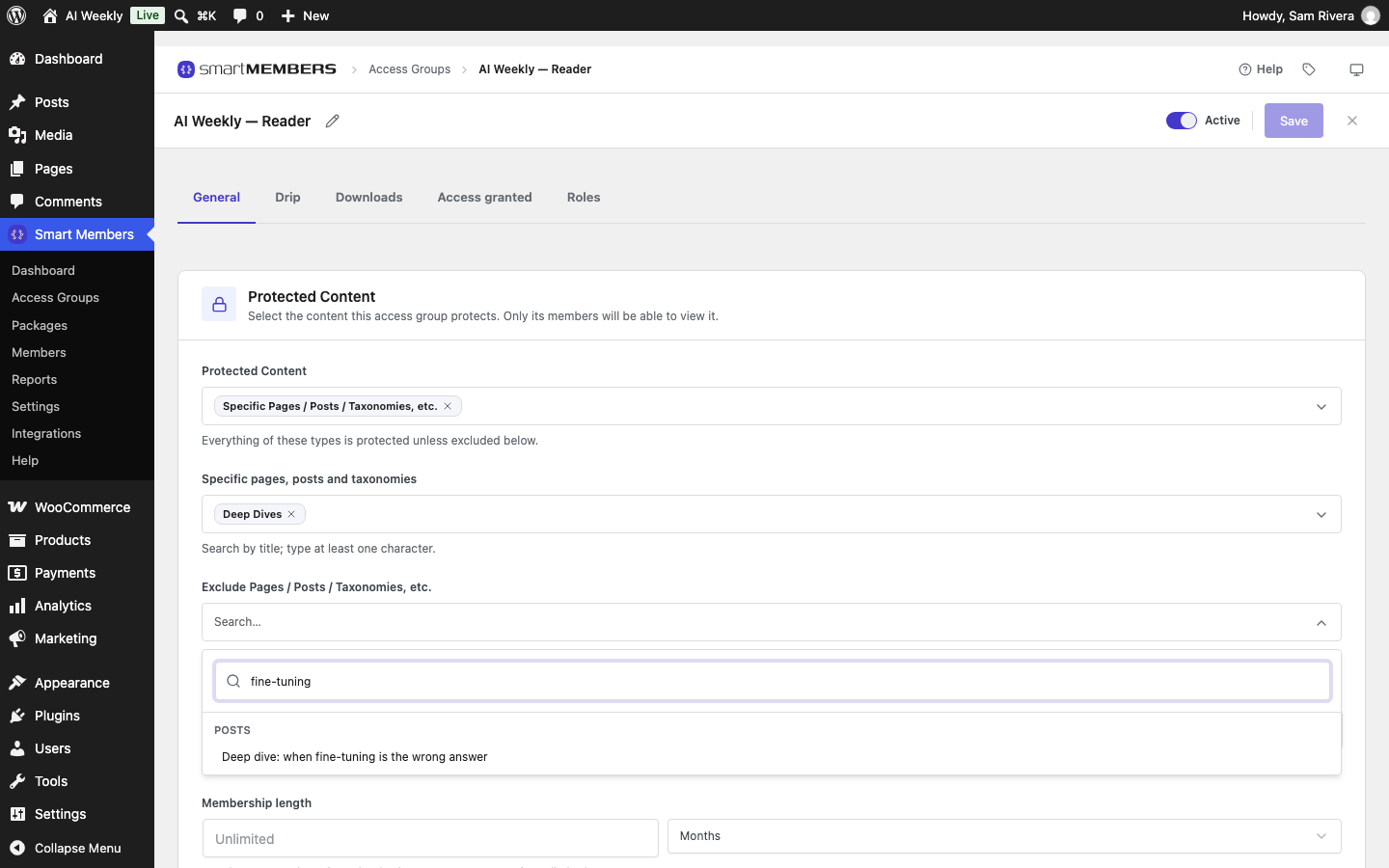
Exclude Pages / Posts / Taxonomies, etc. keeps chosen items open to everyone. An exclusion always wins, even over another group.
Priority and Membership length
| Option | What it does |
|---|---|
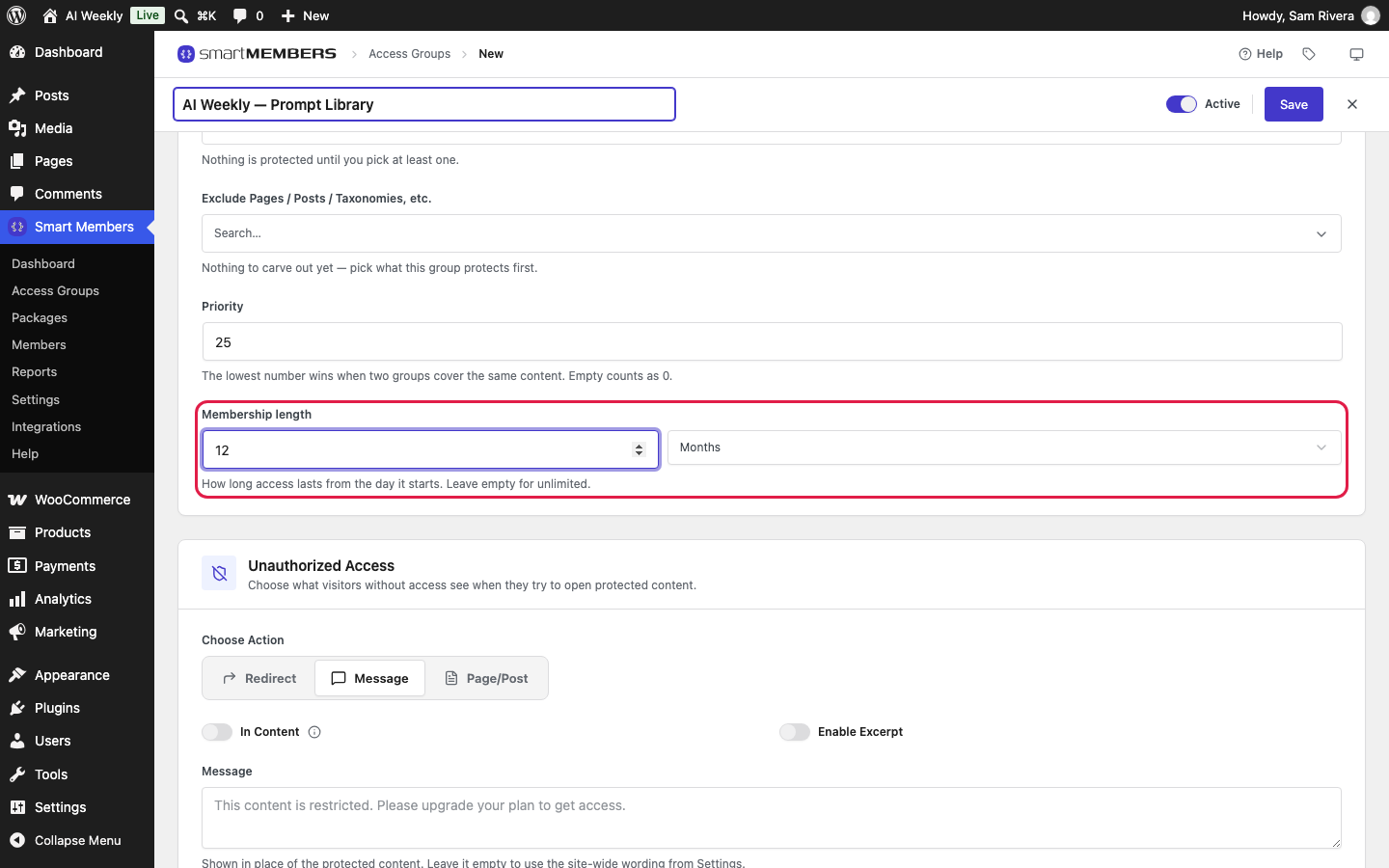
| Priority | When two groups lock one item, the lowest number decides what a refused visitor sees. Empty counts as 0. |
| Membership length | How long access lasts from the day it starts. Empty means Unlimited. |
A subscription's own end date overrides the length.
Active, Save and Discard
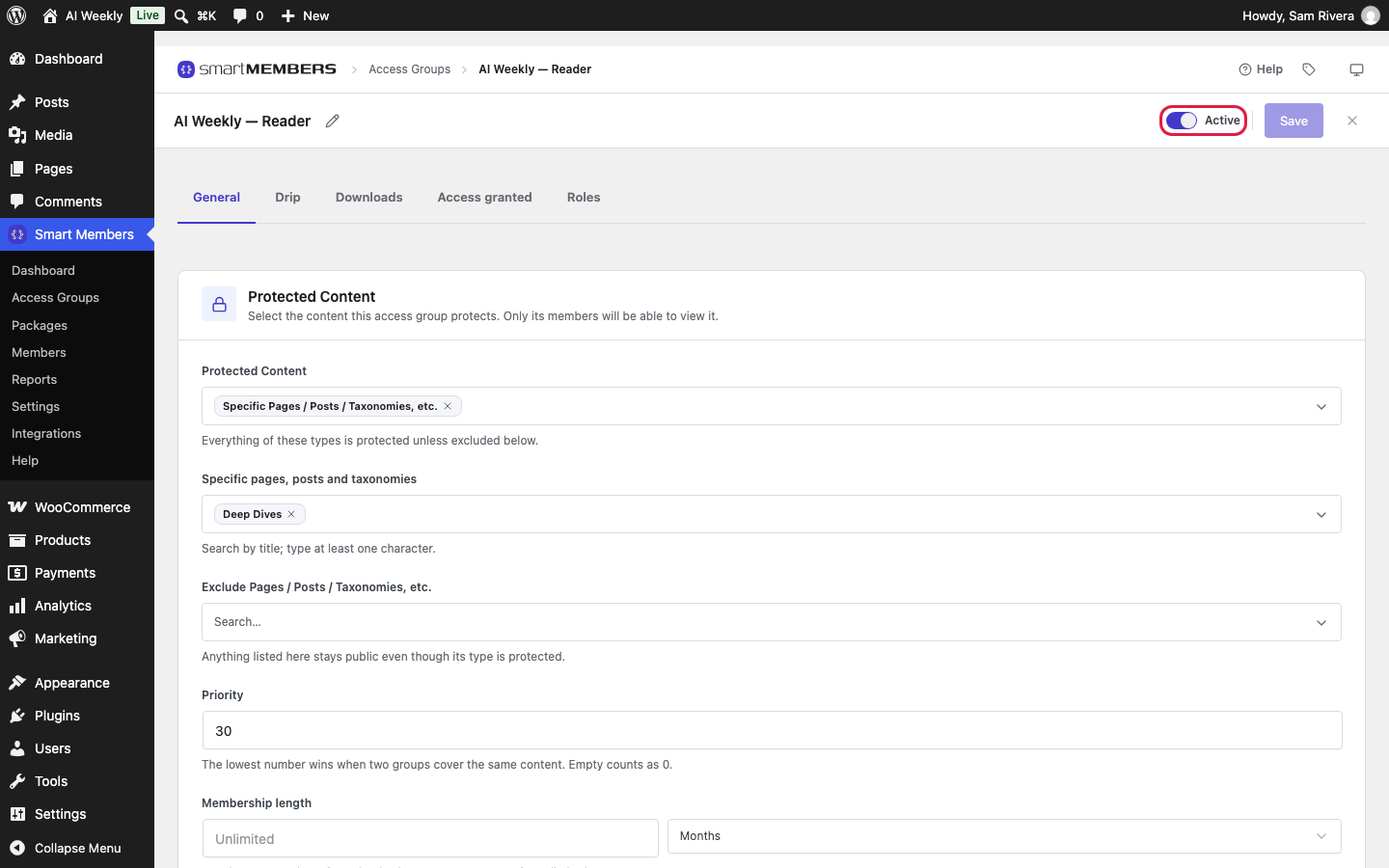
An Inactive group locks nothing and gives nothing, but keeps its members and settings. ✕ (Discard changes) goes back to the last save. The pencil renames the group.
Warning: Saving a group as Inactive makes its content public straight away.
Edit or delete a group
Open the ⋯ menu at the end of a row for Edit or Delete. To delete several, tick them and use the bulk menu.
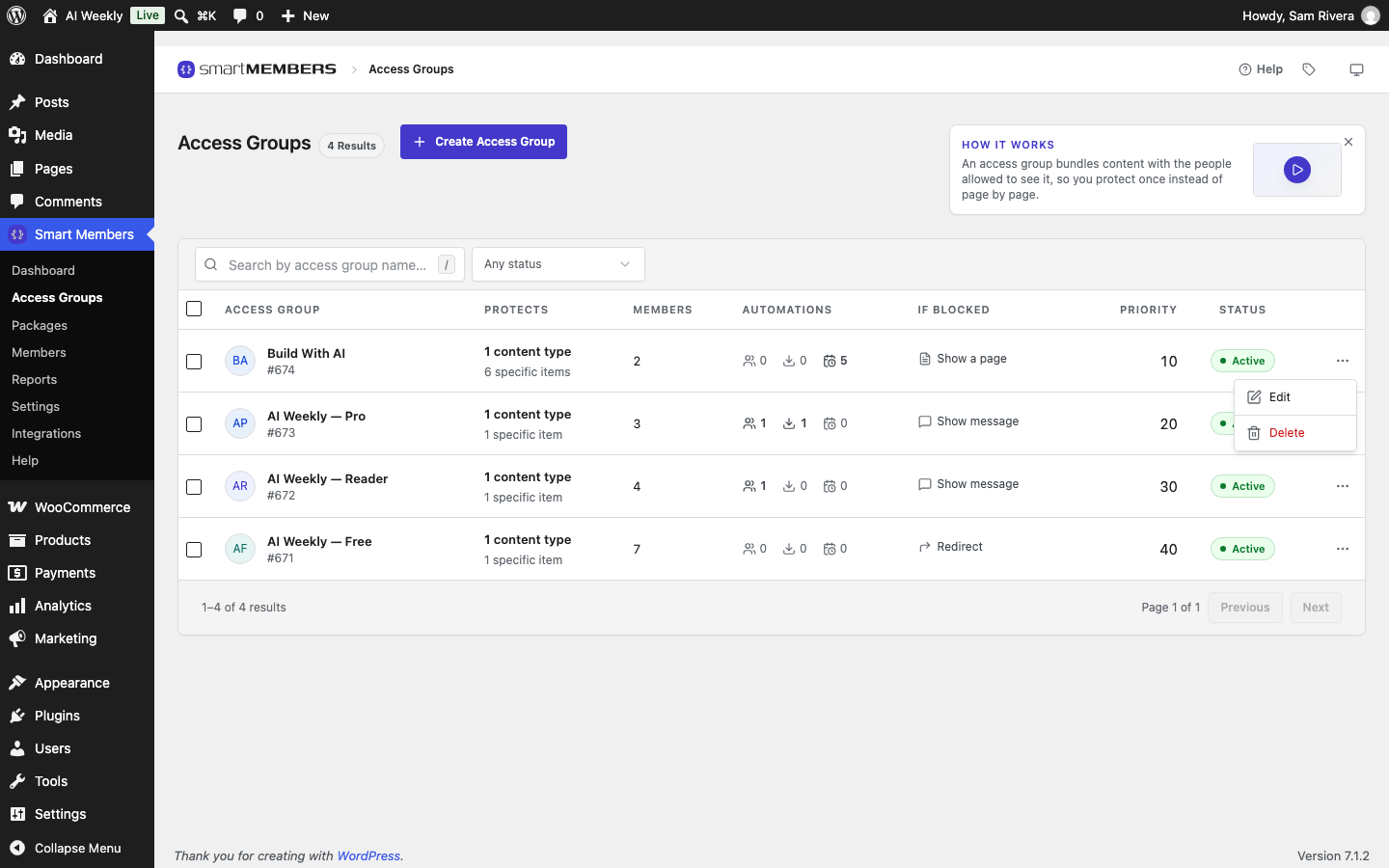
Warning: Deleting a group cannot be undone. Switch it to Inactive if you might need it again.