A membership site is content only members can open, plus a way for people to become members. Here you build AI Weekly's Reader level: $9.00 in WooCommerce, opening every post in Deep Dives.
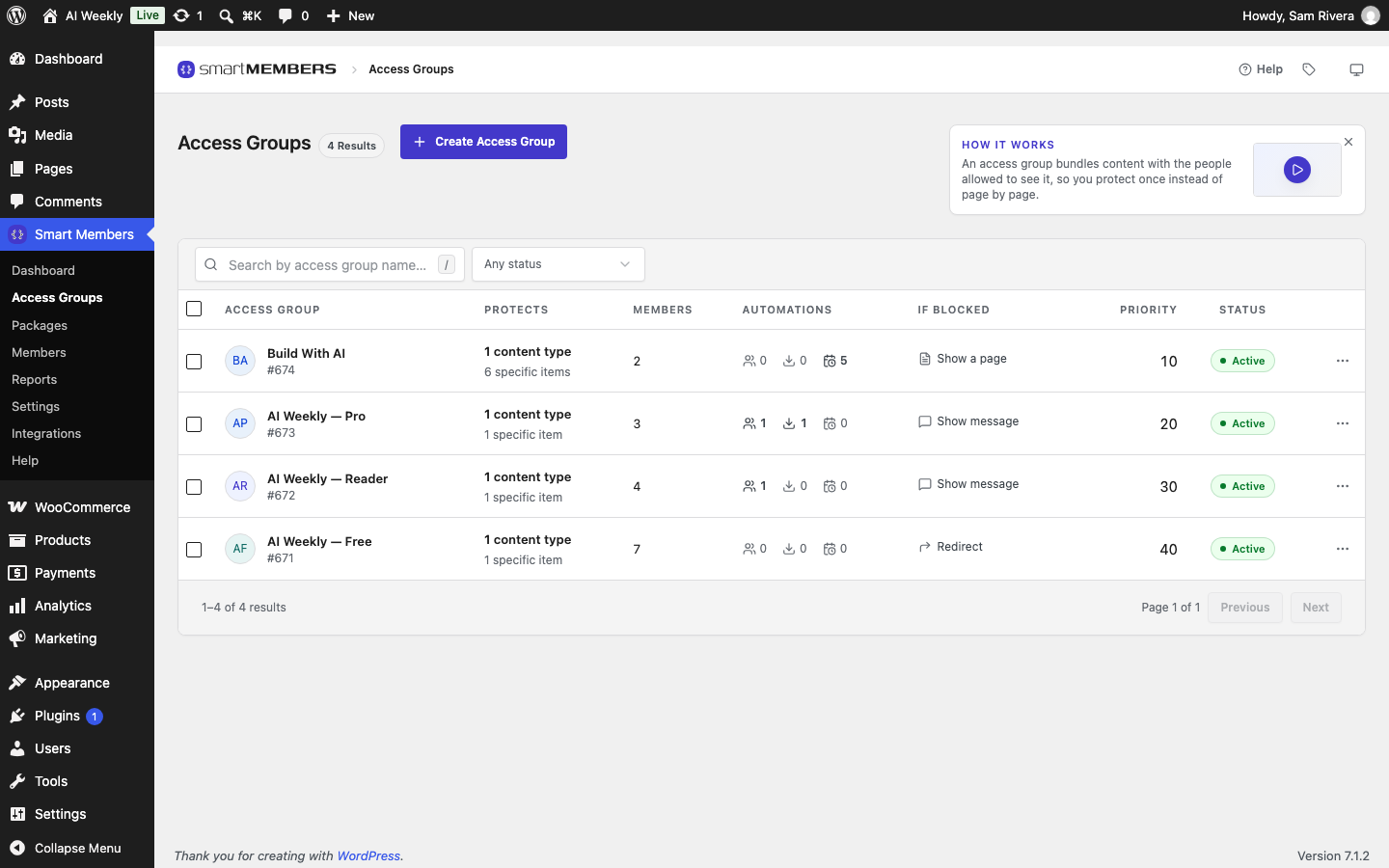
Smart Members calls each membership level an access group. Each stage below is one part of building one.
Tip: To click around a finished site first, build the sample data from Smart Members → Help. It creates the AI Weekly site used here.
Plan your levels
AI Weekly has four levels:
| Level | Locks | Way in | Visitor sees | Priority |
|---|---|---|---|---|
| AI Weekly — Free | Member Notes | Free account | The Join AI Weekly page | 40 |
| AI Weekly — Reader | Deep Dives | Buy Reader, $9.00 | Teaser, message, buy and log-in buttons | 30 |
| AI Weekly — Pro | Video Updates and a PDF | Buy Pro, $29.00 | Message and buy button | 20 |
| Build With AI | The course | Added by the owner | The Join AI Weekly page | 10 |
- Lock categories, not single posts. A new post in a locked category is locked when you publish it.
- Priority decides the message, not the access. When a post is in two groups, members of either can read it; visitors get the lowest number's message.
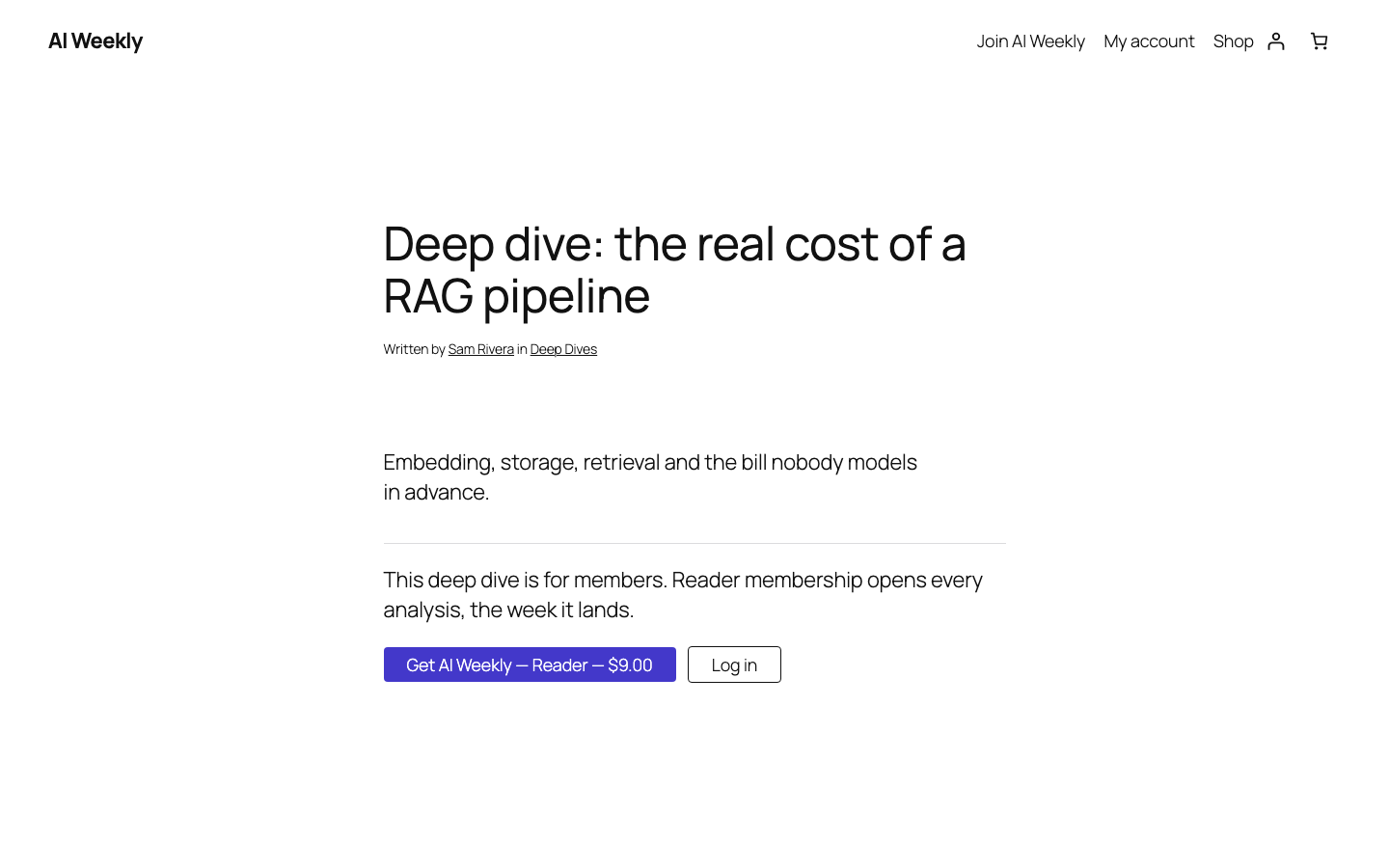
The goal for Reader:
Create the access group
Note: The setup wizard can do this stage, but it cannot pick a single category. For Reader choose Choose later there. Run it again from Smart Members → Help → Run setup again.
Open Access Groups
Go to Smart Members → Access Groups.
Start a new group
Click Create Access Group. The editor opens on the General tab.
Name it
Type AI Weekly — Reader in the box at the top. The switch beside it reads Active, so the group works as soon as it is saved.
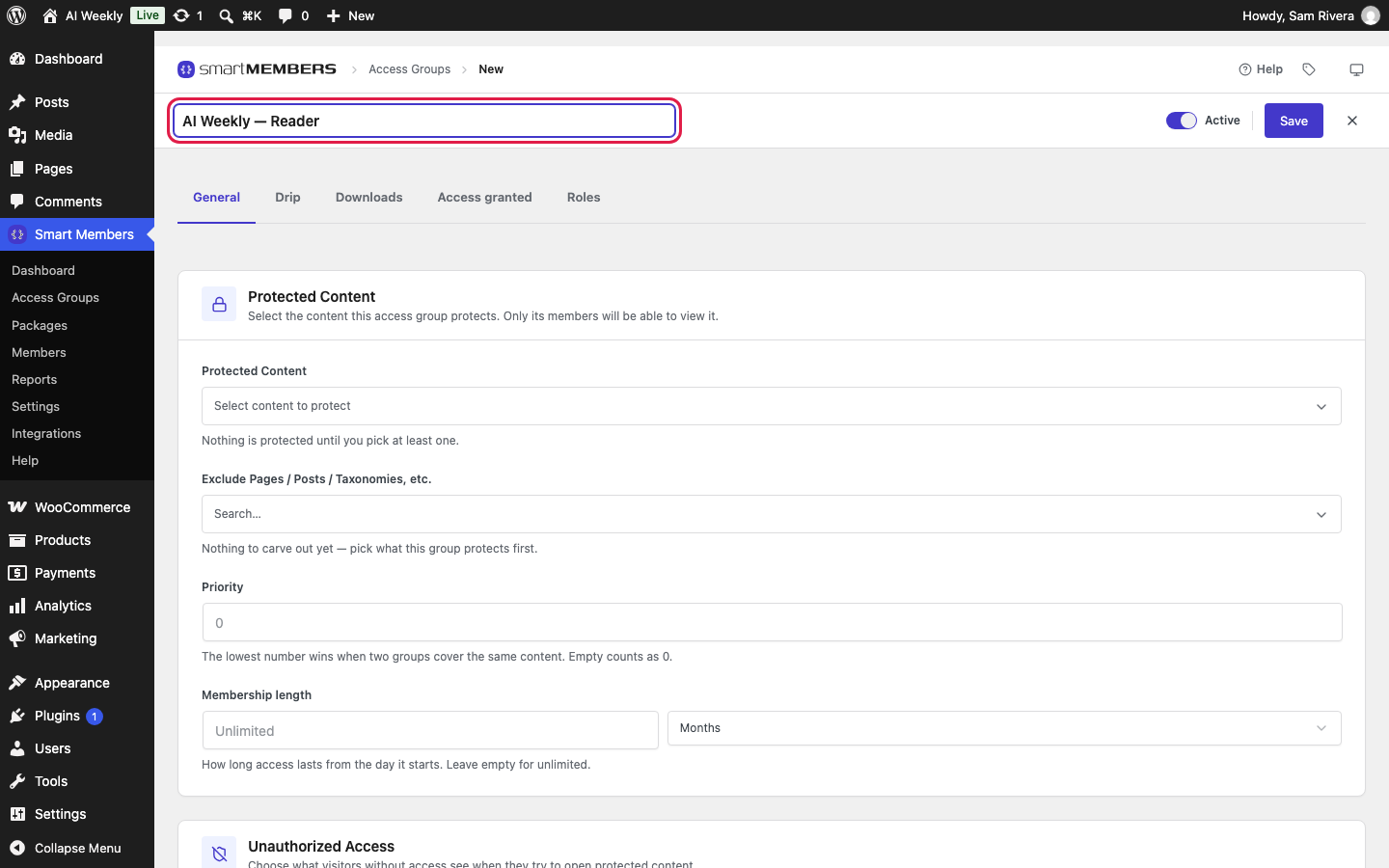
Don't click Save yet: it saves every tab at once.
Choose what it protects
Protected Content is the first panel on the General tab.
| Choice | What it locks |
|---|---|
| Entire Website | Every post and page. Login and Register pages stay open. |
| All Posts, All Pages, All Products… | Every item of that kind, including ones you add later. |
| Specific Pages / Posts / Taxonomies, etc. | Posts, pages or categories you search for. A category locks every post in it, now and later. |
| Specific URL | Web addresses you type, such as everything starting with /prompt-library/. |
Open the list
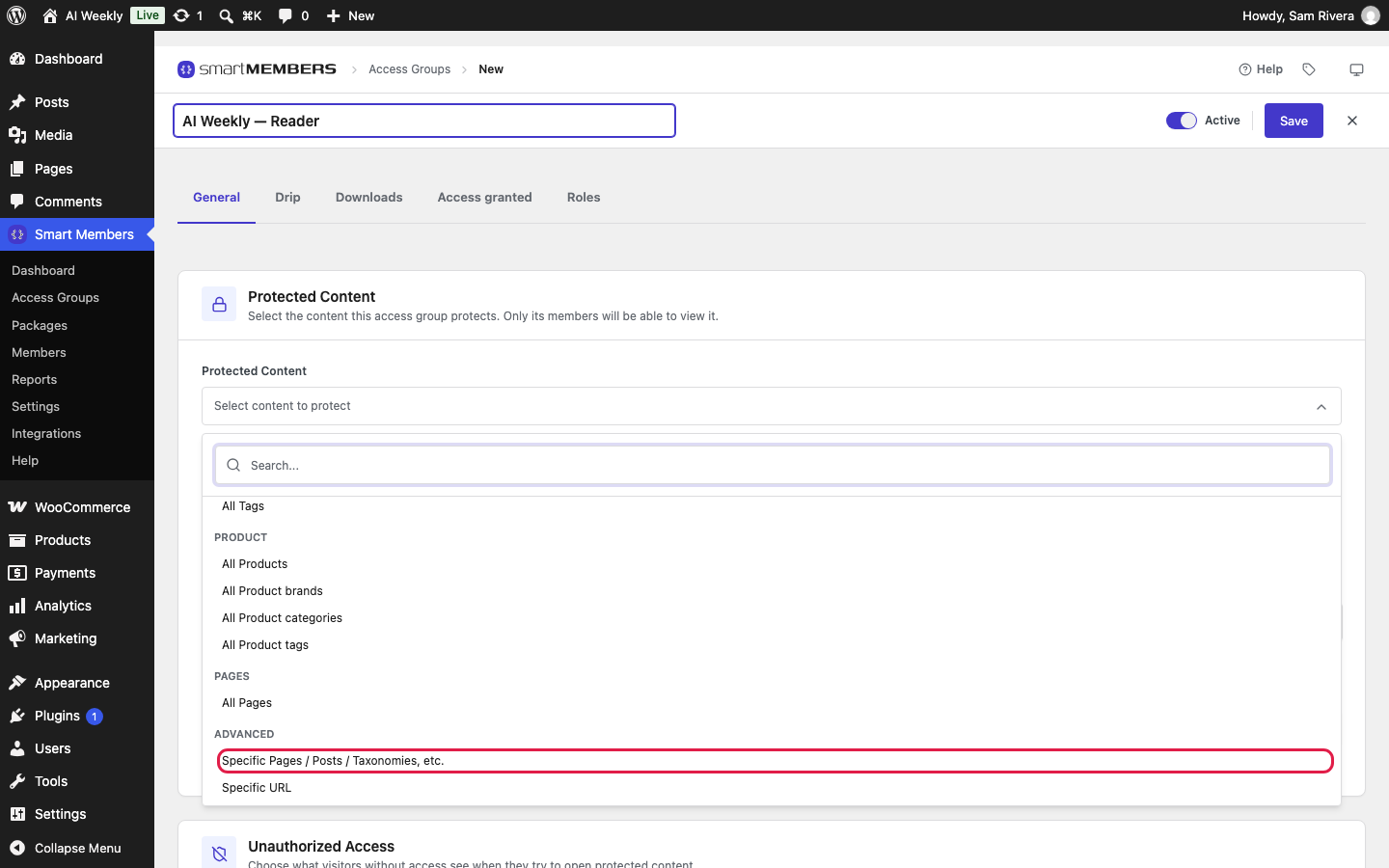
Click Select content to protect.
Pick the specific choice
Under Advanced at the bottom, click Specific Pages / Posts / Taxonomies, etc., then click outside the list to close it.
Find the category
In Specific pages, posts and taxonomies, type Deep. Under Categories, click Deep Dives, the category, so next month's posts are locked too.
Set the priority
In Priority, type 30. Empty counts as 0.
Leave the length empty
Empty Membership length means Unlimited. For a monthly pass, pick a number and Days, Weeks, Months or Years.
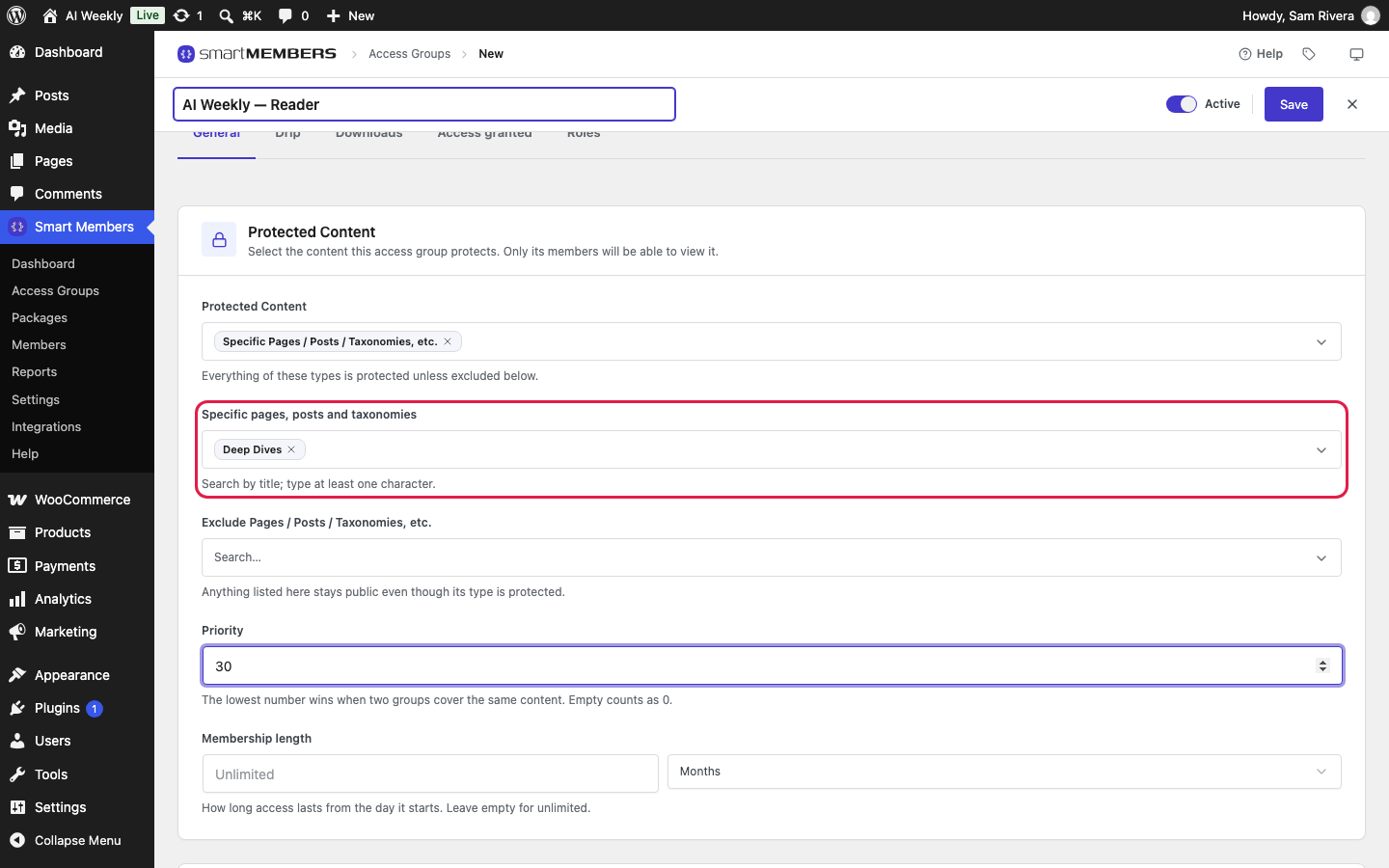
Exclude Pages / Posts / Taxonomies, etc. keeps one post free as a sample while the rest stay locked. An exclusion always wins, even over another group. Every field is in Create and edit an access group.
Decide what visitors see
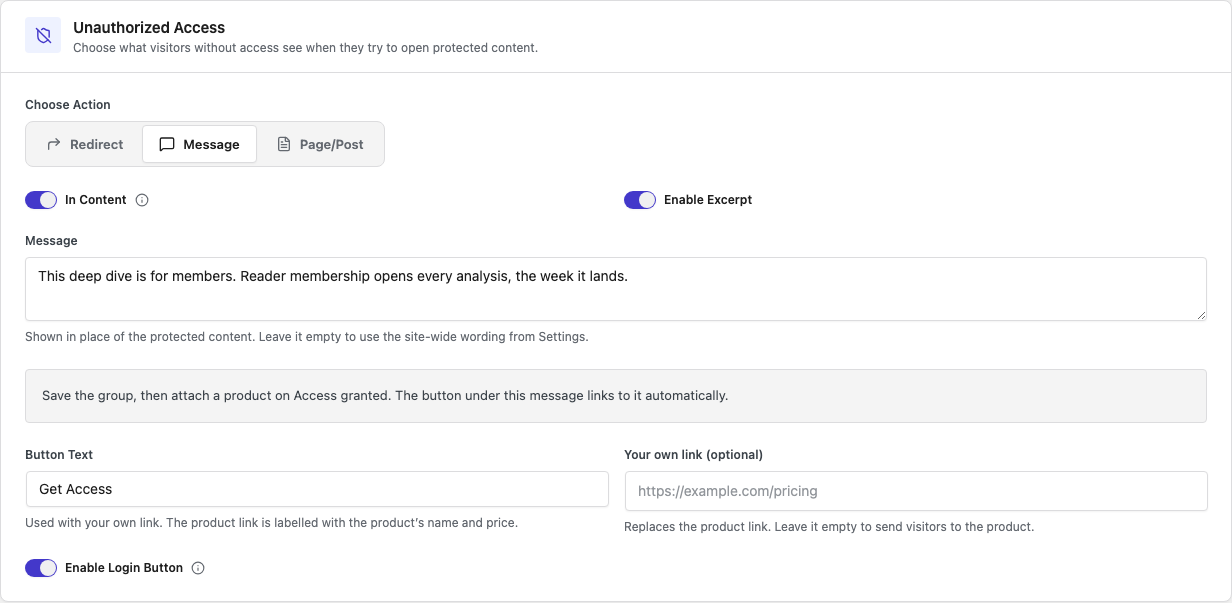
Scroll down the General tab to Unauthorized Access. Choose Action has three options:
| Choice | What the visitor gets |
|---|---|
| Redirect | Sent to another page on your site, set in Redirect URL. They never see the locked post. |
| Message | The post's title, an optional teaser, your message, a buy button and a log-in button. New groups start here. |
| Page/Post | A page you built, shown in place of the post at the same address. |
Keep Message
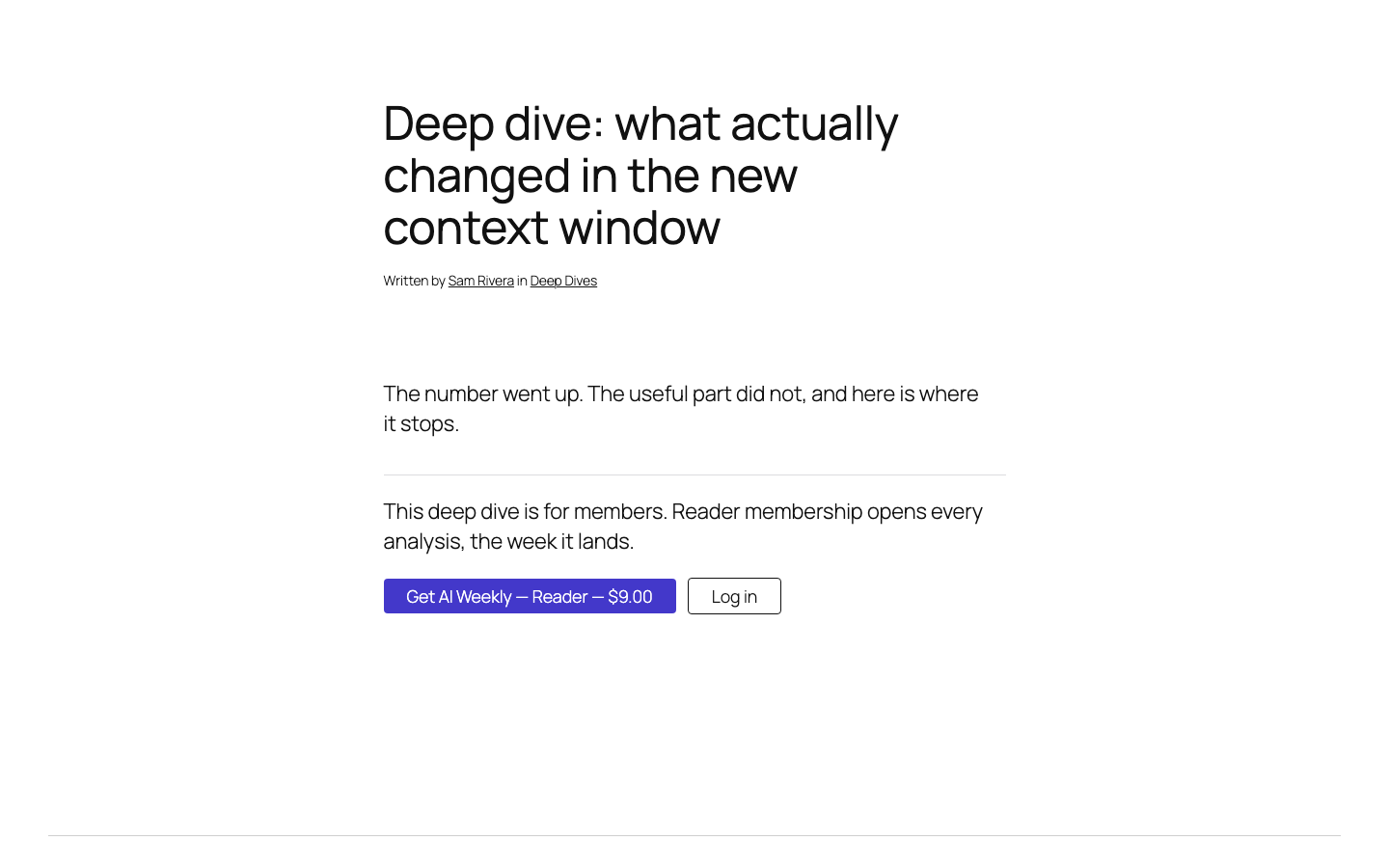
Keep Message and turn on In Content, so the message sits where the post's text would be.
Turn on the teaser
Turn on Enable Excerpt. It shows the summary from the post's Excerpt box; posts without one show no teaser.
Write the message
In Message, type This deep dive is for members. Reader membership opens every analysis, the week it lands. Leave Button Text and Your own link (optional) empty; the button uses the product you connect next.
Add a log-in button
Turn on Enable Login Button, so members on a new device can log in from the post.
Save the group
Click Save. The Deep Dives are now locked, and visitors see your message.
The grey box under the message shows where the button will go.
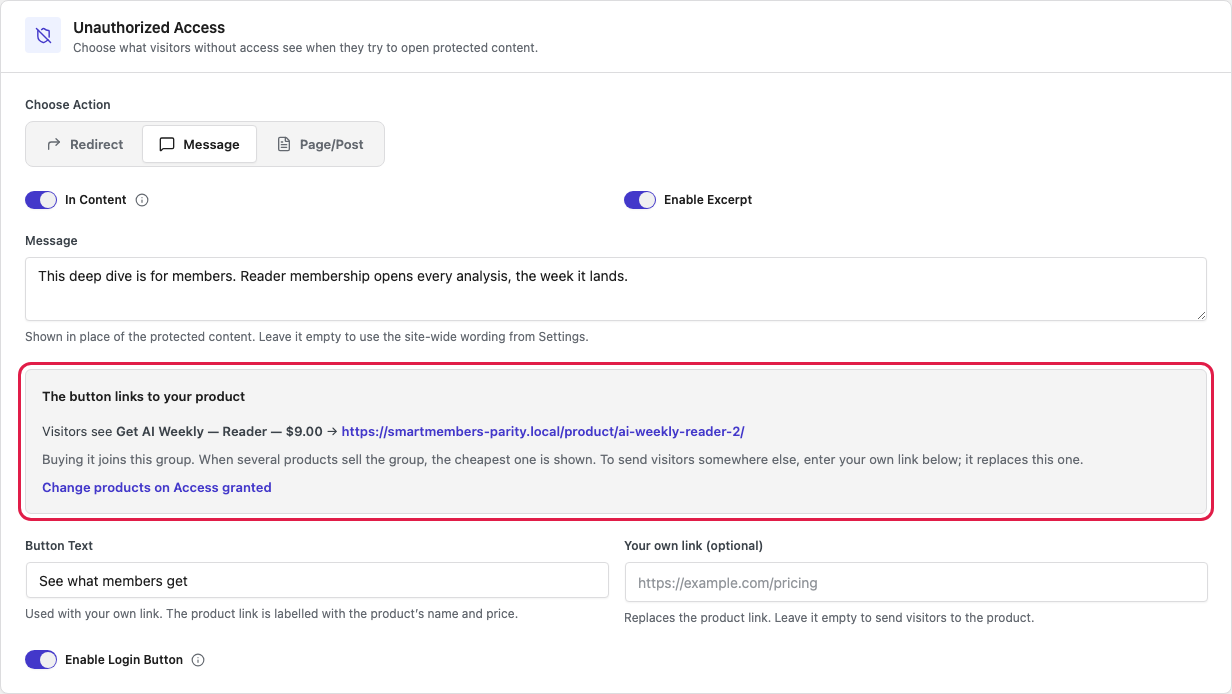
More in Unauthorized access: what visitors see.
Give people a way in
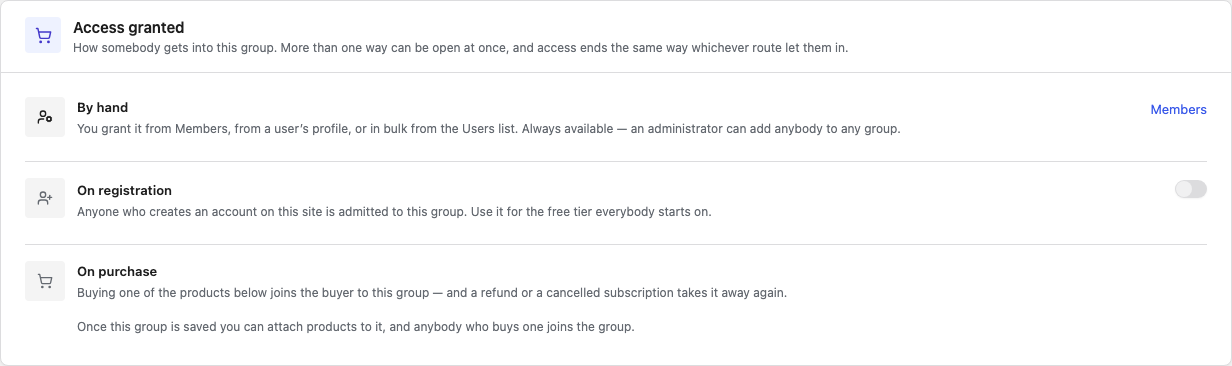
The ways in are on the Access granted tab. A group can use all three.
| Way in | What it does |
|---|---|
| By hand | Always on. You add people from Smart Members → Members. |
| On registration | Everyone who creates an account joins straight away. |
| On purchase | Anyone who buys one of the chosen WooCommerce products joins. |
To sell a level you need WooCommerce and a product with a price; see Sell an access group with a WooCommerce product. Products can only be attached to a saved group.
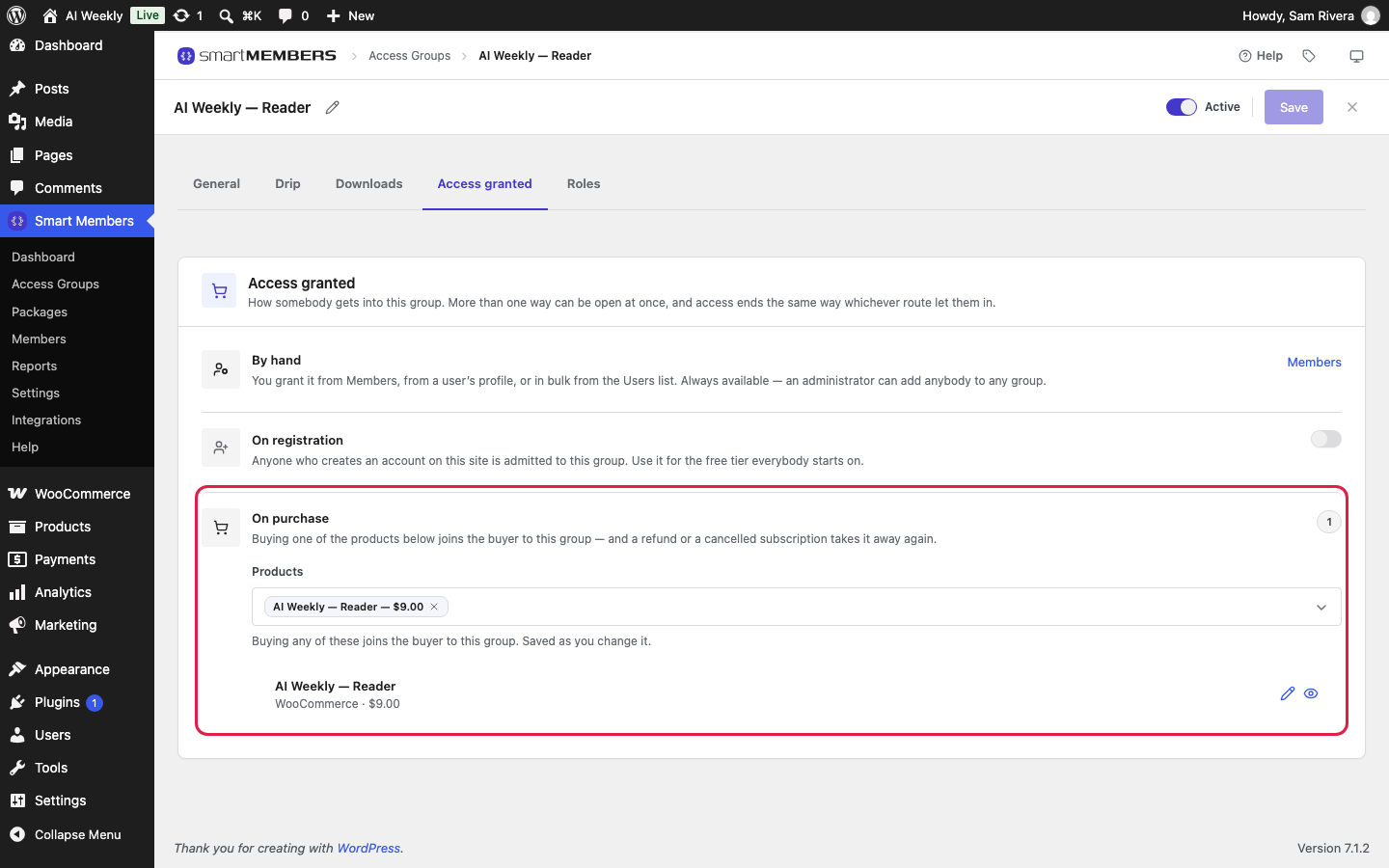
Open Access granted
Click the Access granted tab. Leave On registration off — Reader is paid.
Choose the product
Under On purchase, click Products, type Reader and click AI Weekly — Reader — $9.00.
Check the button
Back on General, the grey box now reads The button links to your product.
- Access starts when the order reaches Processing or Completed. To wait for Completed, change it in Smart Members → Settings → WooCommerce.
- Access ends when the order is refunded or cancelled; with subscriptions, it follows the subscription. See Subscriptions, refunds and cancellations.
For a free level like AI Weekly — Free, turn on On registration and click Save. Every account created after that joins the group.
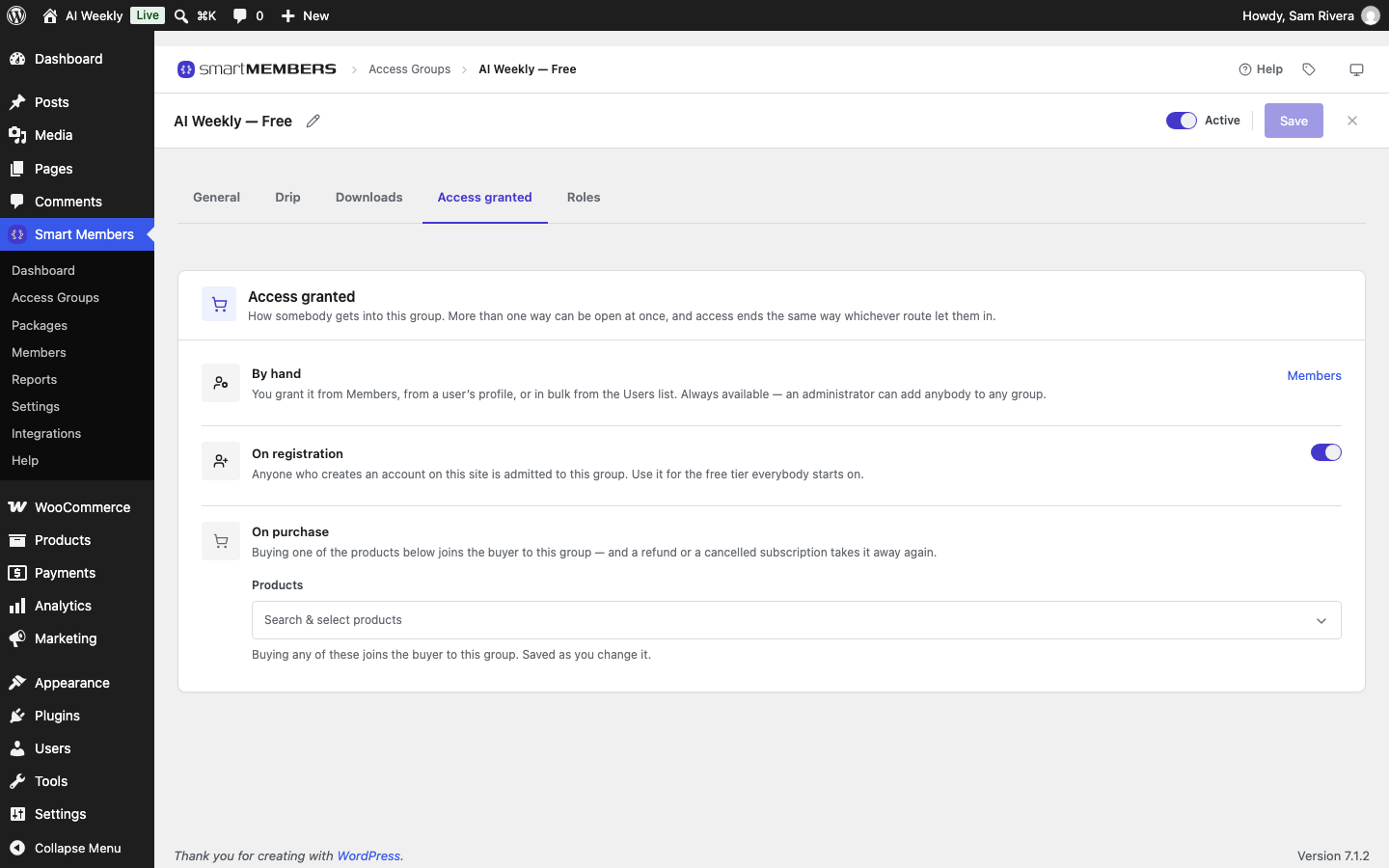
Note: Tick Anyone can register under Settings → General → Membership so people can create accounts. Existing accounts are not added; add them by hand.
More in Access granted: how people join a group.
Check the member pages
Smart Members created four pages, under Pages, each starting with SM.
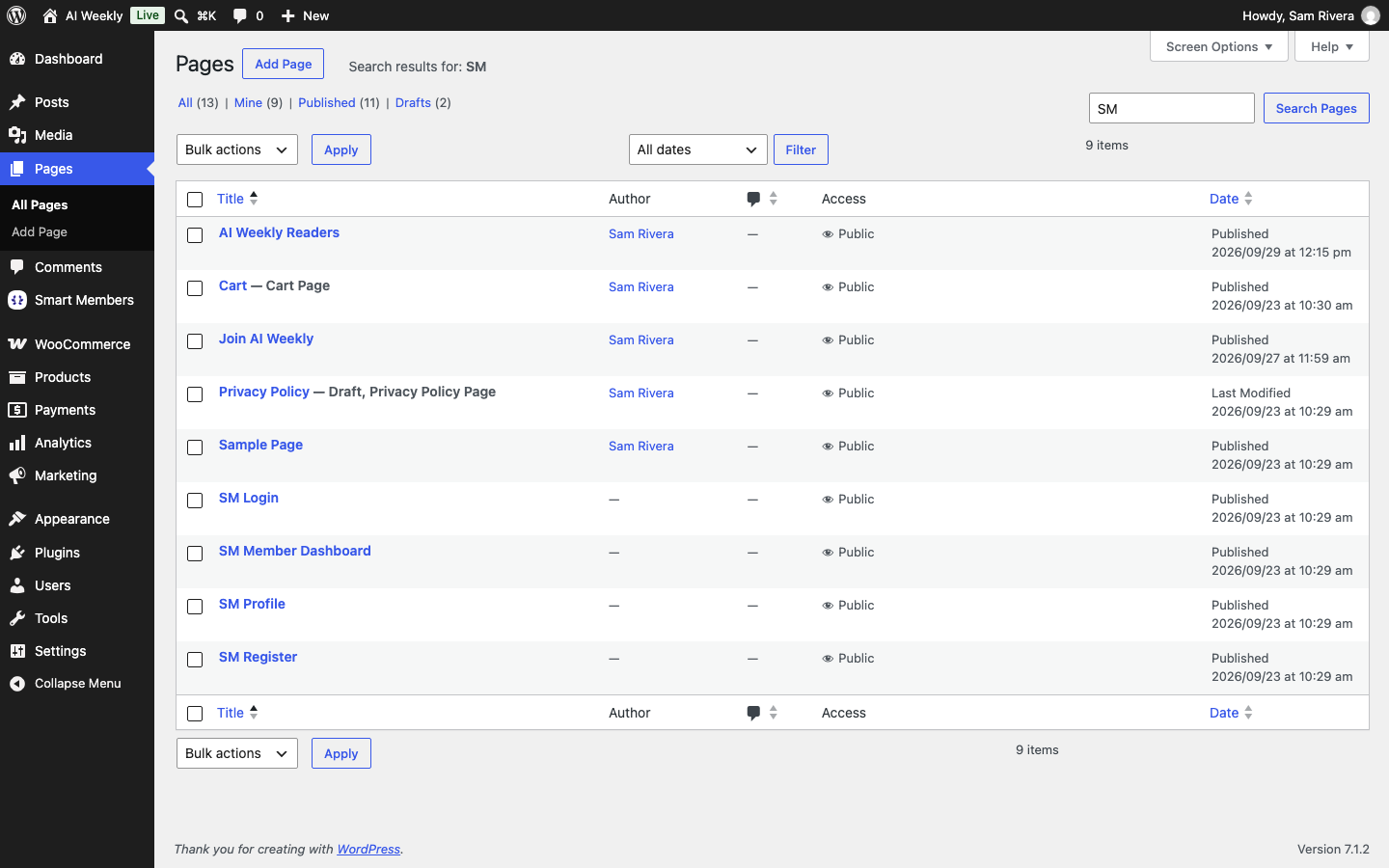
| Page | What it shows | Who can open it |
|---|---|---|
| SM Login | The sign-in form. | Everyone, even when the whole site is locked. |
| SM Register | The sign-up form. | Everyone, even when the whole site is locked. |
| SM Member Dashboard | The member's memberships and what they unlock. | Members; visitors go to SM Login. |
| SM Profile | Details, address, password and email choices. | Members; visitors go to SM Login. |
Add them to your menu. Someone who signs up on SM Register is logged in, joins every group with On registration on, and lands on their dashboard.
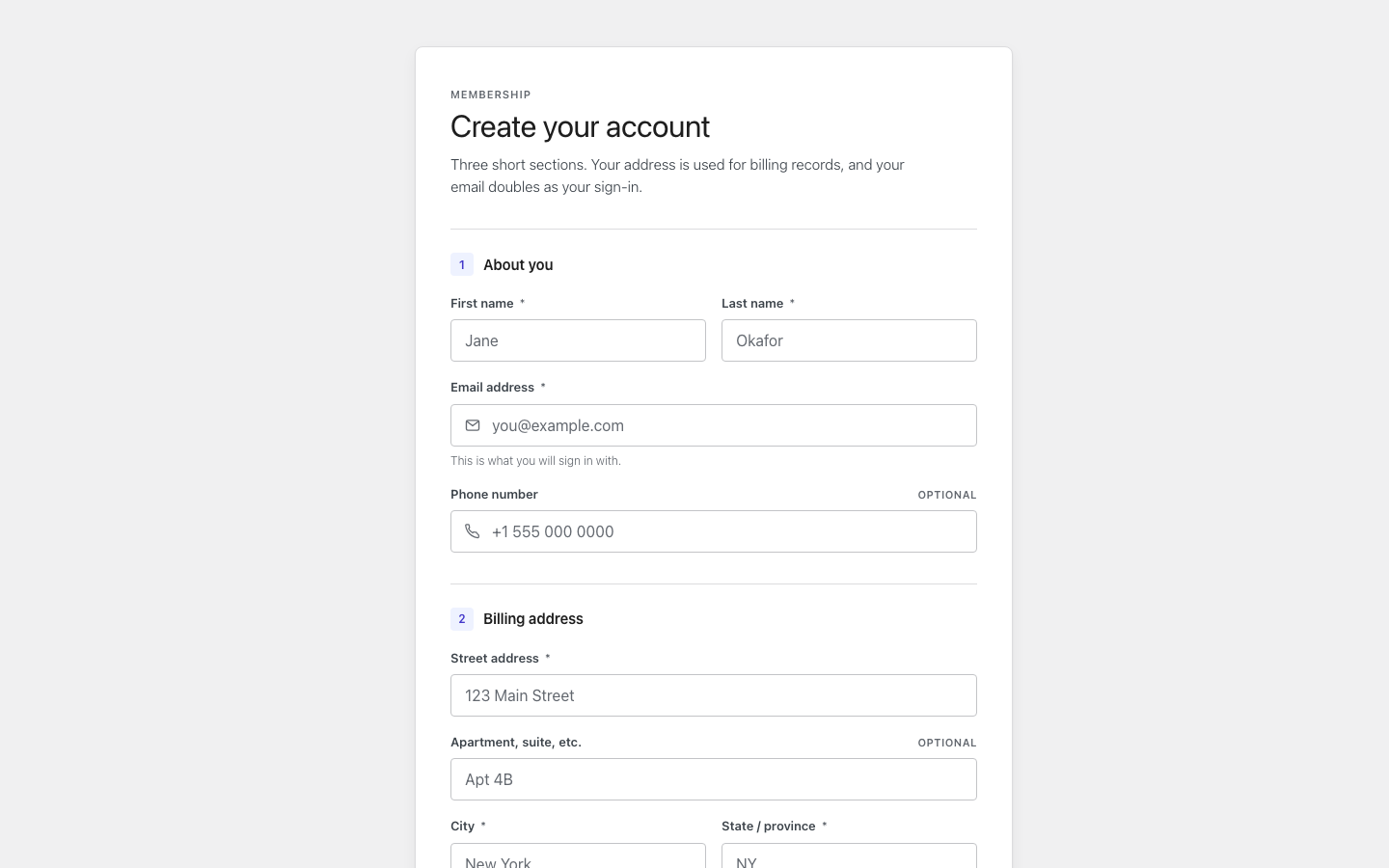
To use your own pages instead, choose them in Smart Members → Settings → Members & data → Member area. Keep the SM pages published: members are sent to them. More in Member area pages, shortcodes and directory.
Test as a visitor and as a member
As the owner you see everything, so test as others do.
Open a private window
Open a private browser window, where you are not logged in.
Open a locked post
Open any Deep Dive. You should see the summary, your message, Get AI Weekly — Reader — $9.00 and Log in — none of the post.
Follow the buy button
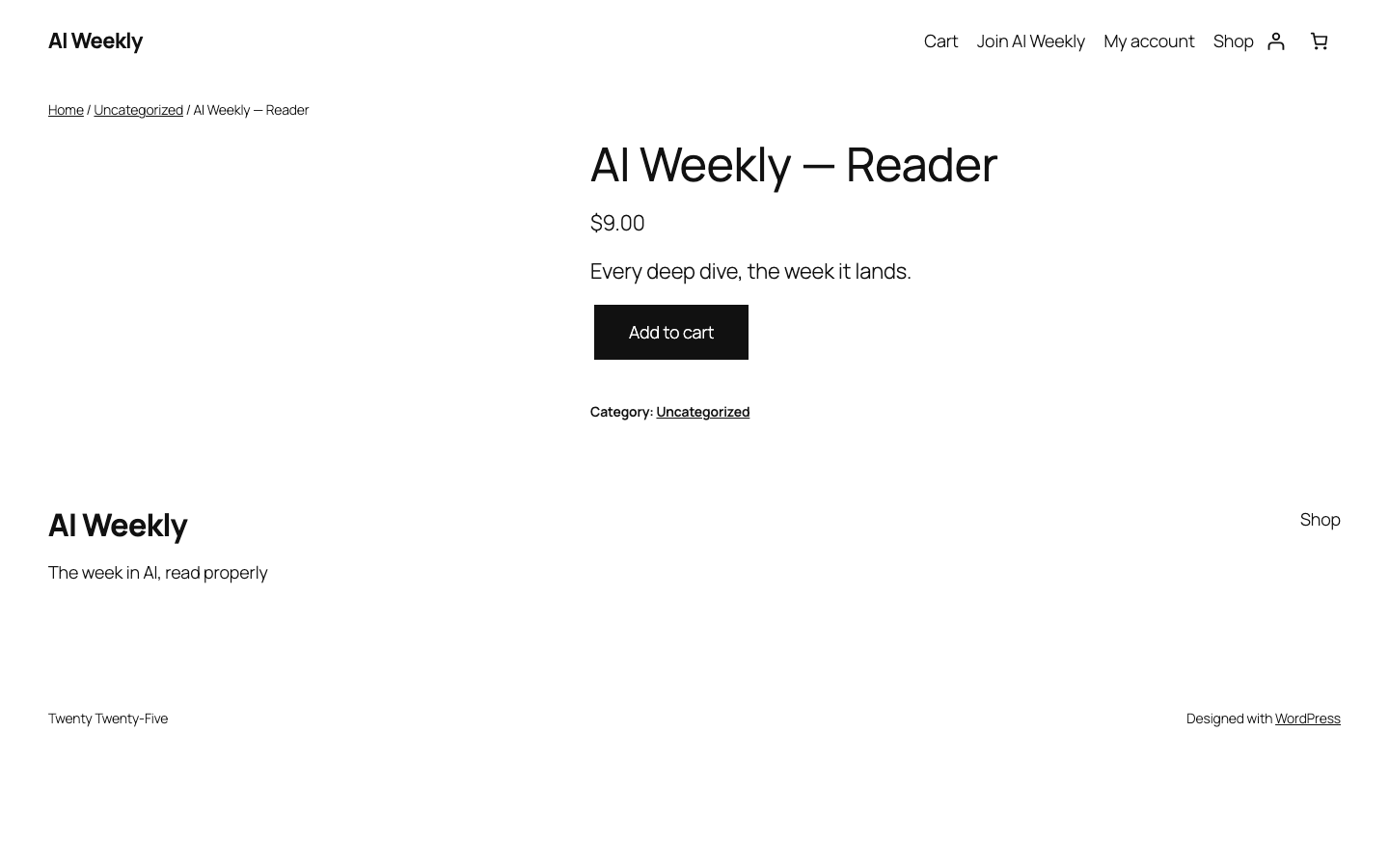
Click the buy button. It opens the WooCommerce product page with Add to cart.
Log in as a member
Back on the Deep Dive, click Log in and log in as a Reader member. The whole post shows.

Check the dashboard
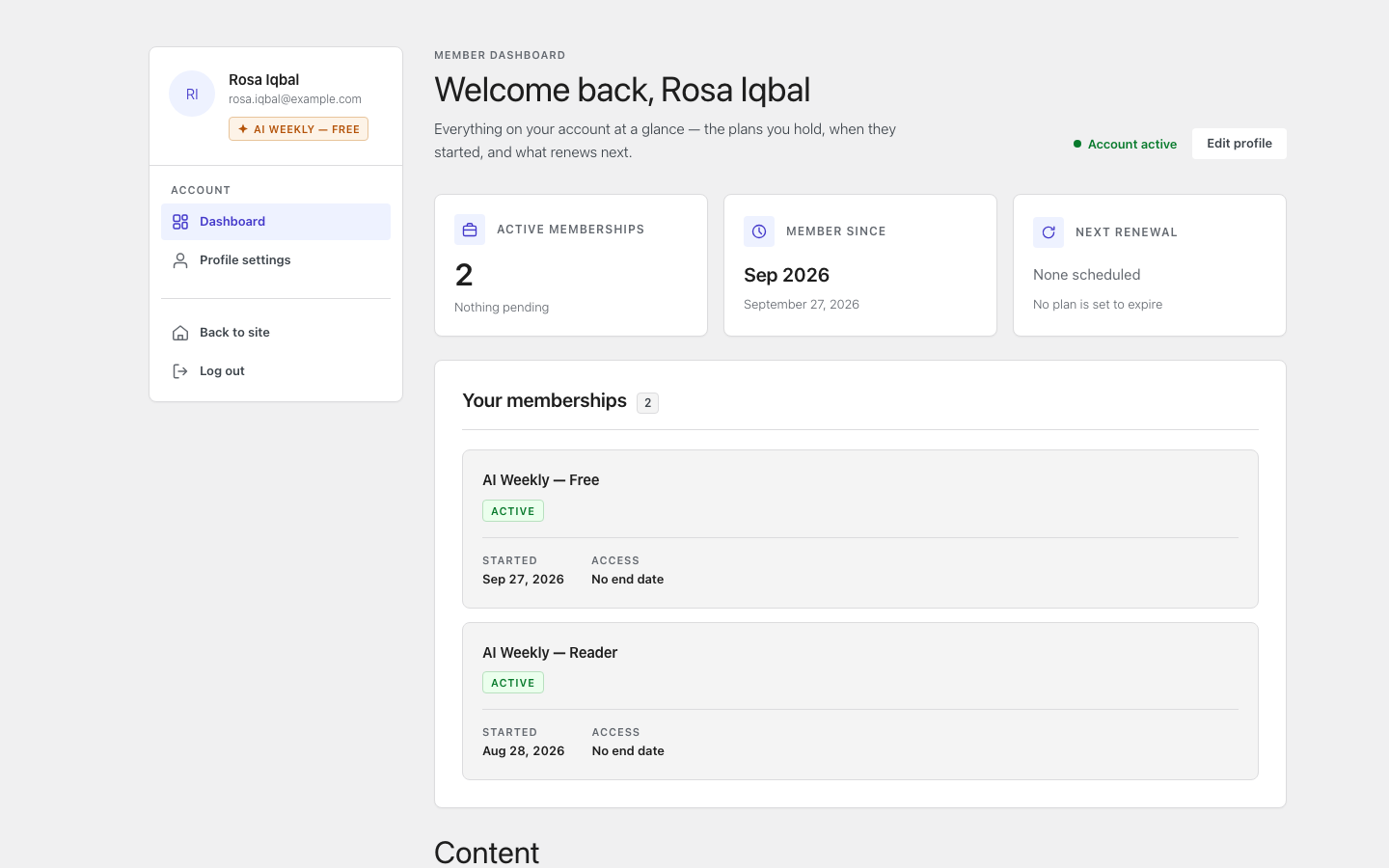
Open SM Member Dashboard. It lists each group the member holds and how long access lasts.
| What you see | What to check |
|---|---|
| The visitor sees the whole post. | Is the group saved and Active? Is the post in Deep Dives? |
| No buy button. | Is the product listed under On purchase? |
| The member still sees the message. | Under Smart Members → Members, is their Reader membership Active? Is the order Processing or Completed? |
No member yet? Give a test account access by hand; see Give, remove and block access.
Related articles
- Smart Members overview — a tour of the menu.
- Drip content — a course where each lesson opens a week after the last.
- Email settings — welcome new members and remind them before access ends.
- Members list — see who joined, and how.
- Common problems and fixes