Elementor restriction adds a Smart Members setting to every widget, section, column and container on an Elementor page. Each part can show to everyone, to members only, or to non-members only.
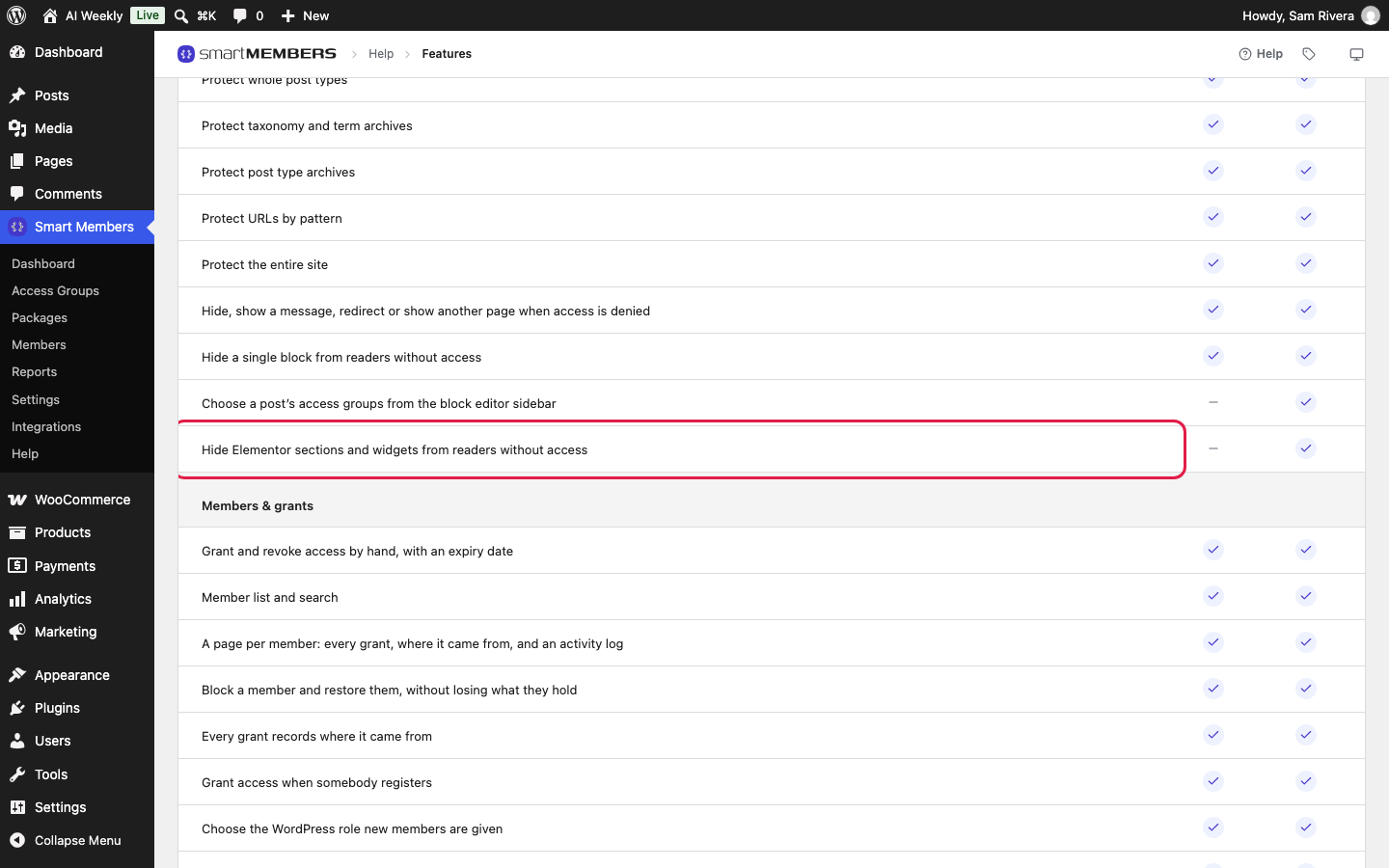
Pro: Elementor restriction needs Smart Members Pro and the Elementor plugin. On the free plugin, use a block's Visible to setting (Restrict a block) or a shortcode.
Where to find it
Open the page with Edit with Elementor and click the element. In the Elementor panel, open Advanced → Smart Members. Setting it on a section or container hides everything inside.
The Smart Members section
| Option | What it does | Example (AI Weekly) |
|---|---|---|
| Visible to → Everyone | No restriction. The default. | The course description. |
| Visible to → Members only | Only people in a chosen group see the element. Everyone else sees nothing in its place. | The lesson links, for Build With AI. |
| Visible to → Non-members only | People in the chosen groups do not see the element; everyone else does. | The Join the course section. |
| Access groups | The groups the choice above refers to. Any one is enough. Leave it empty to mean any access group. | AI Weekly — Reader and AI Weekly — Pro. |
Add a members' section and an invitation
Make the members' section members only
Click the section with the lesson links. Set Visible to to Members only and choose Build With AI.
Hide the invitation from members
Click the Join the course section. Set Visible to to Non-members only and choose Build With AI.
Publish
Click Publish. The Elementor editor still shows every element; check the published page.
What visitors and members see
A visitor sees the description and the Join the course section; the lesson links are not on the page at all. Course members see the lesson links and no invitation.
Good to know
- Only current access counts. Ended, paused or blocked access counts as none.
- Check as a member. Your administrator account holds no memberships, so you see the non-member version.
- The setting travels with the element when you duplicate it, save it as a template or export the page.
- If your licence lapses, everything you hid stays hidden; the Smart Members section leaves the editor until you renew.
Lock the whole page instead
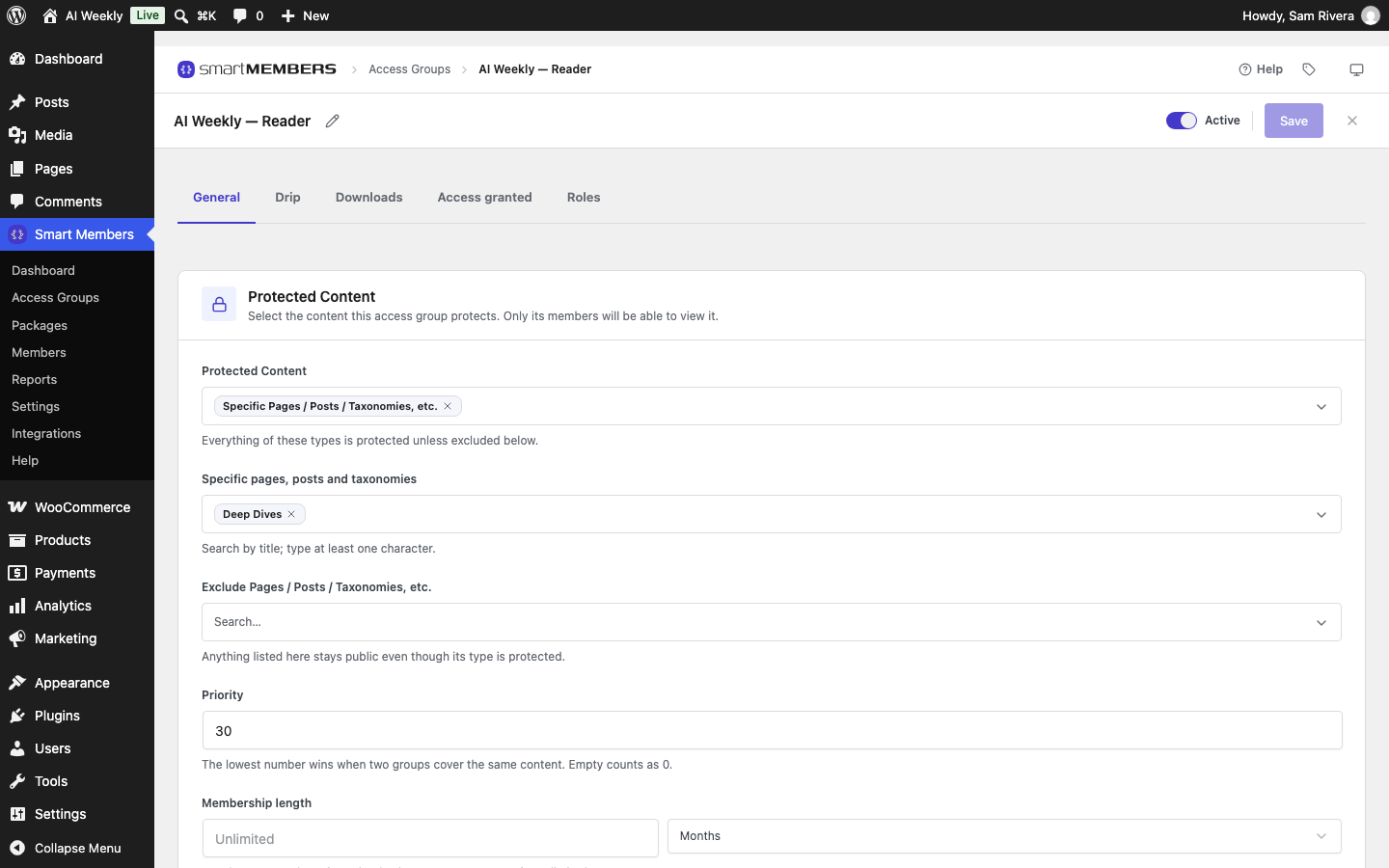
Add the page to an access group like any other page (Create and edit an access group).