The Members list shows every account on your site and how many membership levels (access groups) each person holds. Click a row to open that person's page, where you can change their access.
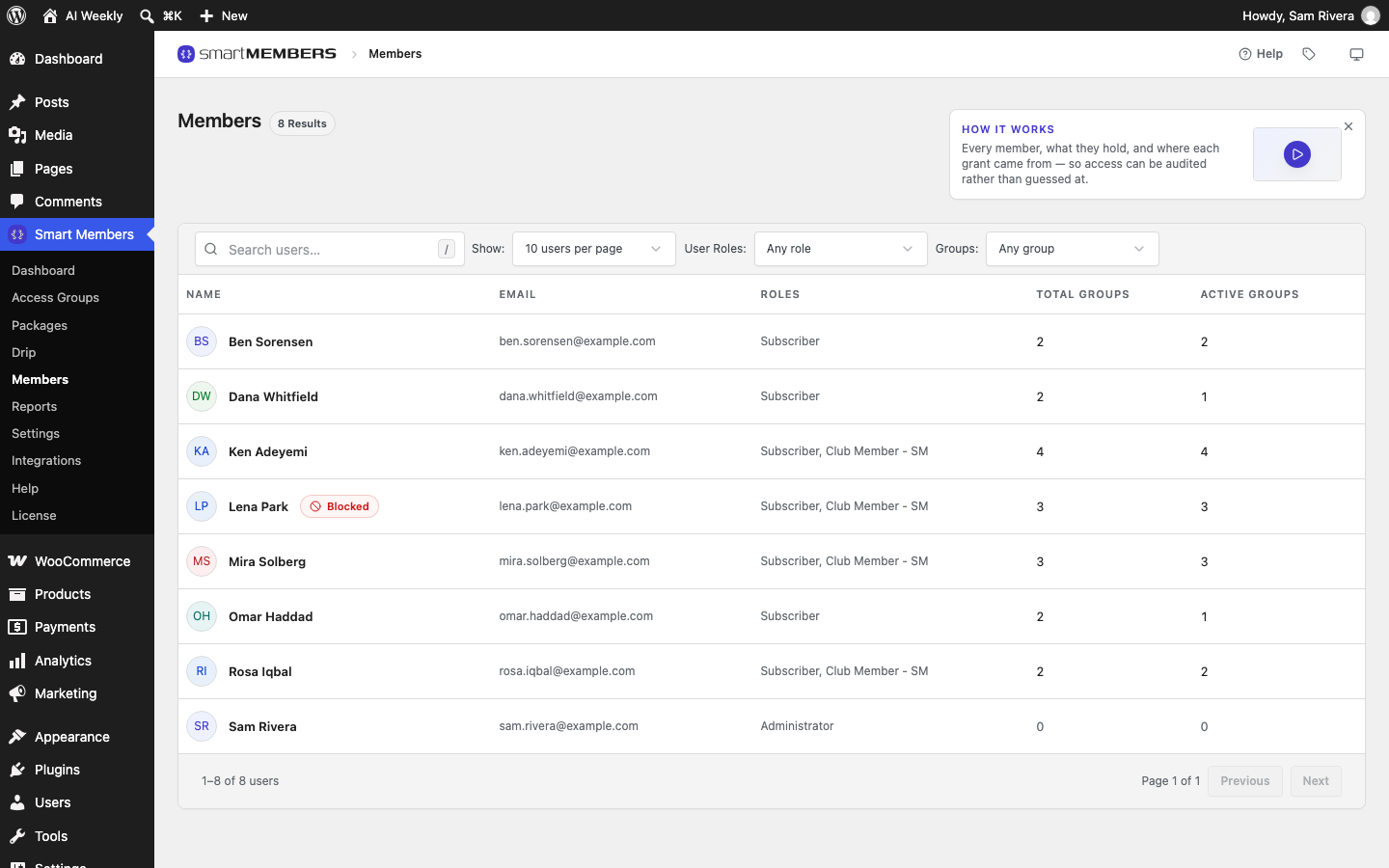
Find it at Smart Members → Members. It lists every WordPress account, not only paying members, sorted by name.
Search
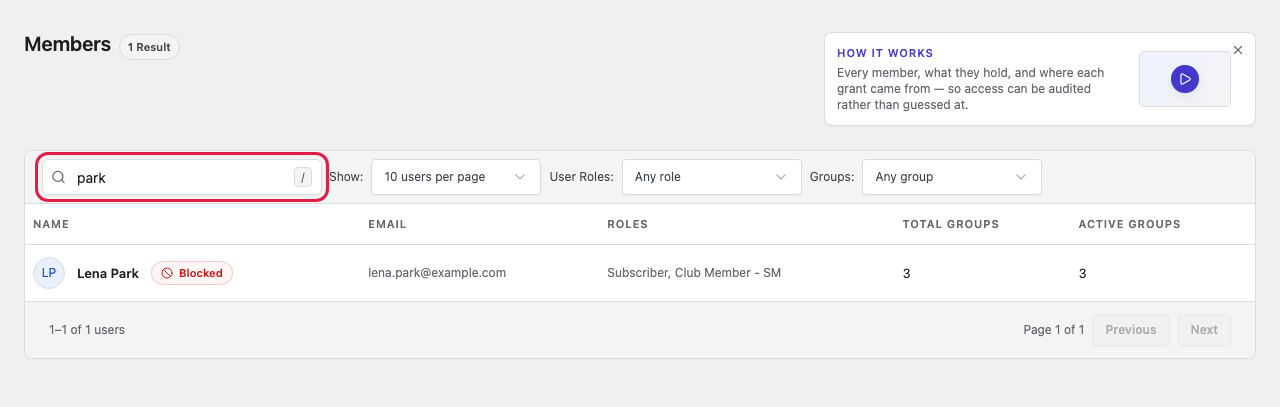
Type in Search users… to match a name, username or email address, even part of one. Press / to jump into the box.
Filters
The three menus combine with each other and with the search.
| Option | What it does |
|---|---|
| Show: | How many people per page: 10 users per page (default), 25, 50 or 100. |
| User Roles: | Only accounts with one WordPress role (an account type such as Subscriber). Default: Any role. |
| Groups: | Only people whose access to that group works today. Default: Any group. |
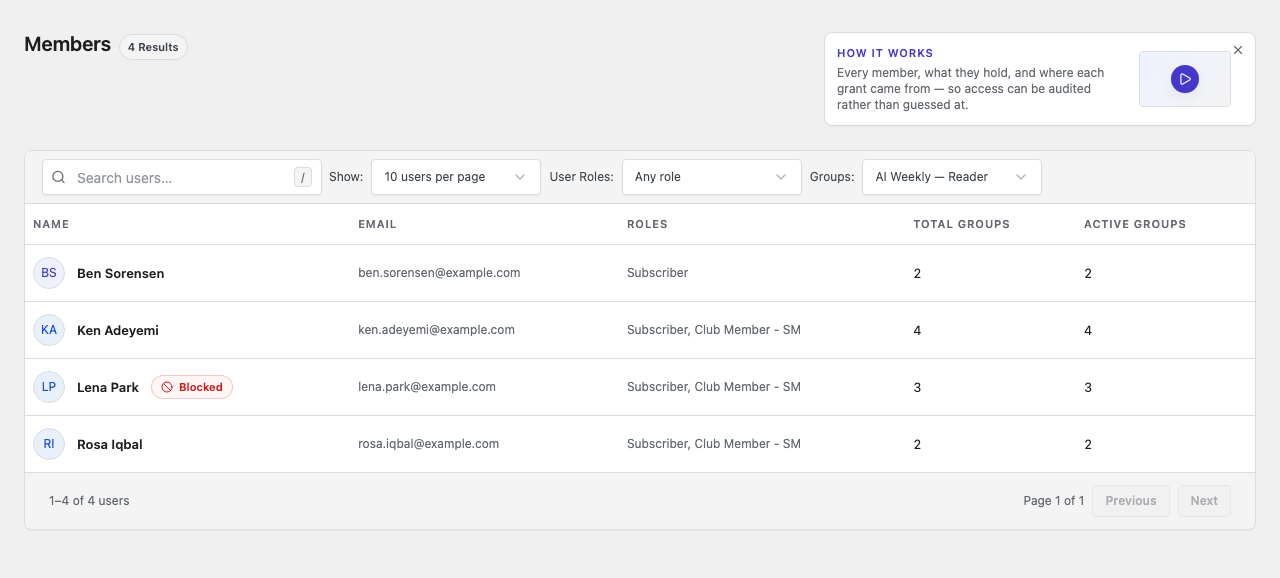
A blocked member still appears under the group filter, because their access is paused, not ended.
The columns
| Column | What it shows |
|---|---|
| Name | Display name. A red Blocked badge marks anyone whose access you blocked. |
| Their account email address. | |
| Roles | Their WordPress roles, or No role. |
| Total Groups | Every group this person has ever held, including ones that ended. |
| Active Groups | The groups that let them in today. Blocked members keep their count. |
Spot members who lost access
Look for rows where Active Groups is smaller than Total Groups. Omar Haddad shows 2 and 1 because his Reader membership expired. Click the row to see which group ended and why.
Tip: Your search and filters stay in the web address, so the browser's Back button returns you to the same list after you open a member.
To grant, block or delete, open the person's page. Deleting an account happens in WordPress: choose Actions → Edit user on the member's page.