The Emails tab sets the name and address your membership emails come from, and whether people who sign up get WordPress's new-account email. It is at Smart Members → Settings, under EMAILS → Emails in the left menu.
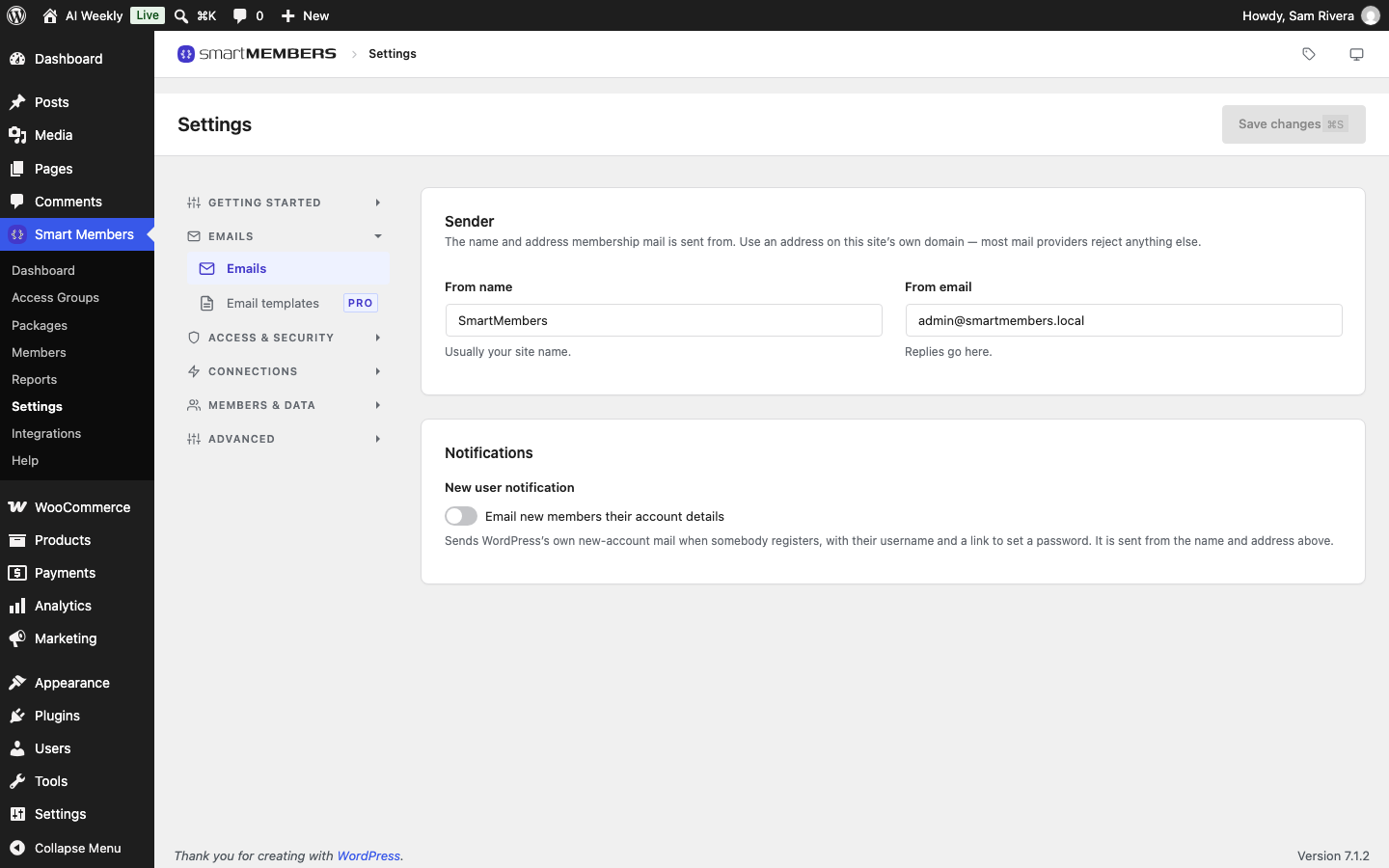
Which emails go out, and when, is in the Emails overview. Click Save changes after any change.
Sender
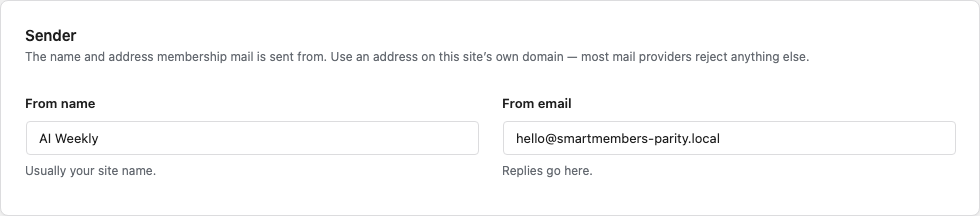
| Option | What it does | Example (AI Weekly) |
|---|---|---|
| From name | The name members see as the sender. Empty means your site title. | AI Weekly |
| From email | The address the emails come from, and where replies go. Empty means your site's admin email. | hello@ followed by the AI Weekly domain |
Both apply to every email Smart Members sends, but not to other plugins' emails, such as WooCommerce receipts.
Warning: Use an address on your own domain. A free address, such as Gmail, is often rejected or sent to spam.
Notifications

New user notification — Email new members their account details, off by default. Switched on, people who sign up on your Smart Members registration page get WordPress's new-account email, with their username and a link to set a password. You get no copy.
Check that it works
Give a spare account of your own access to a group. "Your access is ready" should arrive from the name and address you set. If nothing arrives, your host may need an email-sending (SMTP) plugin.
To change what the emails say, or turn one off, see Email templates (Pro).