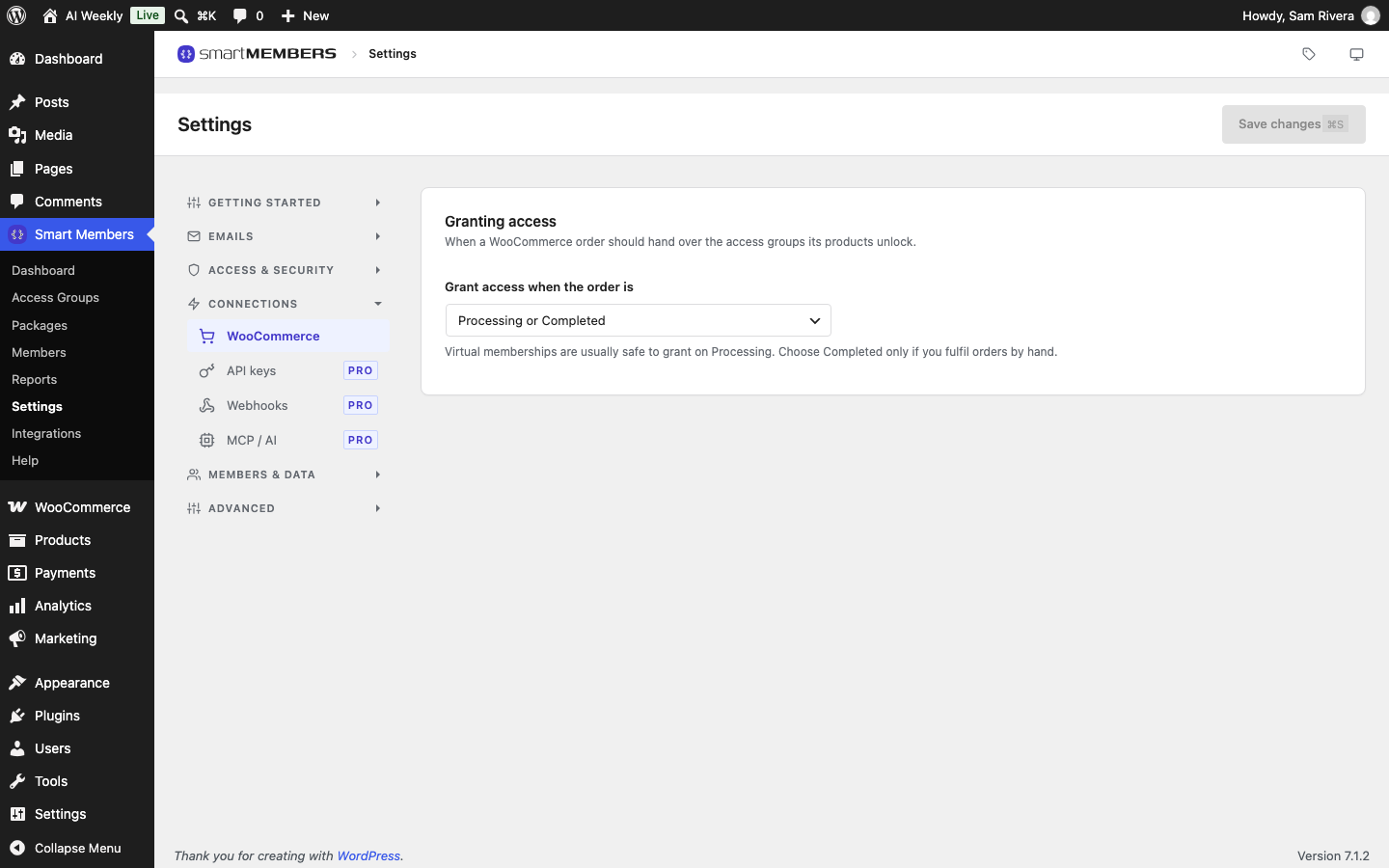
The WooCommerce tab in Smart Members → Settings decides when a paid order gives the buyer access. A switch on the General tab decides whether locked products stay visible in your shop.
When access starts
A paid WooCommerce order is usually Processing first, and Completed once you mark it done.
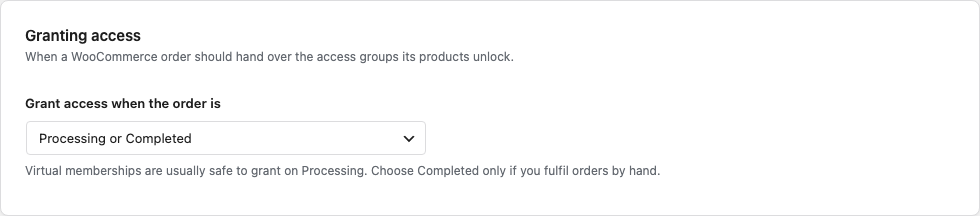
| Grant access when the order is | What it does | Example (AI Weekly) |
|---|---|---|
| Processing or Completed | The default. Access starts at either paid status. | Mira pays for Pro and watches the Video Updates straight away. |
| Completed only | Access waits until you mark the order Completed. | For a shop that reviews every order for fraud first. |
Refunded and cancelled orders always remove access (Subscriptions, refunds and cancellations).
Change when access starts
Warning: With Completed only, a buyer whose order you forget to complete stays locked out.
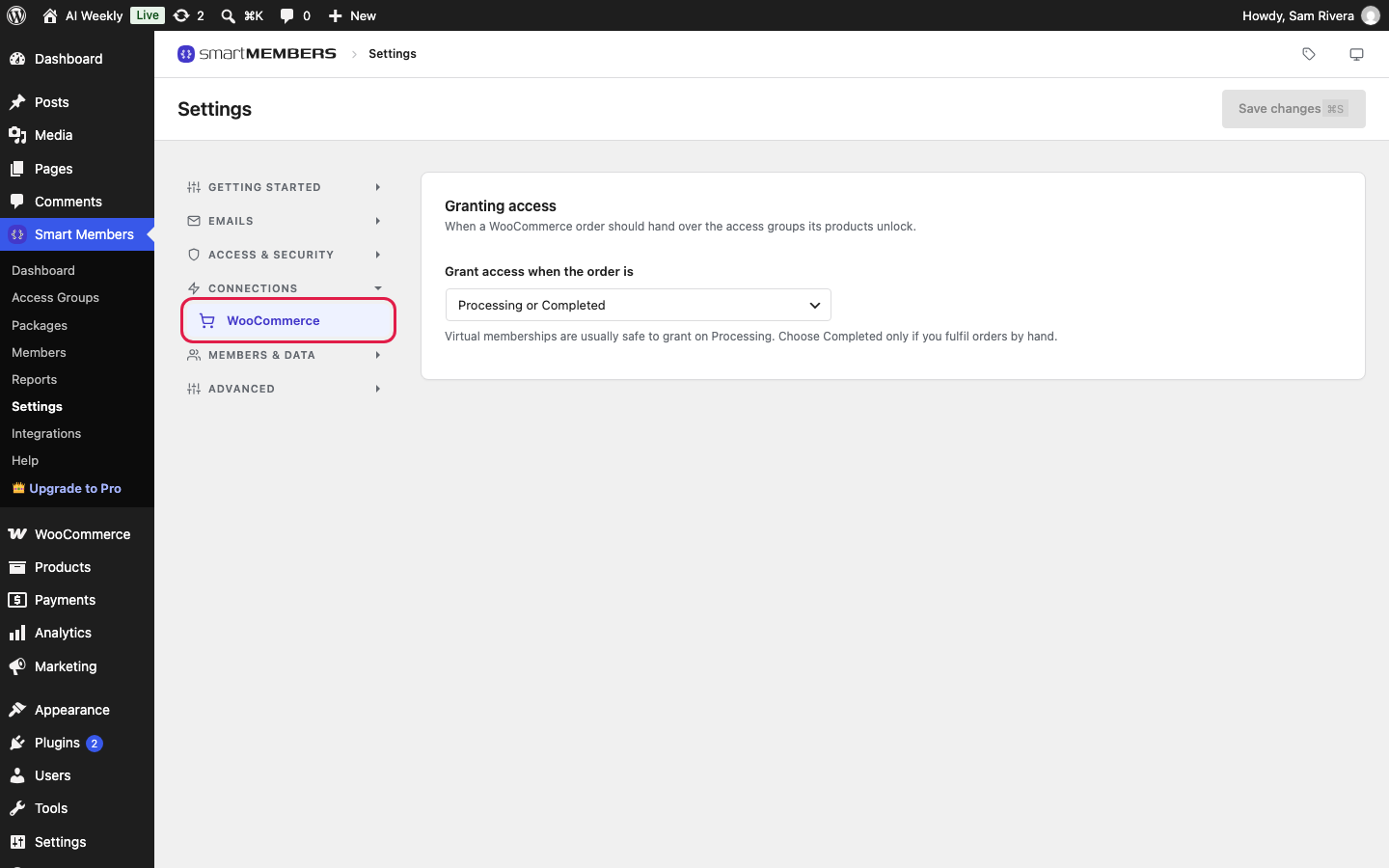
Open the WooCommerce tab
Go to Smart Members → Settings → Connections → WooCommerce.
Pick the status
Choose an option in Grant access when the order is.
Save
Click Save changes. Access already given stays.
Hide restricted products
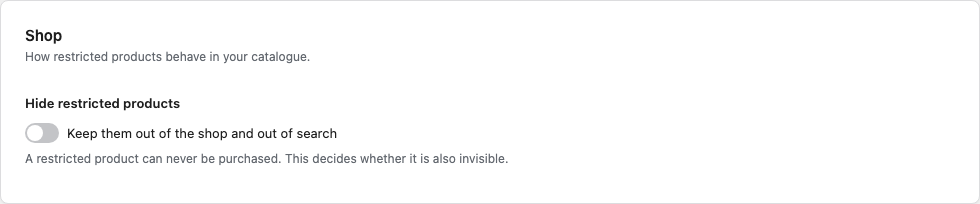
This switch is in the Shop section of Smart Members → Settings → Getting started → General. It matters only if an access group protects products themselves.
| Option | What it does |
|---|---|
| Hide restricted products | People without access can never buy a protected product. Switched on, such products also vanish from the shop, category pages and search for them. Members still see and buy them. |
Check the shop in a private browser window. Never protect the product that sells a membership, or nobody could join. The other General sections are in General settings.
The WooCommerce connection
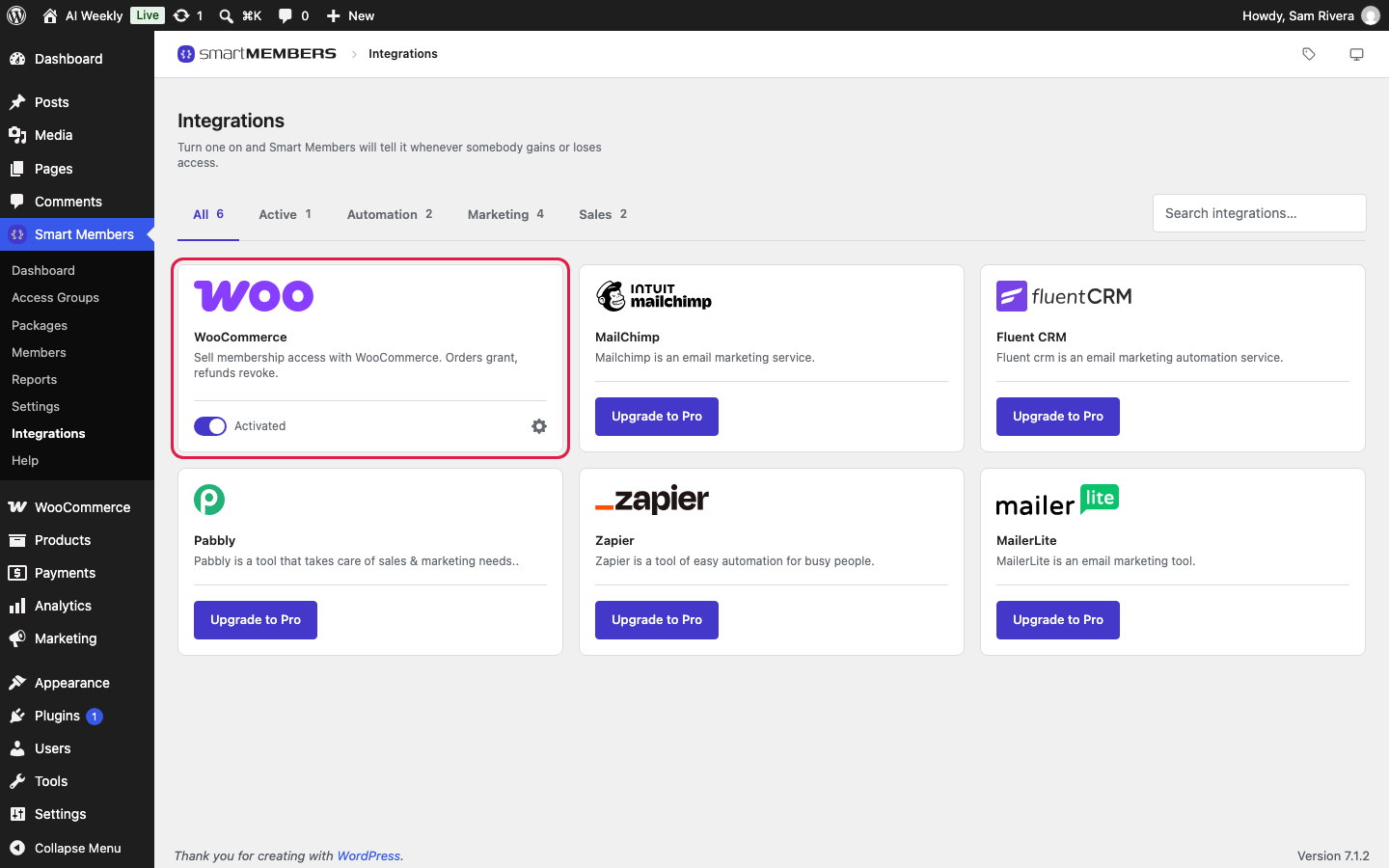
On Smart Members → Integrations, the WooCommerce card switches to Activated by itself when WooCommerce is active. Turn it off and paid orders stop giving access. The gear icon on the card opens the WooCommerce settings above.
A customer paid but has no access
Open the order. Processing with Completed only chosen: complete it. On hold or Pending payment: the payment has not cleared yet.