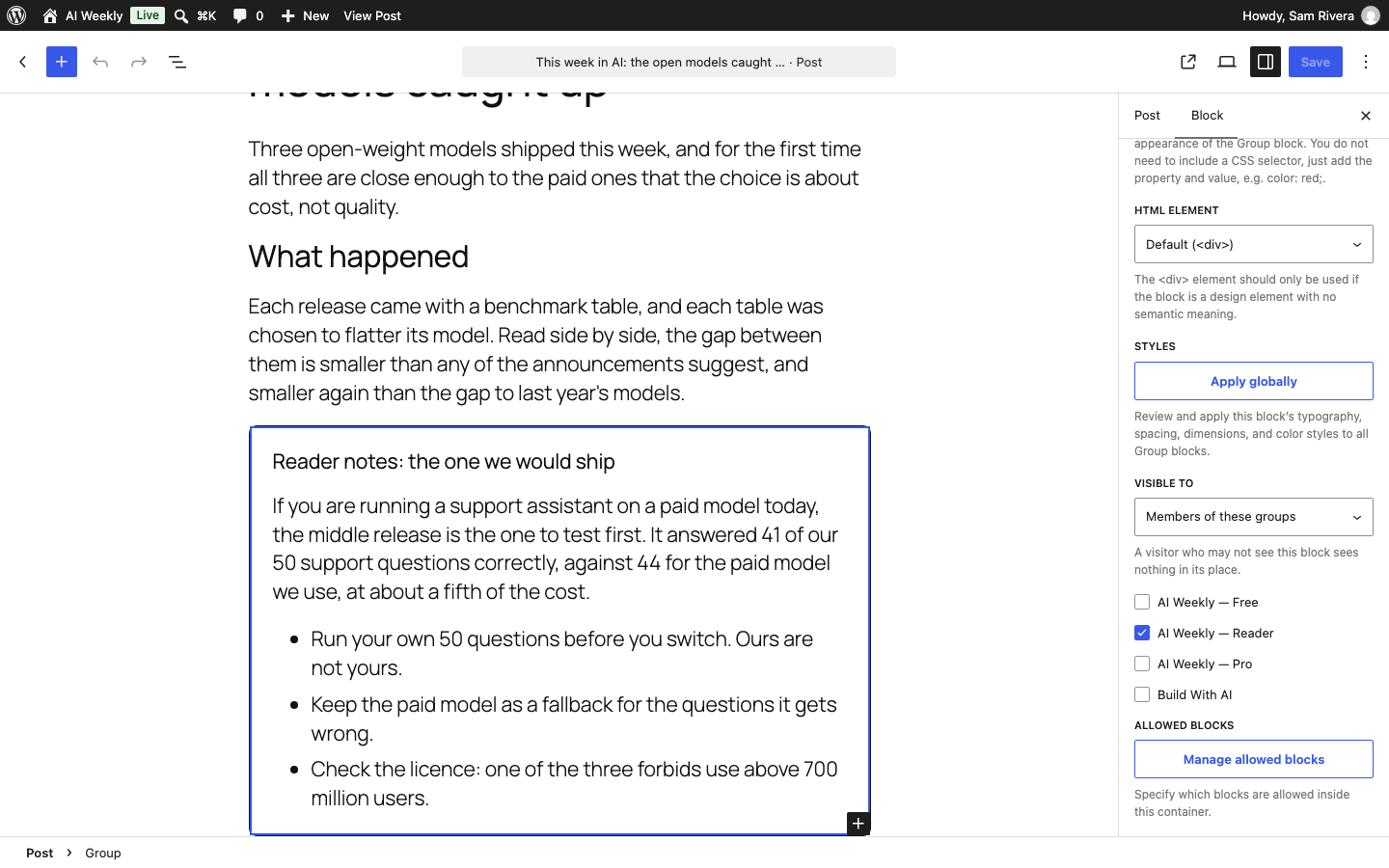
Every block in the WordPress editor has a Visible to setting that decides who sees it on the published page. One free post can carry a paid section, and an invitation for everyone else.
Before you start
- You need at least one access group (Create and edit an access group).
Where to find it
- In the block editor, click the block. To restrict several blocks together, put them in a Group block and click the Group.
- In the sidebar, open the Block tab.
- Scroll to the bottom and open Advanced.
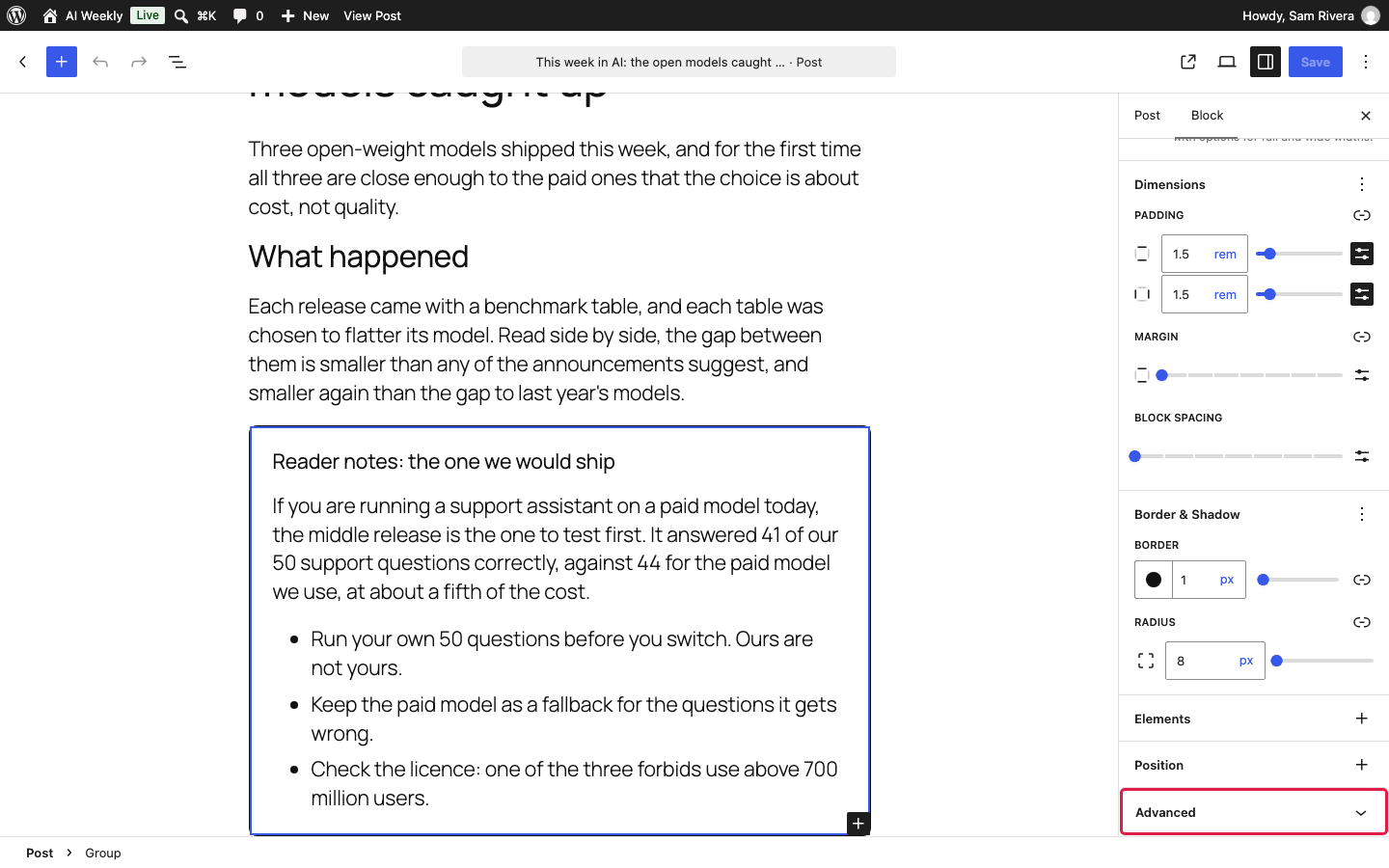
The Visible to setting
| Option | What it does | Example (AI Weekly) |
|---|---|---|
| Everyone | All visitors see the block. The default. | The introduction of every AI News post. |
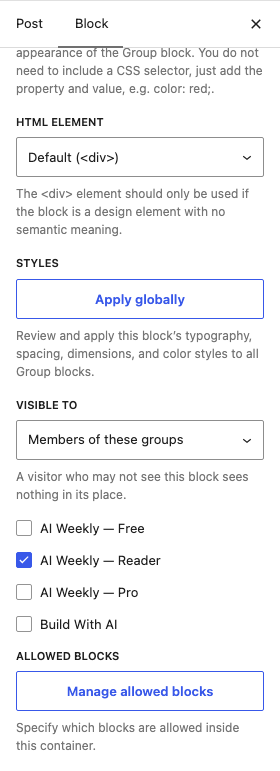
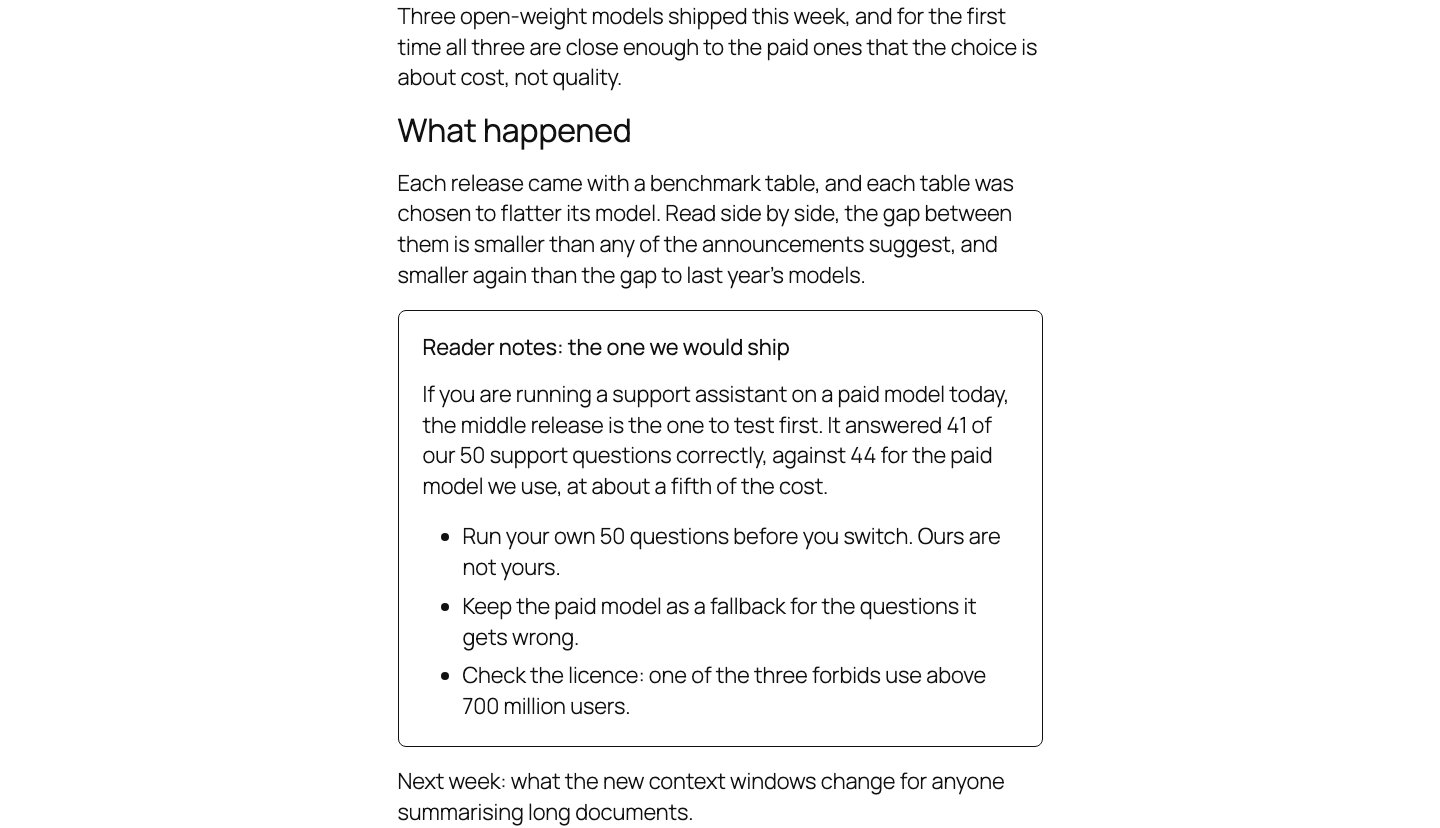
| Members of these groups | Only people in a ticked group see the block. Everyone else sees nothing in its place. | The Reader notes box, for AI Weekly — Reader. |
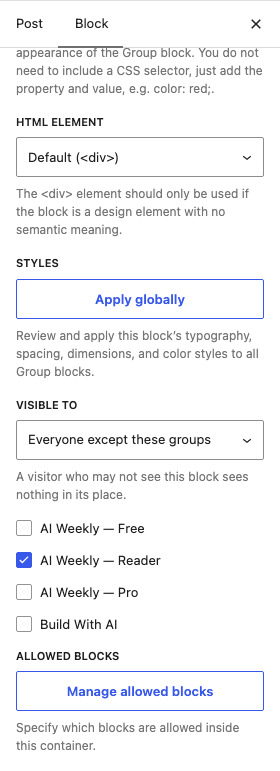
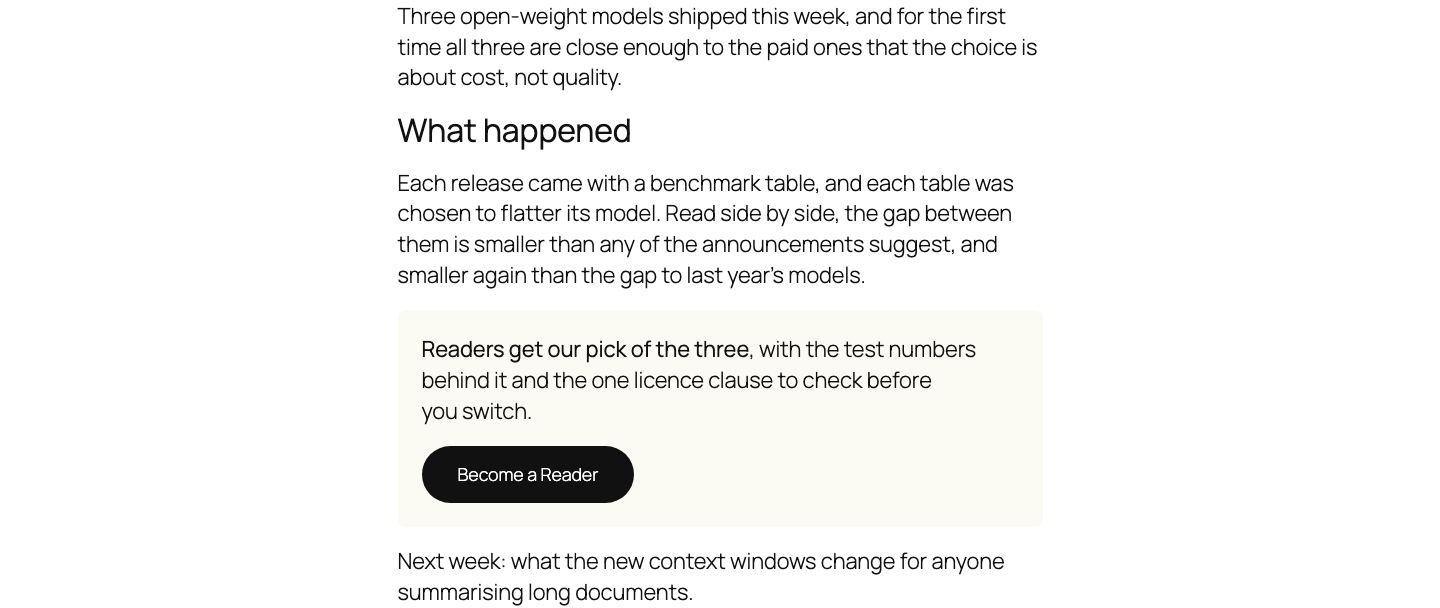
| Everyone except these groups | People in a ticked group do not see the block; everyone else does. | The Become a Reader box, hidden from paying readers. |
| The group tick boxes | Any one ticked group is enough. | Reader and Pro, for both paid tiers. |
| No group ticked | Counts as every group: any member sees (or is hidden from) the block. It never makes the block public. | A "Thanks for being a member" line. |
Add a paid section to a free post
Put the members' part in a Group
Below the free text, add a Group block holding the members' content.
Restrict it to Readers
Click the Group, set Visible to to Members of these groups and tick AI Weekly — Reader.
Add the invitation
Add a second Group below, with one line about what Readers get and a Buttons block linking to your join page.
Hide the invitation from Readers
Set the second Group's Visible to to Everyone except these groups and tick AI Weekly — Reader.
Save and check
Click Save, then open the published post as a visitor and as a member.
What visitors and members see
Good to know
- Only current access counts. A membership that has ended, is paused or is blocked counts as none.
- Administrators see the visitor's version. Log in as a member to check the members' version.