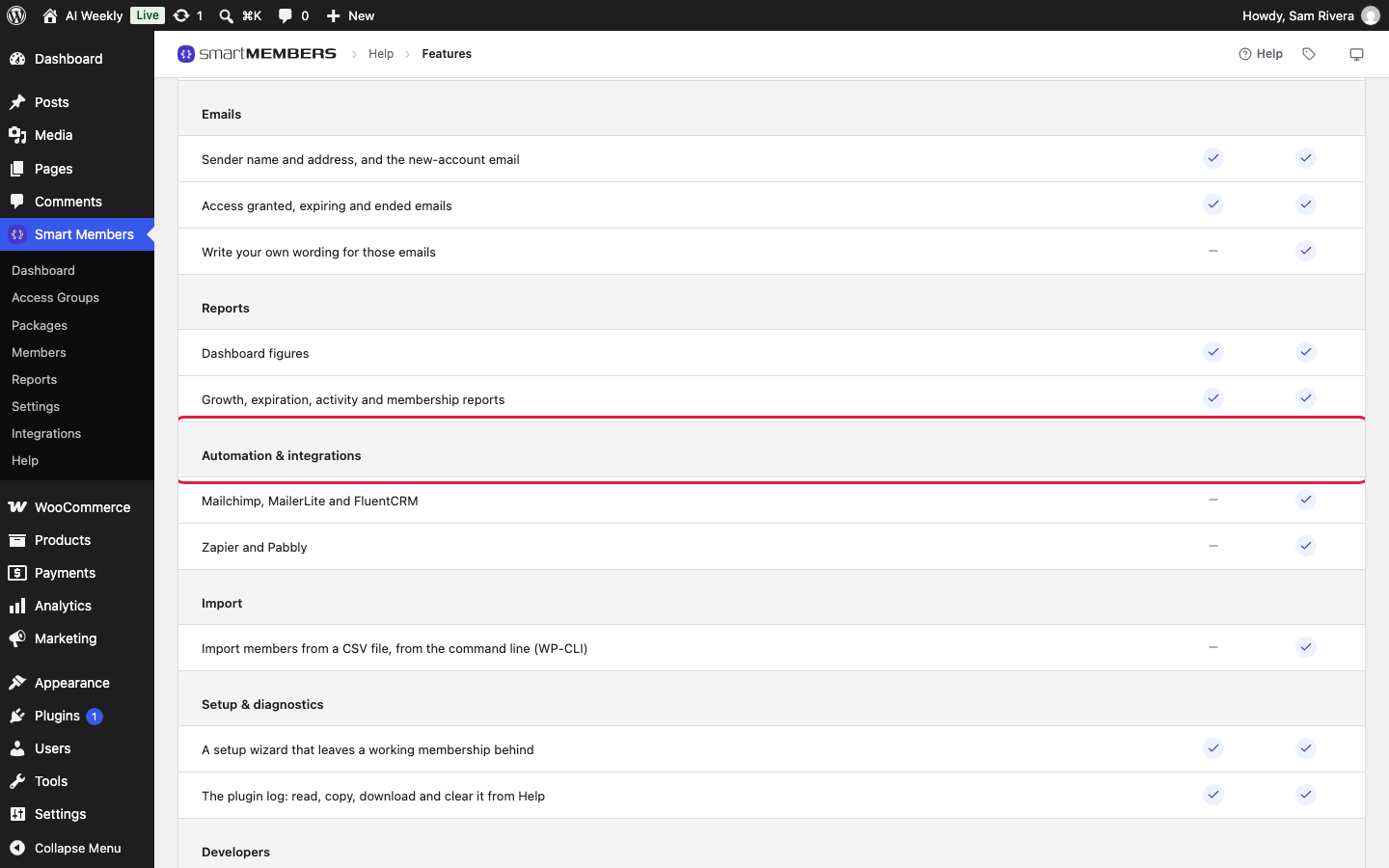
The FluentCRM integration makes every member a contact in FluentCRM, tagged with the name of each access group they hold. FluentCRM runs inside your own WordPress, so there is no key to paste.
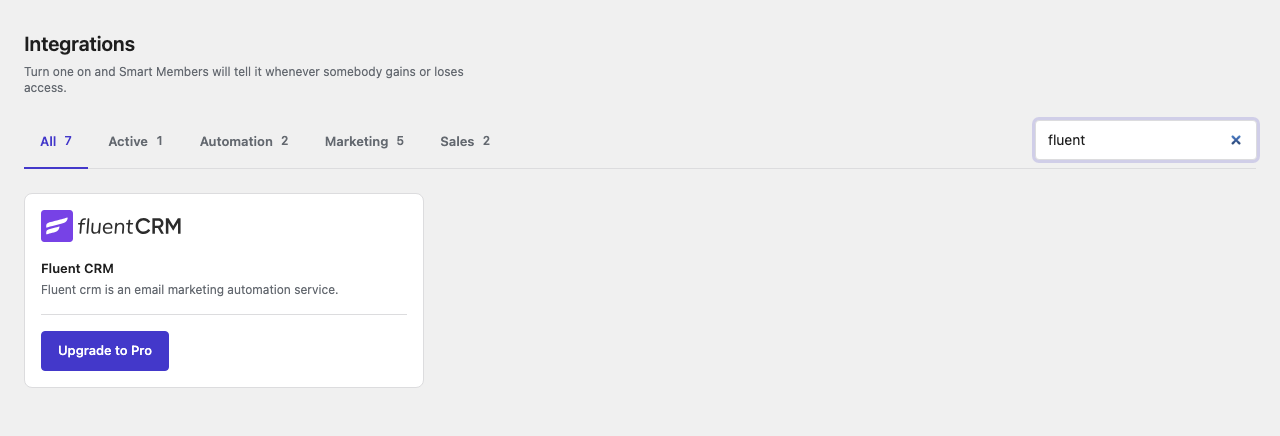
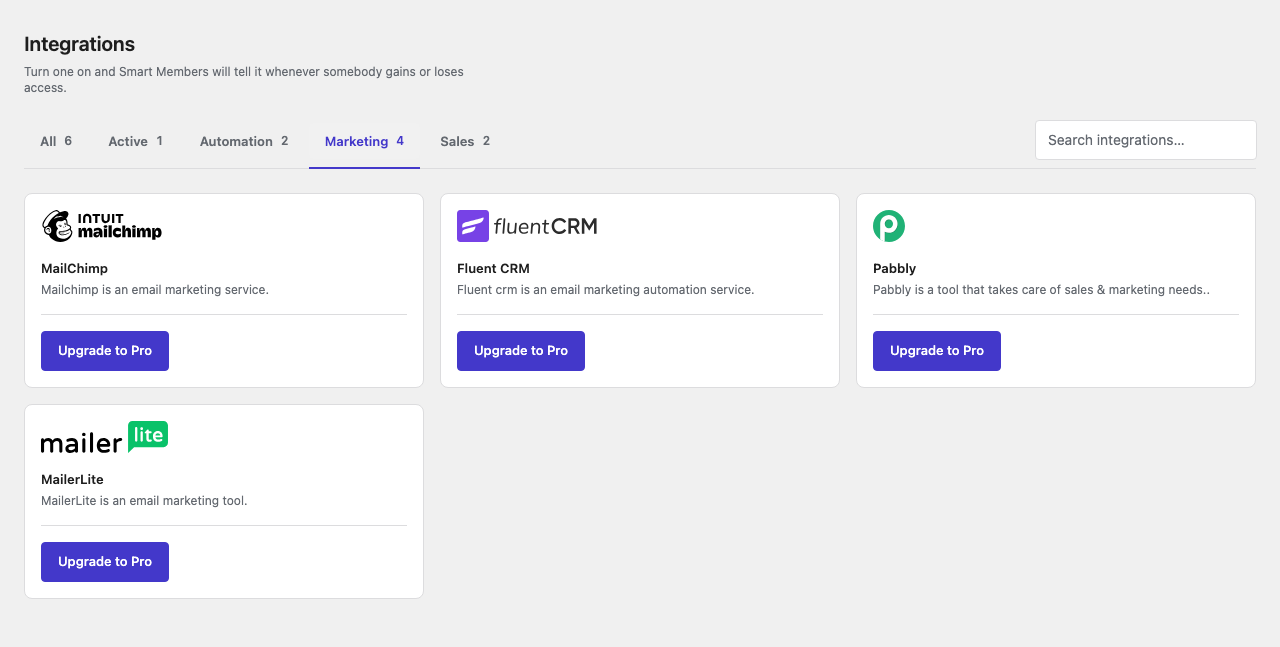
Pro: Needs Smart Members Pro. Without it, the card shows Upgrade to Pro.
Switch it on
Install FluentCRM
Go to Plugins → Add New, install FluentCRM and activate it.
Switch the Fluent CRM card on
Go to Smart Members → Integrations, find Fluent CRM on the Marketing tab and flip its switch to Activated.
Send a test
Add yourself to AI Weekly — Reader from Smart Members → Members. In FluentCRM's contacts you are listed as subscribed, tagged AI Weekly — Reader.
Note: If the FluentCRM plugin is not active, Smart Members switches the card off again and says so. Activate the plugin, then switch the card back on.
What happens in FluentCRM
| Membership change | In FluentCRM |
|---|---|
| Someone joins an access group | Creates or updates the contact as subscribed, and adds a tag with the group's exact name. |
| Someone loses access to a group | Removes that group's tag. The contact and its other tags stay. |
Ken Adeyemi holds Reader, Pro and Build With AI, so his contact carries three tags. If his Pro order is refunded, only AI Weekly — Pro comes off.
Use the tags in FluentCRM
A FluentCRM automation can start when a tag is added or removed: a welcome series when AI Weekly — Pro is added, a win-back offer when AI Weekly — Reader is removed. You can also filter contacts by tag to email one tier.
Things to know
- Tags follow group names. Rename a group and new joiners get a new tag, so update your automations.
- Contacts are never deleted, and switching the card off leaves contacts and tags as they are.
- Existing members are not tagged. Only changes after you switch the card on reach FluentCRM.
- Custom tag names need a developer; see the developer docs.