The plugin log is where Smart Members notes anything that did not go the simple way, such as a purchase that could not give access. It is always on, and support will usually ask for its last few lines.
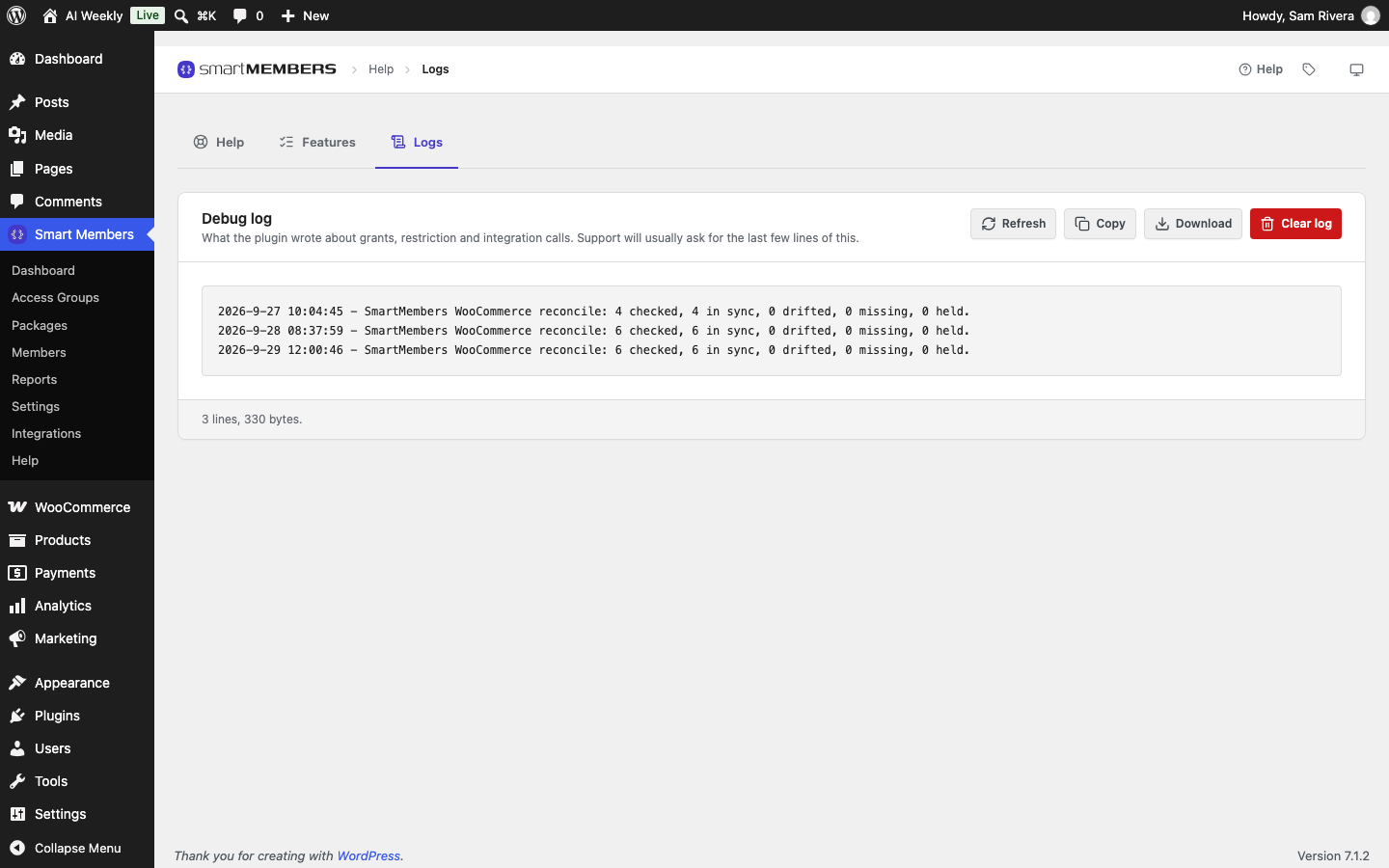
Open it at Smart Members → Help → Logs, on the Debug log card.
The Debug log card
| Option | What it does |
|---|---|
| Refresh | Reads the log again. The card does not update on its own. |
| Copy | Copies the lines shown to your clipboard. |
| Download | Saves the lines shown as a text file, such as smartmembers-debug-2026-09-29.log. |
| Clear log | Deletes the log after you confirm. |
The card shows the last 500 lines, newest at the bottom. The log is empty is normal on a new site.
Send the log to support
Make the problem happen again
For example, place a test order for the product that did not give access.
Refresh the log
Click Refresh.
Copy it
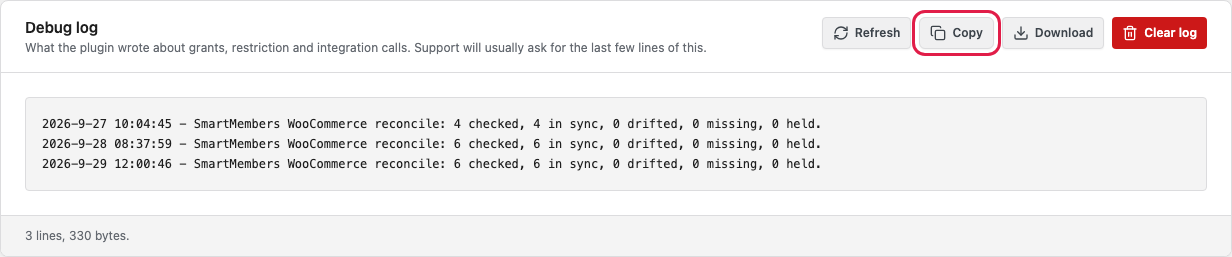
Click Copy, or Download to attach a file.
Paste it into your message
Add what you did and what you expected.
Note: Lines can include email addresses and order numbers. Send the log to support privately, never to a public forum.
Clear the log
The log grows until you clear it. On a busy shop, clear it every few months.
Warning: Clearing deletes the log for good. If support might still need it, click Download first.

Reading the lines
Each line starts with a date and time in UTC. Numbers after a # are an order, an account (a member's User ID) or an access group.
| A line that says… | Means |
|---|---|
WooCommerce reconcile: 6 checked, 6 in sync, 0 drifted, 0 missing, 0 held. | The daily check of memberships against their orders. |
order #… is a guest checkout; access group(s) … parked against … until an account exists. | Someone bought without an account; access waits for an account with that email. |
grant of access group #… to user #… skipped (…) | A purchase could not give access. The brackets say why. |
… refused (group_inactive: …) | The group is switched off. Turn it on and give access again. |
registration grant of group #… to user #… refused (…) | A new account could not join a free group. |
sample data could not be created: … | Building the sample site stopped part way. |
Normal purchases, emails and page views write nothing, so an empty log does not mean all is well.
Where the file is kept
In wp-content/uploads/smartmembers/, under a hard-to-guess name, with a rule that stops browsers opening it on Apache servers. If your host uses Nginx, ask them to block that folder. If the card says The uploads folder is not writable, so nothing can be logged., ask your host to fix the folder's permissions.