A member's page has three tools for stepping in by hand: give someone a group, pause all their access, or take it all away.
Blocking can be undone in one click; revoking cannot.
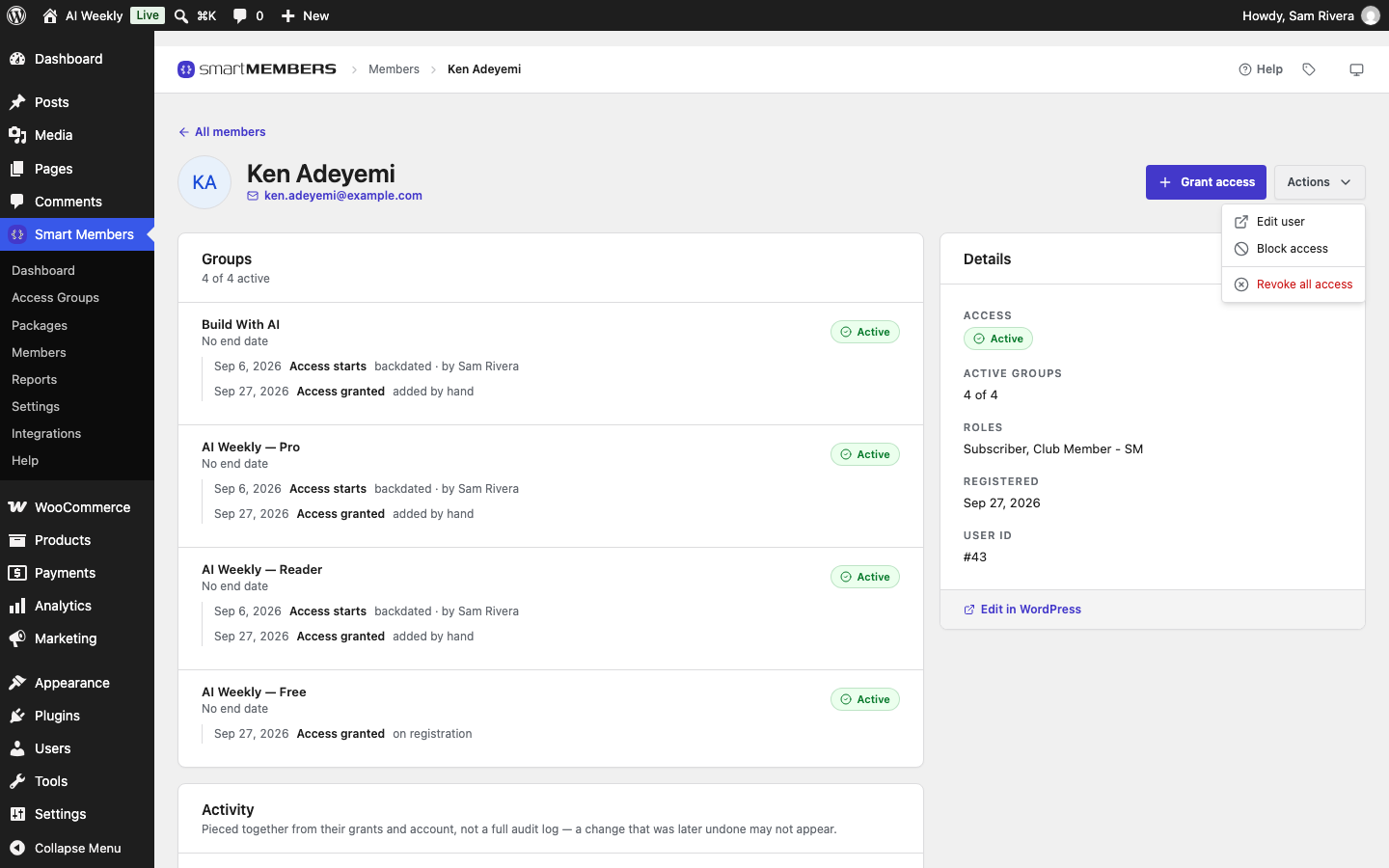
Open the person from Smart Members → Members. Block and revoke are in the Actions menu.
Grant access by hand
Open the form
On the member's page, click Grant access.
Choose the group
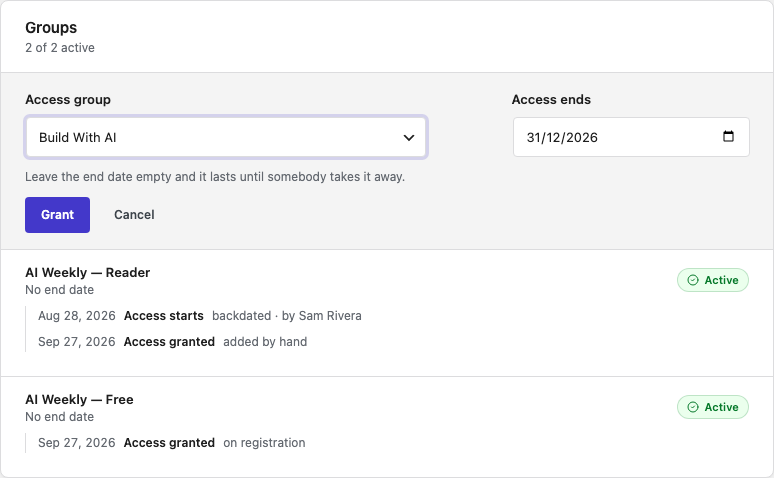
Pick it in Access group, for example Build With AI. Only active groups are listed.
Set an end date, if any
Pick the last day in Access ends. Left empty, access lasts until taken away, or for the group's Membership length if it has one.
Click Grant
The group appears as Active, "added by hand" with your name.
The member can open the group's content straight away and gets the access granted email. If the group is full, an error says so and nothing is saved.
Block and restore access
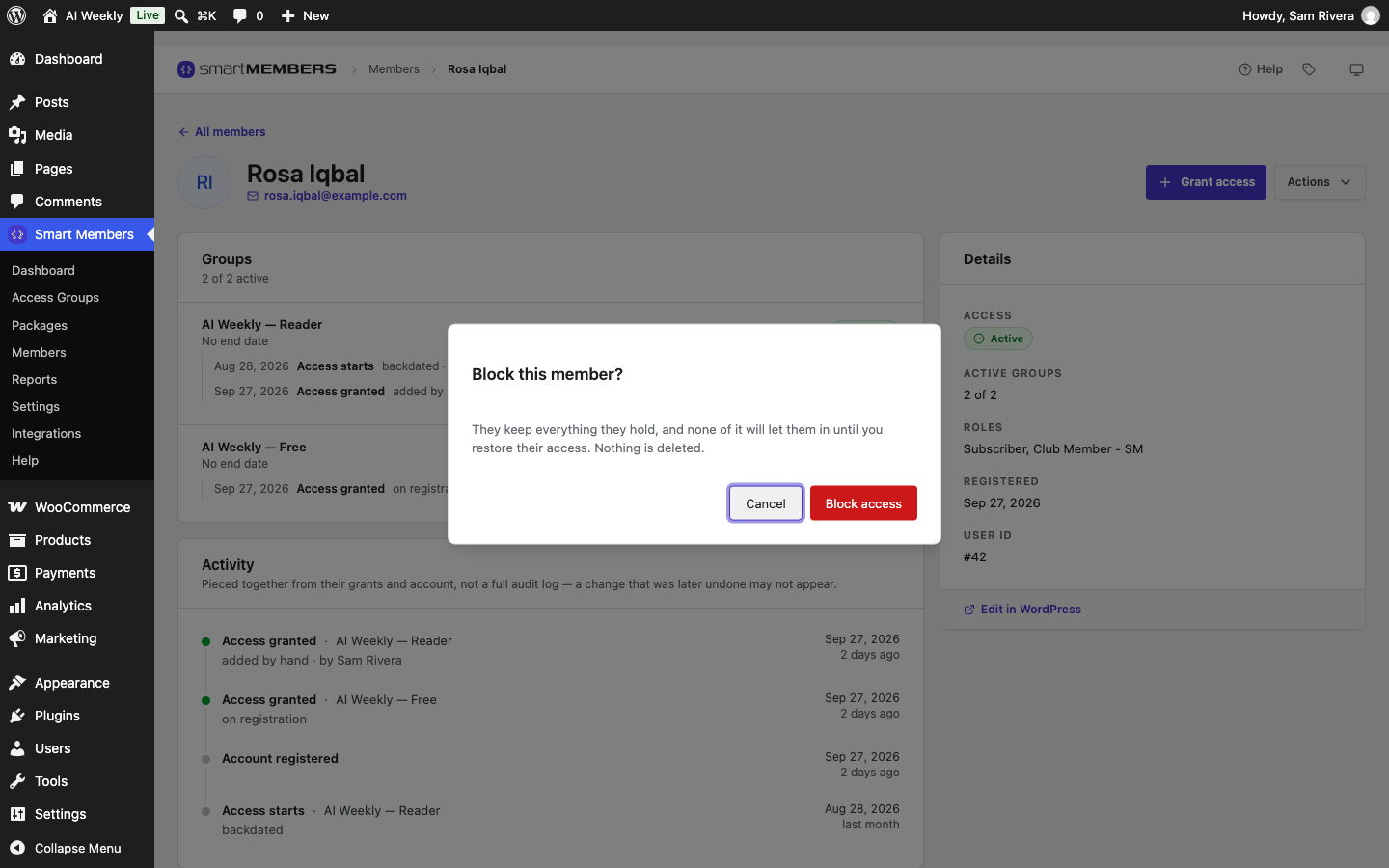
A block switches off every group a person holds at once. Their dates, purchases and history stay as they are.
- On the member's page, click Actions → Block access.
- In Block this member?, click Block access.
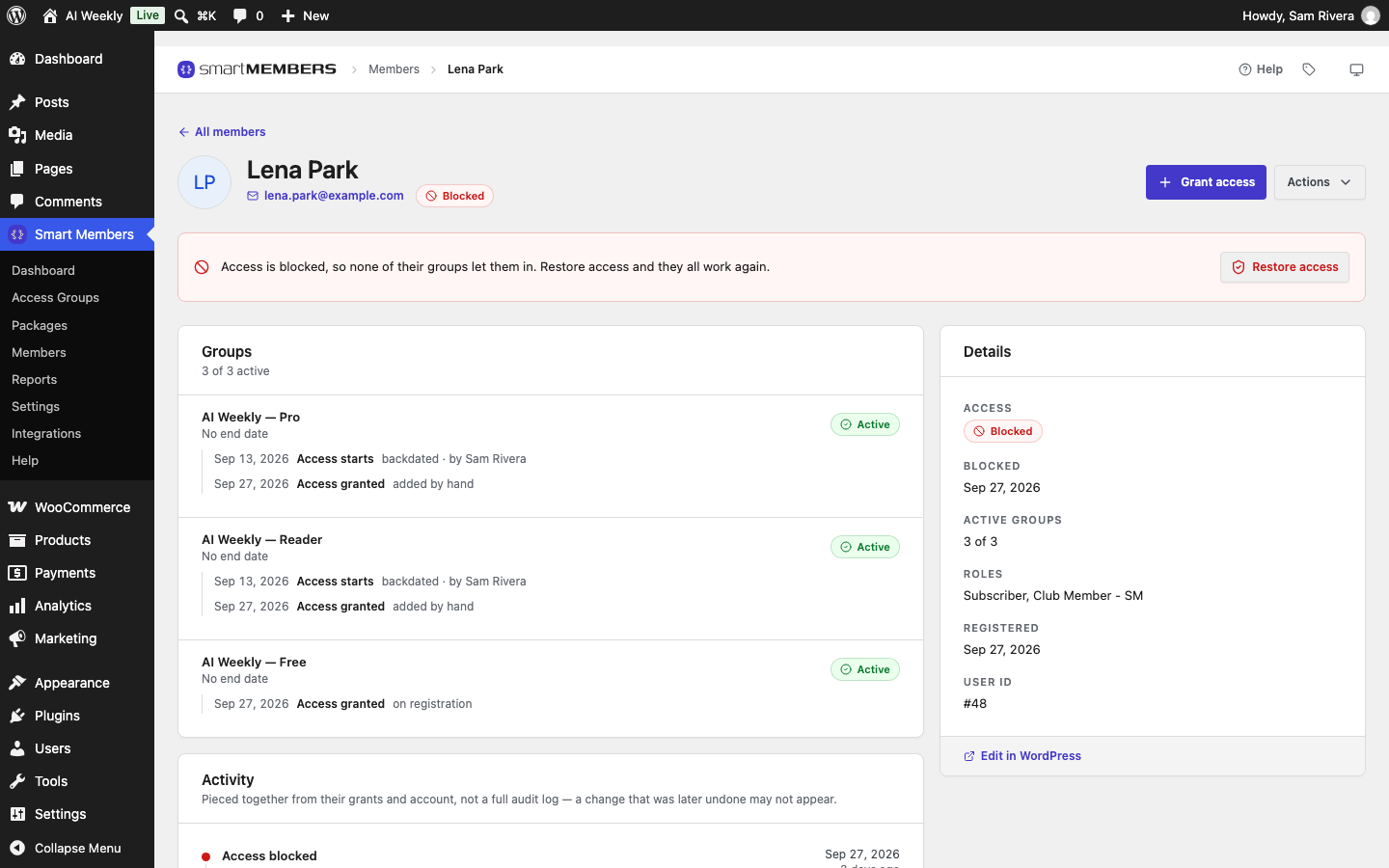
To lift the block, click Restore access. Every group works again with its original dates.
Revoke all access
Warning: Revoking cannot be undone. Every group ends, including paid ones. If you might change your mind, block instead.
- On the member's page, click Actions → Revoke all access.
- Revoke all access? says how many groups will end. Click Revoke everything.
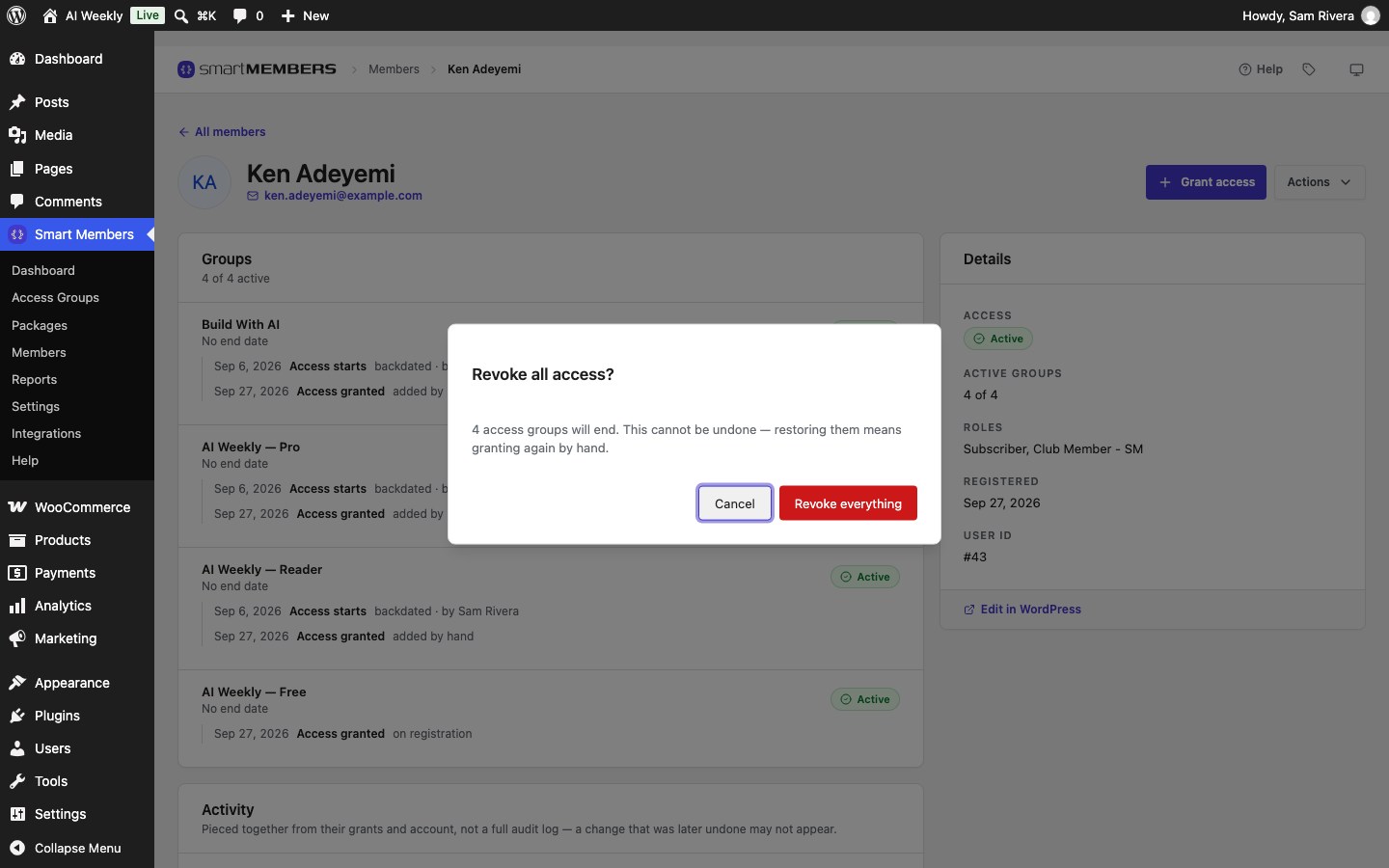
Each group turns Cancelled and the member gets the access ended email. The account itself stays.
Remove one group, or many members at once
Pro: Both tools below need Smart Members Pro.
- One group from one member. Open Actions → Edit user, untick the group under Smart Members access and save.
- Many members. On Users → All Users, use the bulk actions Add to access group: and Remove from access group:.
What your members see
A blocked member is told their account is on hold and is never offered anything to buy.
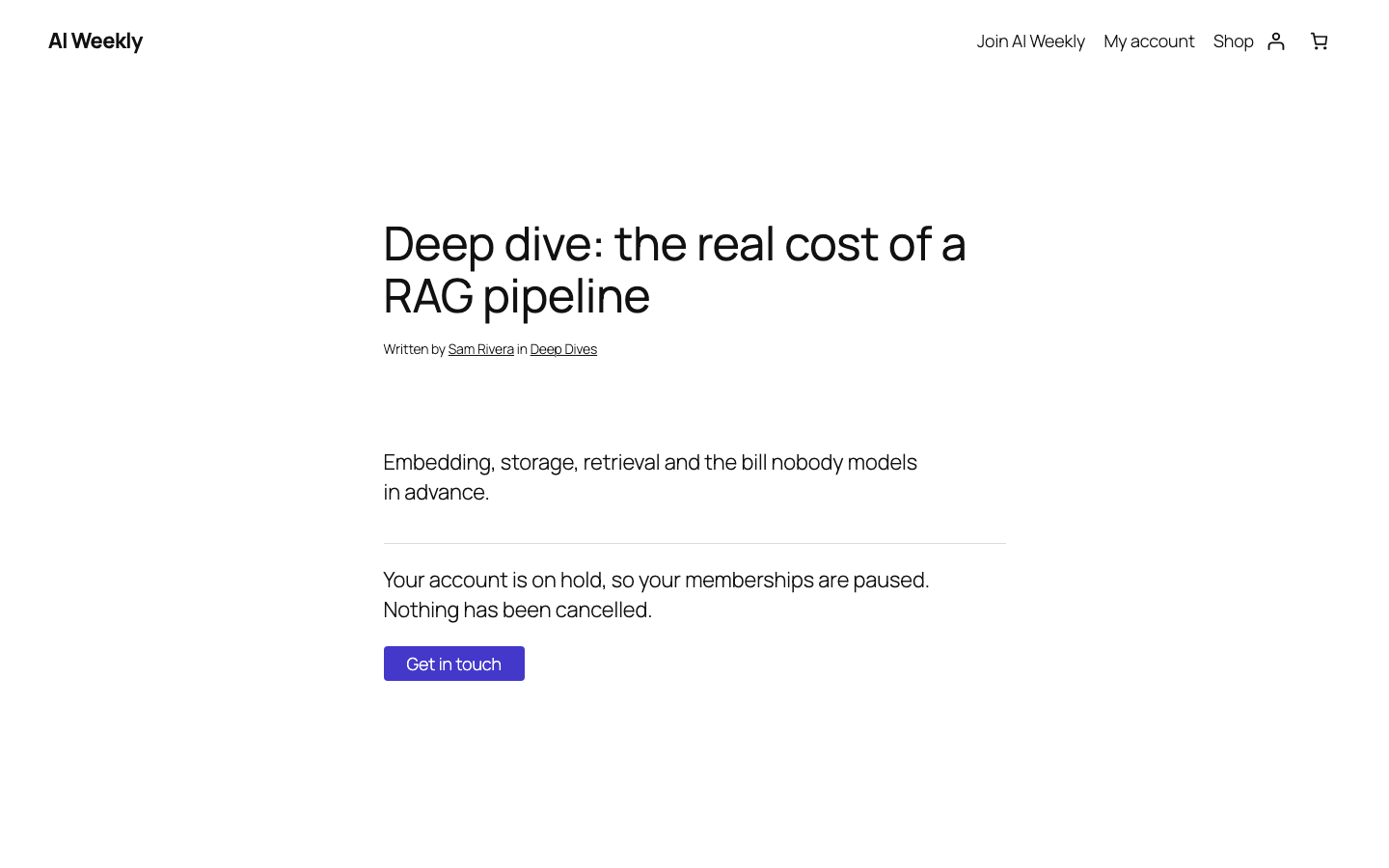
The Get in touch button appears when you fill in Where a blocked member gets in touch under Smart Members → Settings → General.
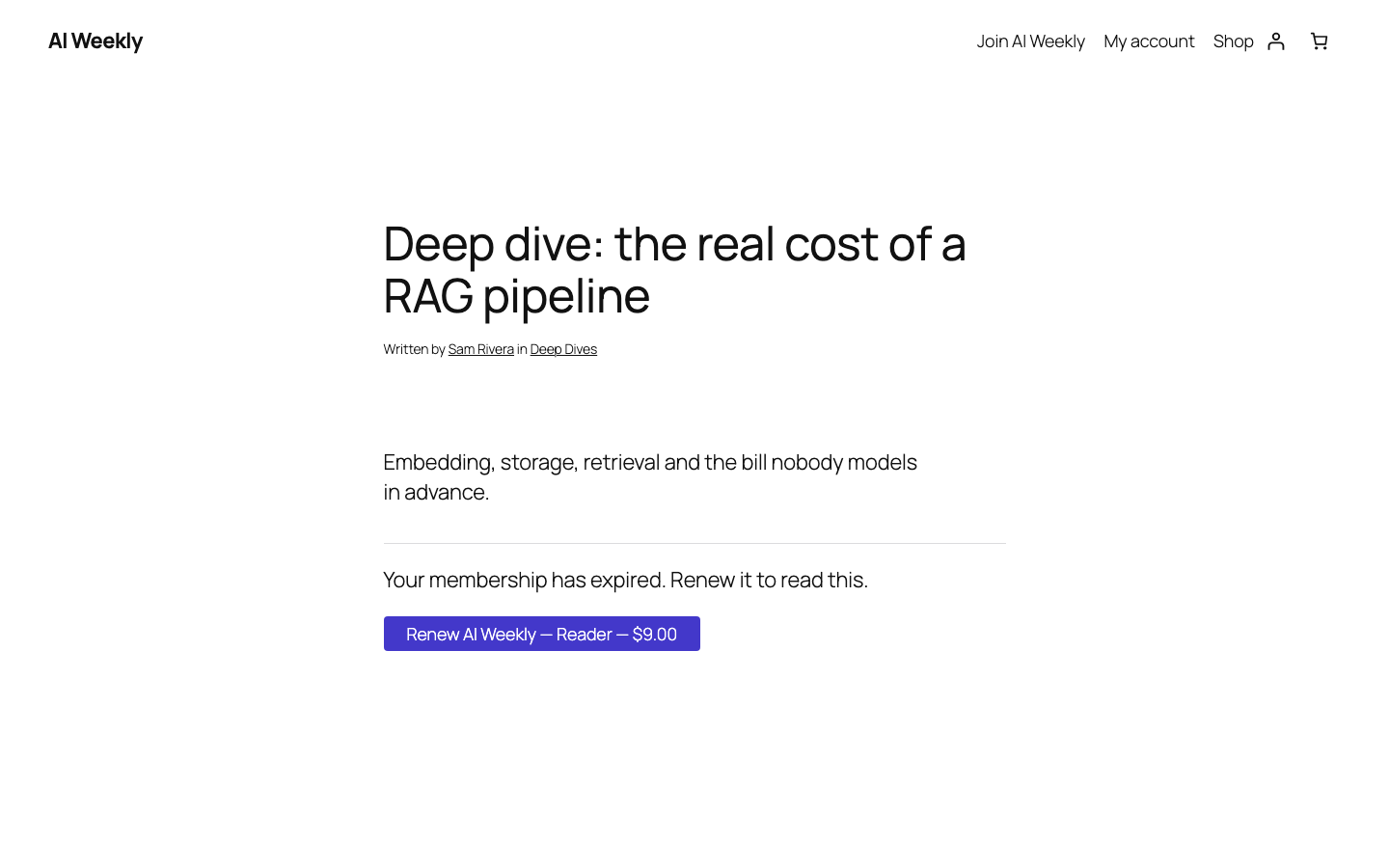
A member whose access expired is invited to renew, with a buy button when the group is sold. One whose access was refunded or removed sees the group's usual message and buy button.
Tip: For a refund, refund the order in WooCommerce rather than revoking. Smart Members ends only the access that order gave. See Subscriptions, refunds and cancellations.