The Login customizer styles SM Login, the sign-in page Smart Members gives your members: its frame, logo, colours, wording and links.
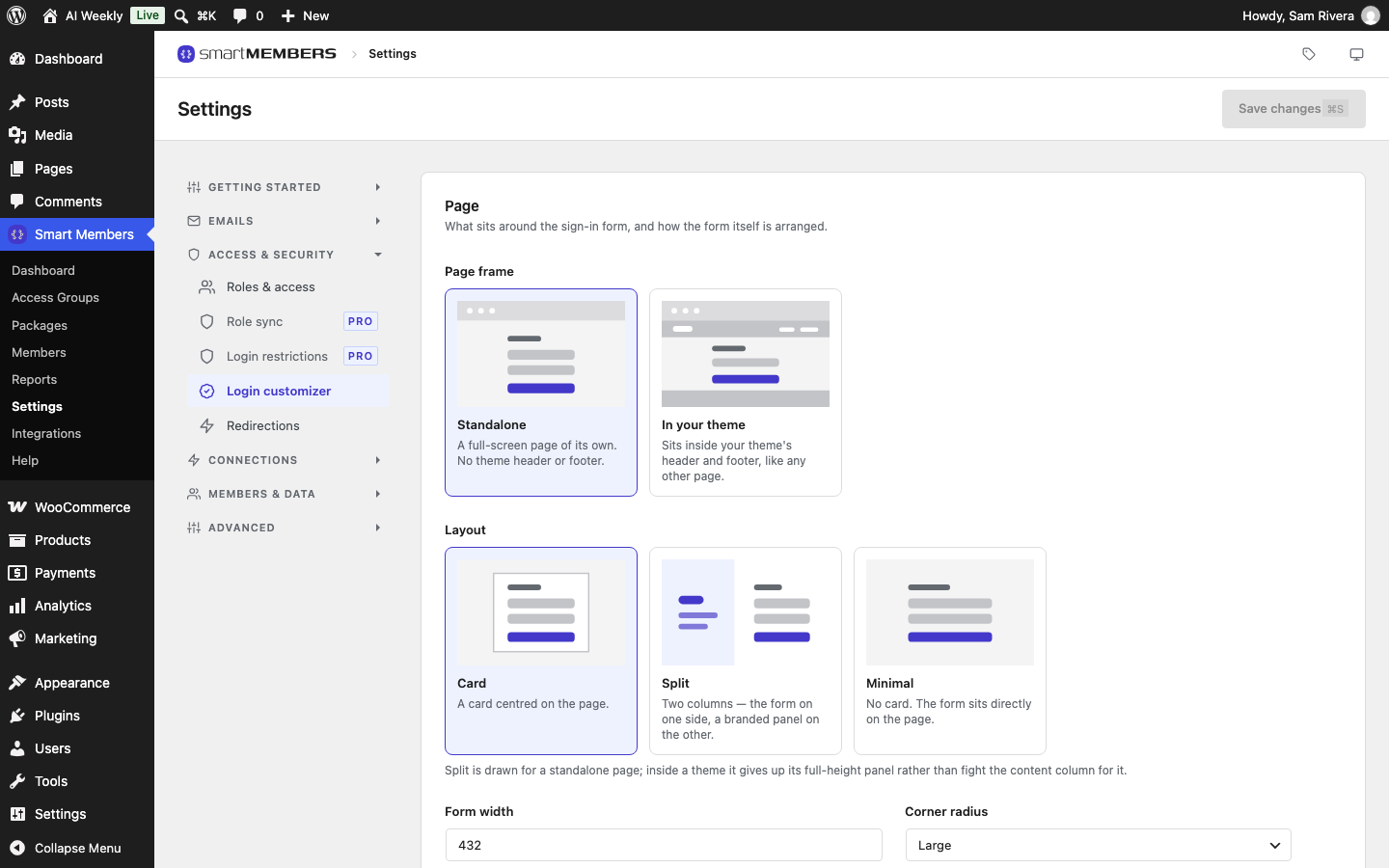
Find it at Smart Members → Settings → Access & security → Login customizer. Its last two sections have their own article: Custom login URL and Turnstile.
Page: the frame and the layout
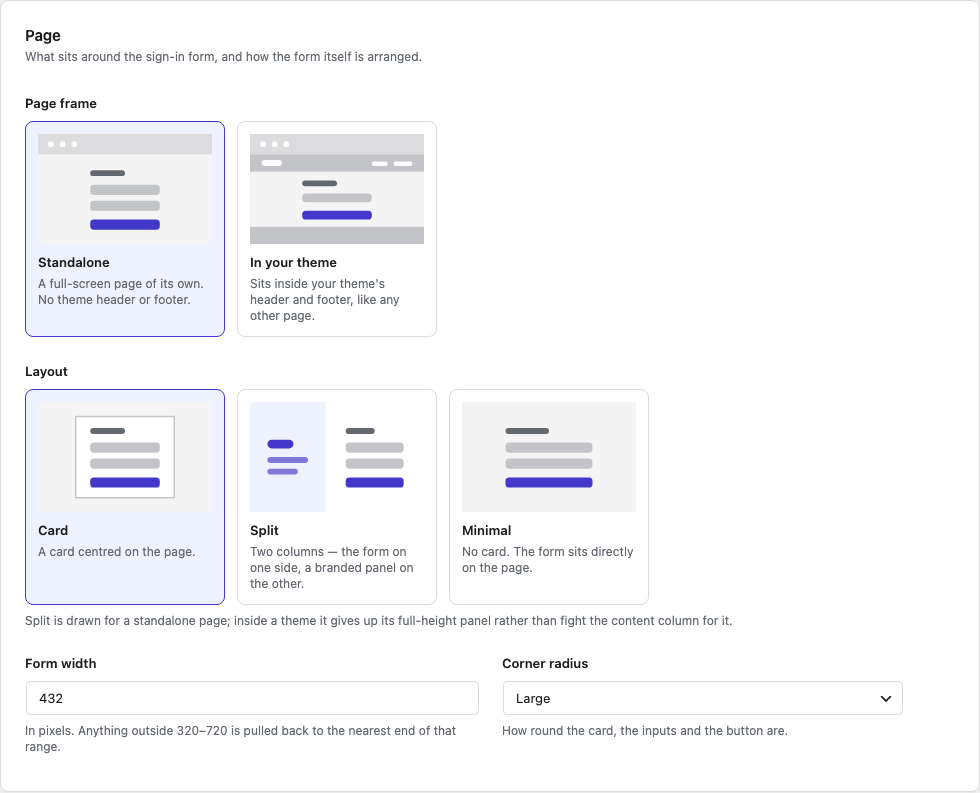
| Option | What it does |
|---|---|
| Page frame | Standalone shows the page on its own. In your theme keeps your theme's header, footer and menu around the form. |
| Layout | Card puts the form in a centred box. Split adds a branded panel beside the form. Minimal drops the box. |
| Panel side | Only for Split: panel on the right or the left. |
| Form width | 320 to 720 pixels. The default is 432. |
| Corner radius | How round the card, boxes and button are. |
Branding: your logo and image
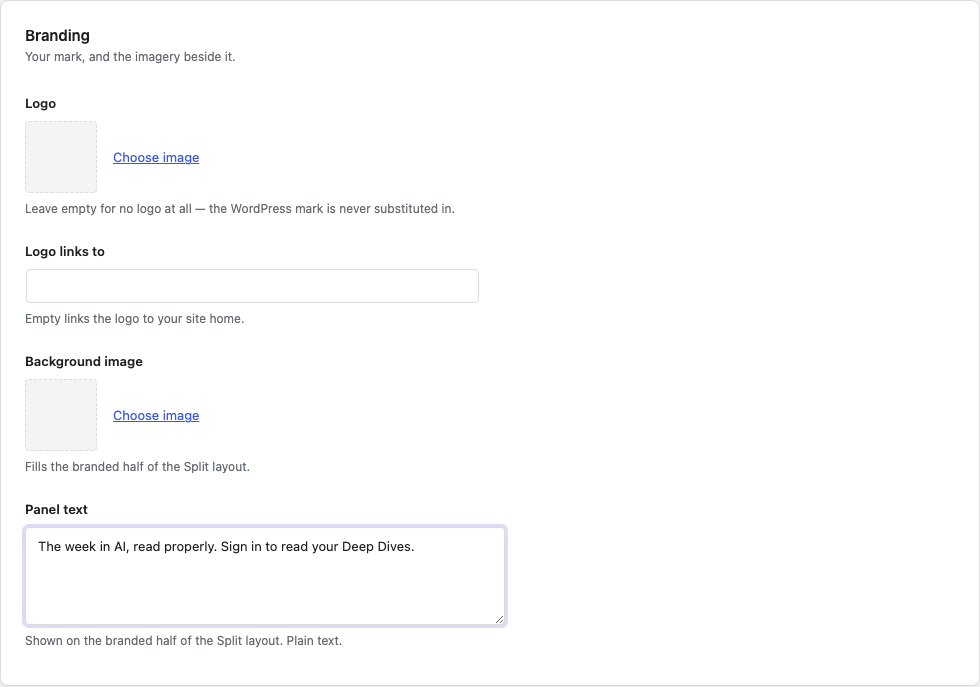
| Option | What it does |
|---|---|
| Logo | An image from your Media Library, such as the AI Weekly wordmark. Empty means no logo. |
| Logo width | 40 to 400 pixels; the default is 140. |
| Logo links to | Where clicking the logo goes. Empty links to your home page. |
| Background image | Only for Split. Fills the branded panel. |
| Panel text | Only for Split. A short line on the panel. |
Colours
Each colour takes a picker or a code such as #1d4ed8. Empty keeps the default look, or your theme's colours inside your theme.
| Option | What it colours |
|---|---|
| Page background | Behind everything. |
| Card background | The card that holds the form. |
| Brand | The button, links and the outline of the box being typed in. |
| Text | The heading and words. |
| Panel background | The Split panel, when it has no image. |
Content: the words on the page
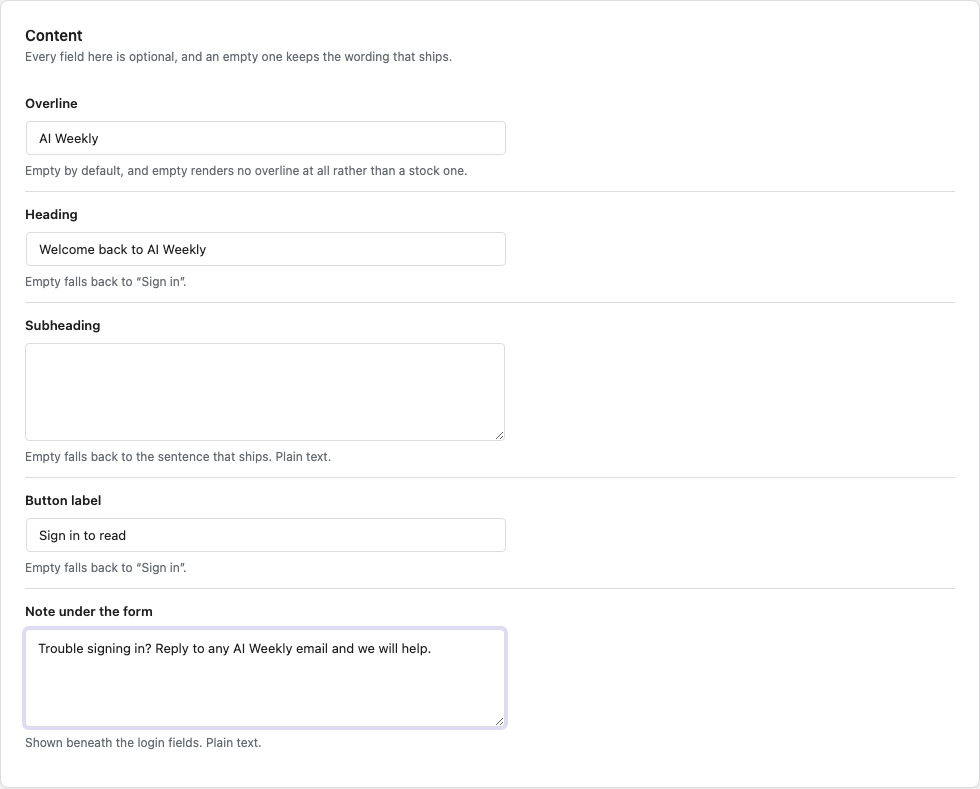
| Option | Empty shows |
|---|---|
| Overline, a small line above the heading | Nothing |
| Heading | "Sign in" |
| Subheading | A line asking for the email or username of the membership |
| Button label | "Sign in" |
| Note under the form | Nothing |
The text fields take plain text only, so they cannot hold a link.
Form: which links members see
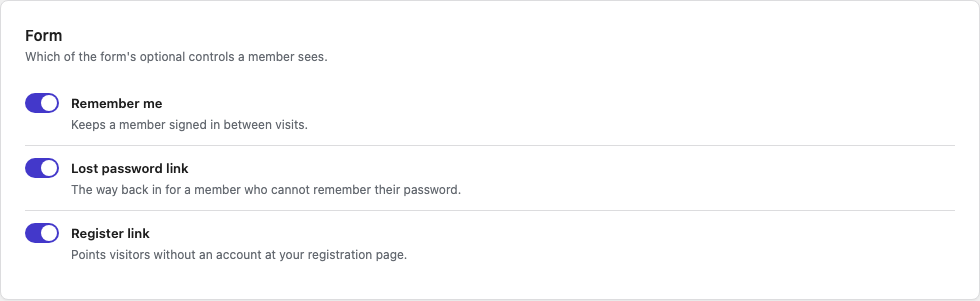
| Option | What it shows |
|---|---|
| Remember me | A Keep me signed in tick box. |
| Lost password link | A Forgot password? link that starts a password reset. |
| Register link | "No account yet? Create one", which opens your SM Register page. |
Click Save changes at the top right. There is no live preview: open SM Login in a private window to see the result.
What your members see
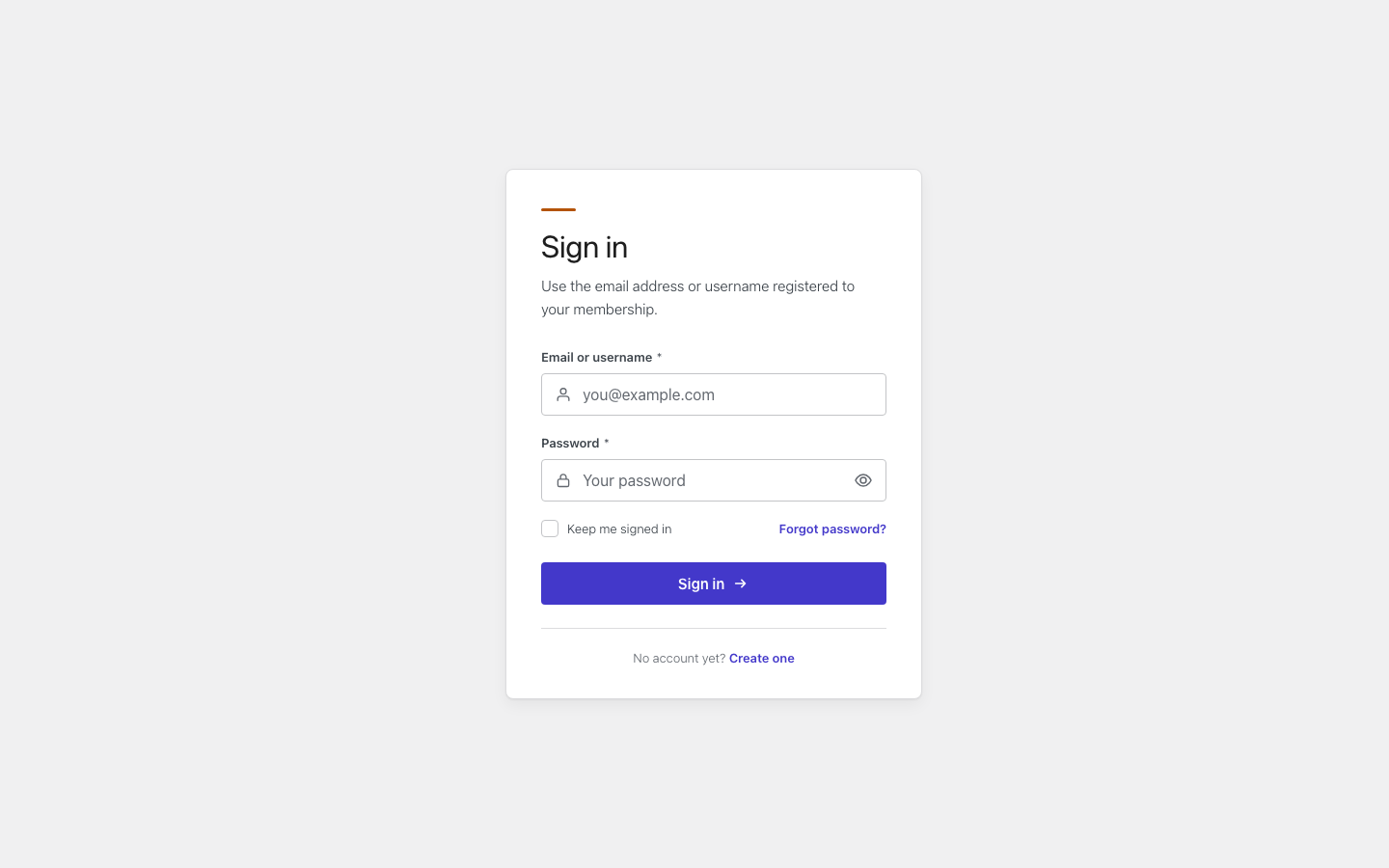
Only SM Login changes. The WordPress login screen at /wp-login.php keeps its own look.
Related articles
- Login & member area overview — how the sign-in page fits with the rest of the member area.
- Custom login URL and Turnstile — the last two sections of this tab.
- Redirections — where members go after they sign in and out.
- Member area pages, shortcodes and directory — the SM Login, SM Register, dashboard and profile pages.